The Payouts section in TAAX Pro allows users to view and manage commission payments for all processed deals. Once commissions are calculated, they appear in the Payouts section where users can review pending payments, track all payout records, manage payout batches, and handle any failed transactions.
The following steps explain how to access and use the Payouts section in TAAX Pro.
Navigation
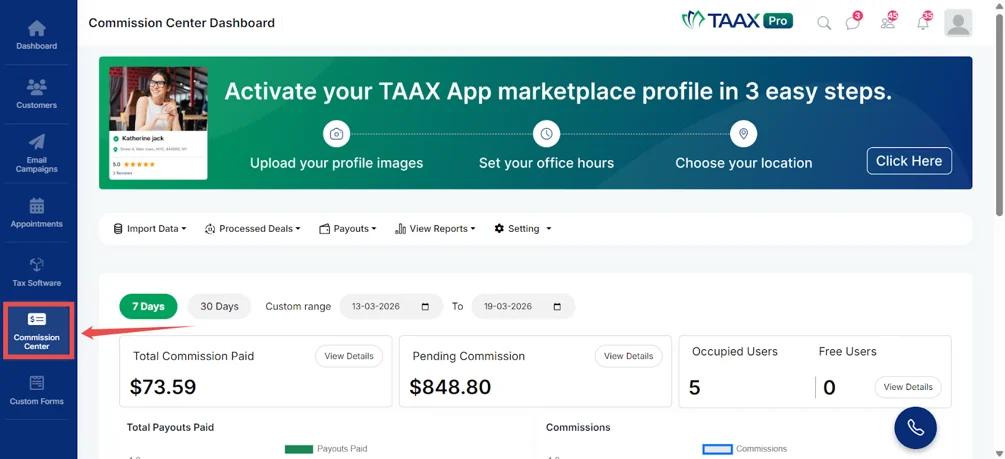
Step 1: From the Dashboard, navigate to the left-side navigation panel and click on Commission Center.
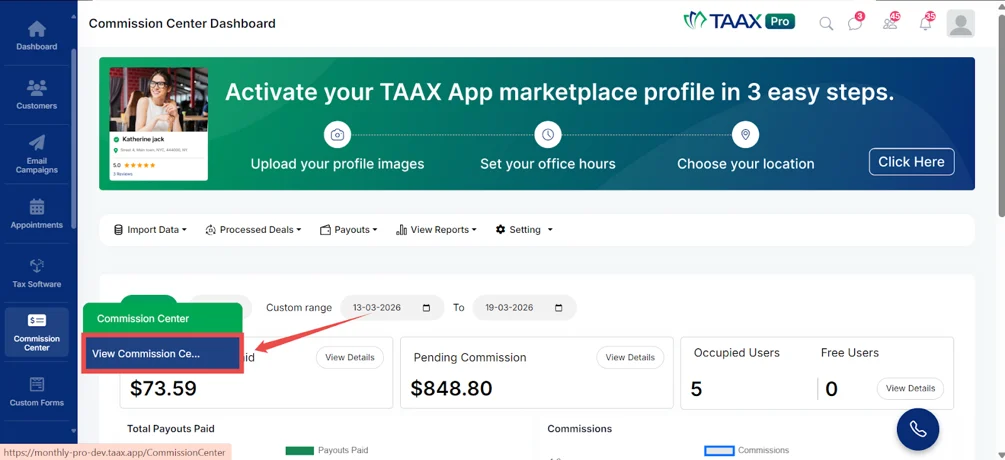
Step 2: Click on View Commission Center. The Commission Center Dashboard will open.
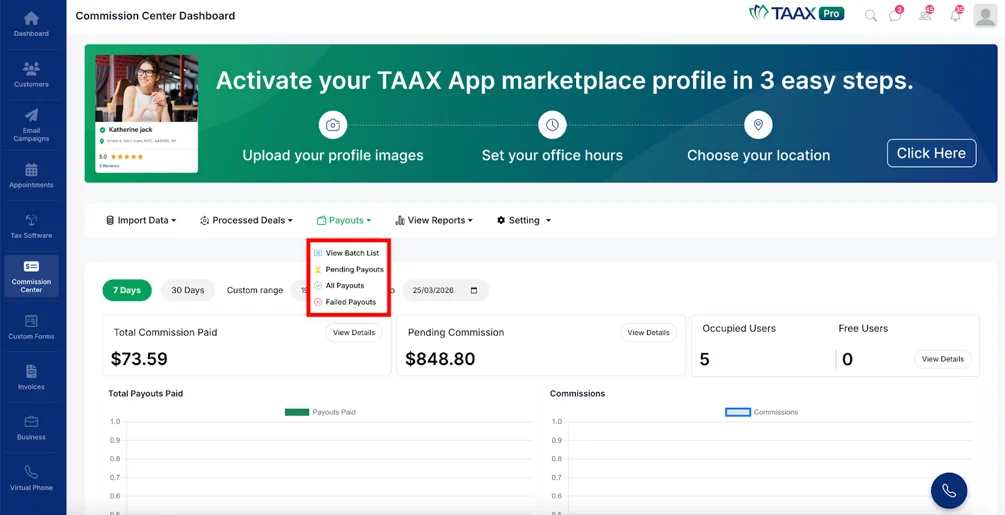
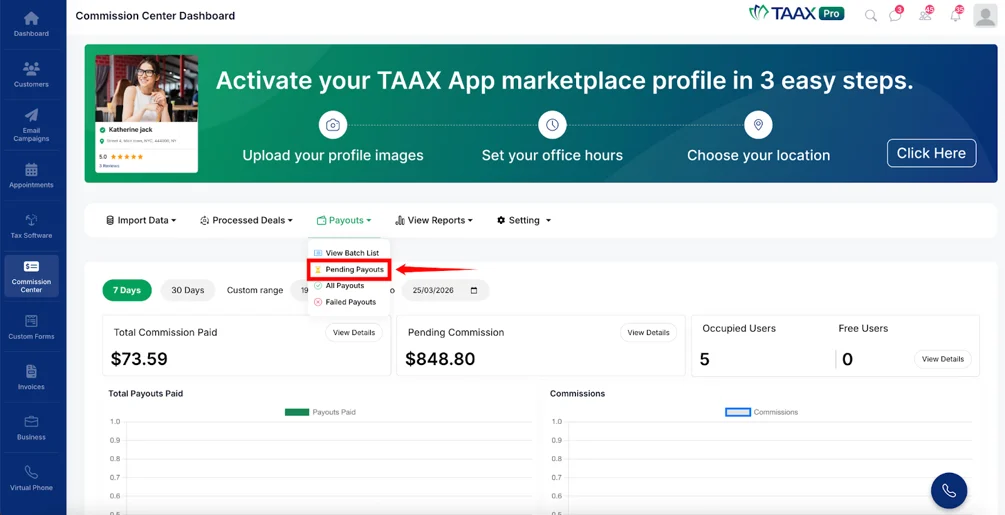
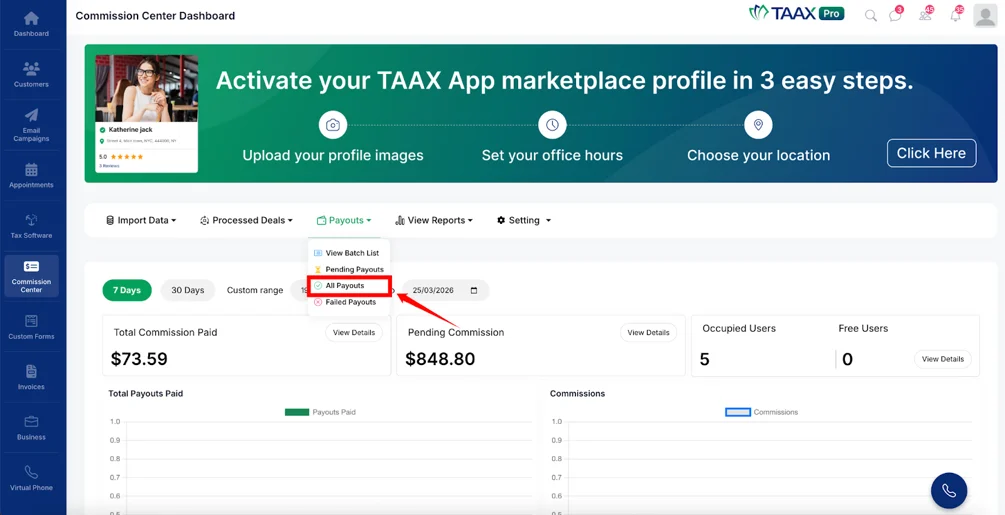
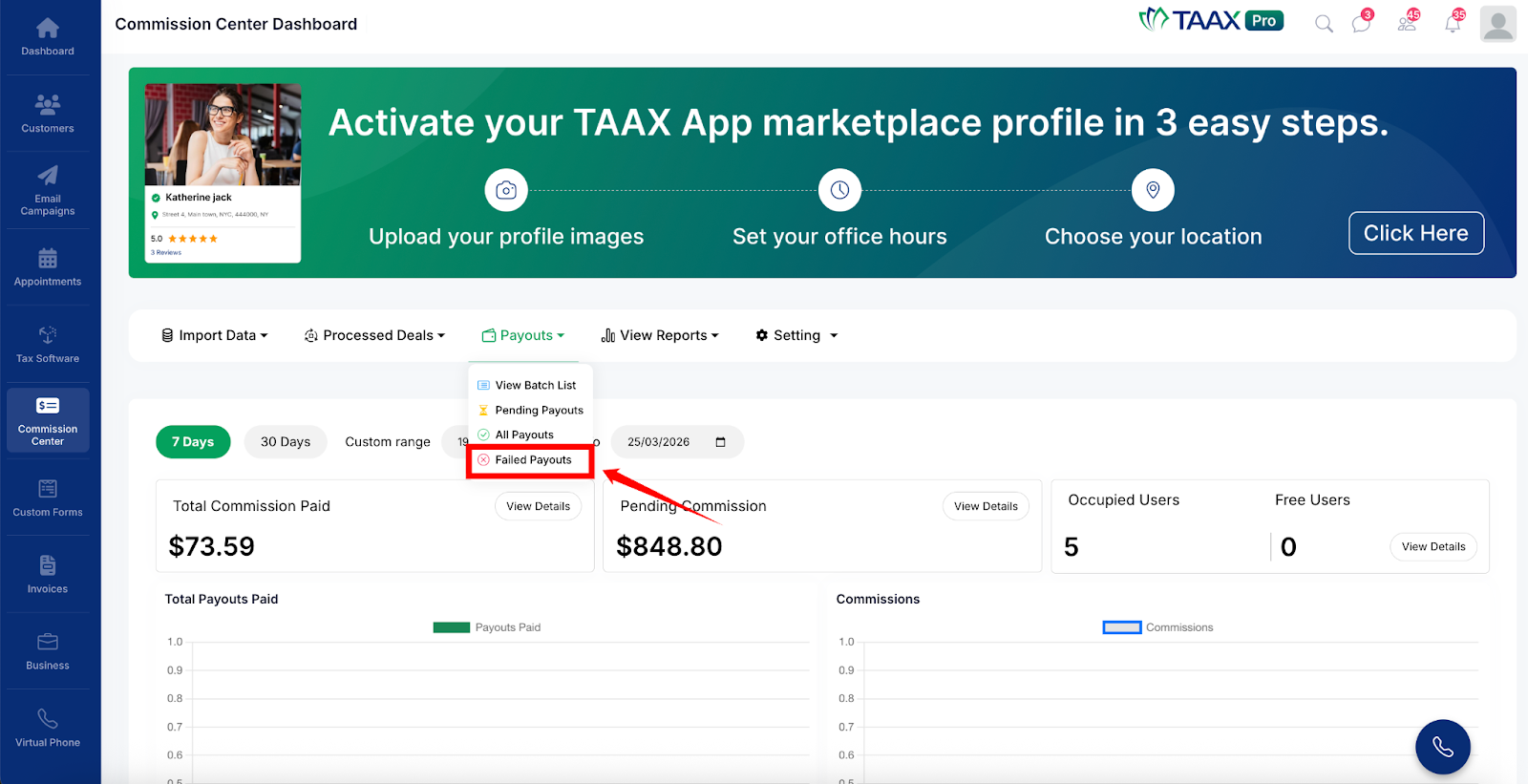
Step 3: On the Commission Center Dashboard, navigate to the top menu and click on Payouts.
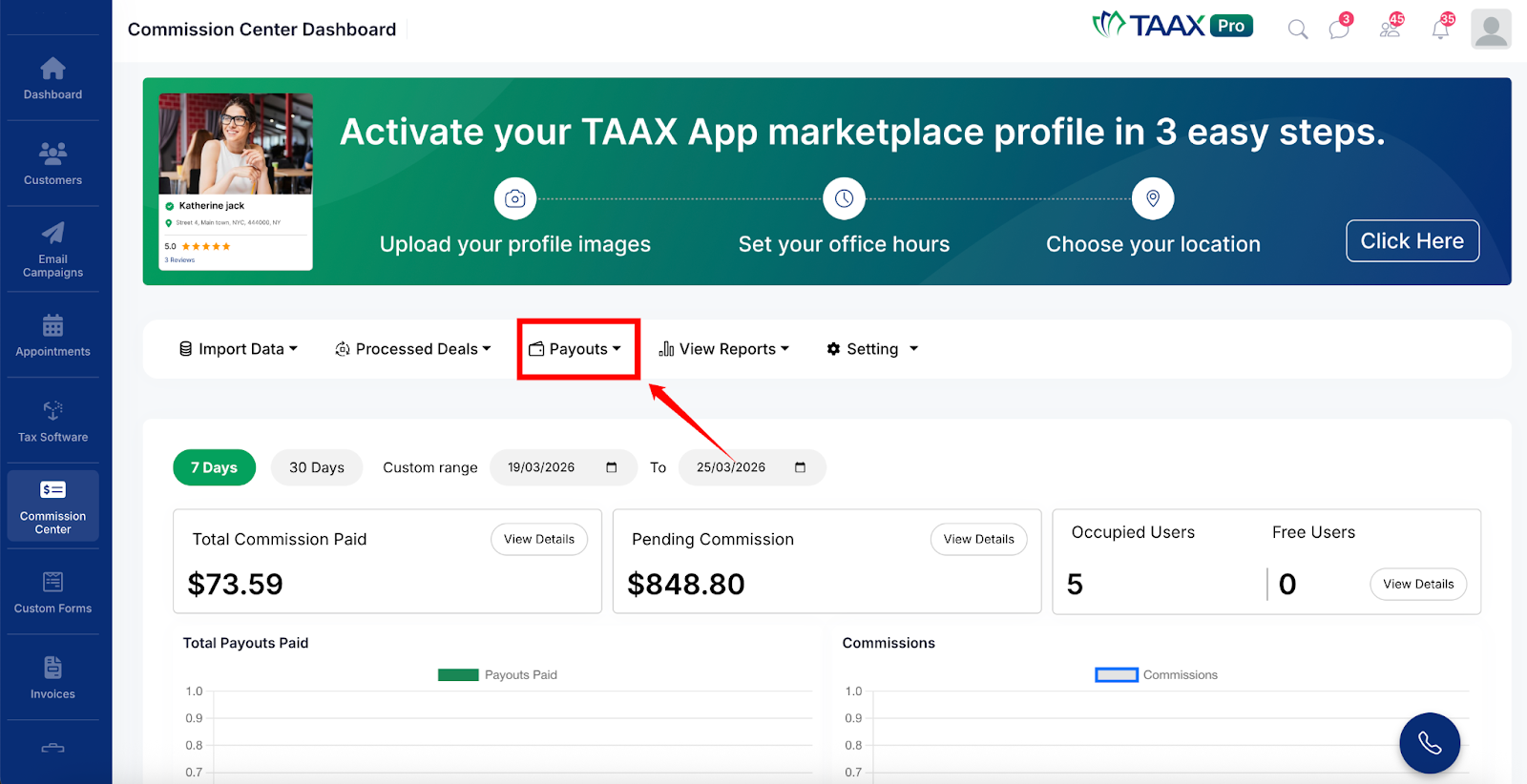
After clicking Payouts, the system will display the following options:
- View Batch List – View all grouped payout batches.
- Pending Payouts – View and process payouts that are ready to be sent.
- All Payouts – View all payout records including completed and pending transactions.
- Failed Payouts – View payouts that could not be processed.
View Batch List
The Batch List displays all payout batches that have been processed together. This helps users track grouped payouts and maintain organized financial records.
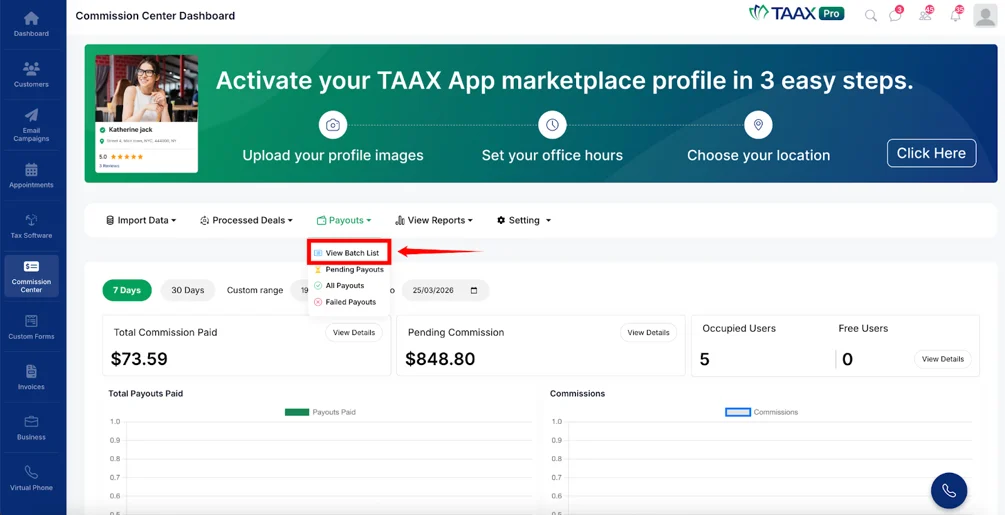
Step 1: Navigate to Payouts and click View Batch List to open the Batch List page.
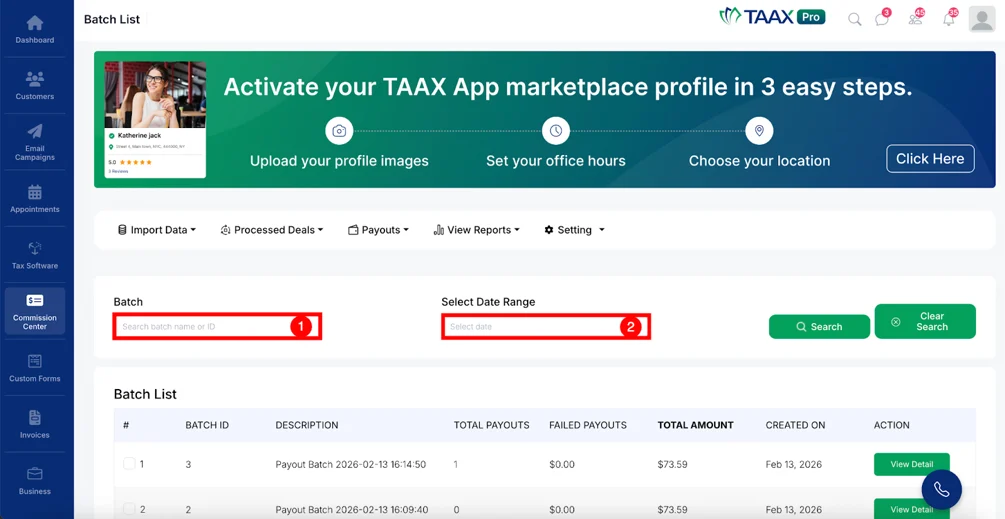
Step 2: Use the available filters to search for specific batches:
- Batch – Enter the batch name or ID to search for a specific payout batch.
- Select Date Range – Choose a date range to filter batches by creation date.
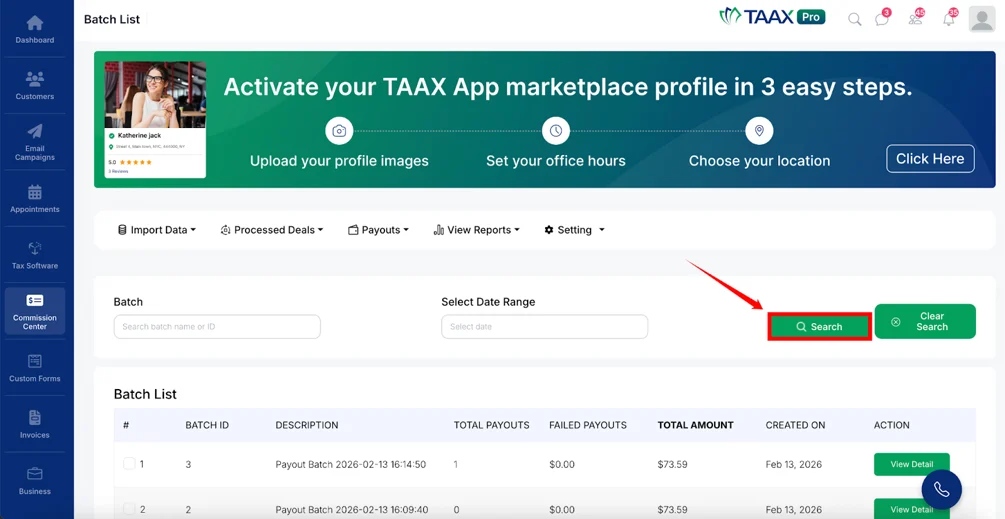
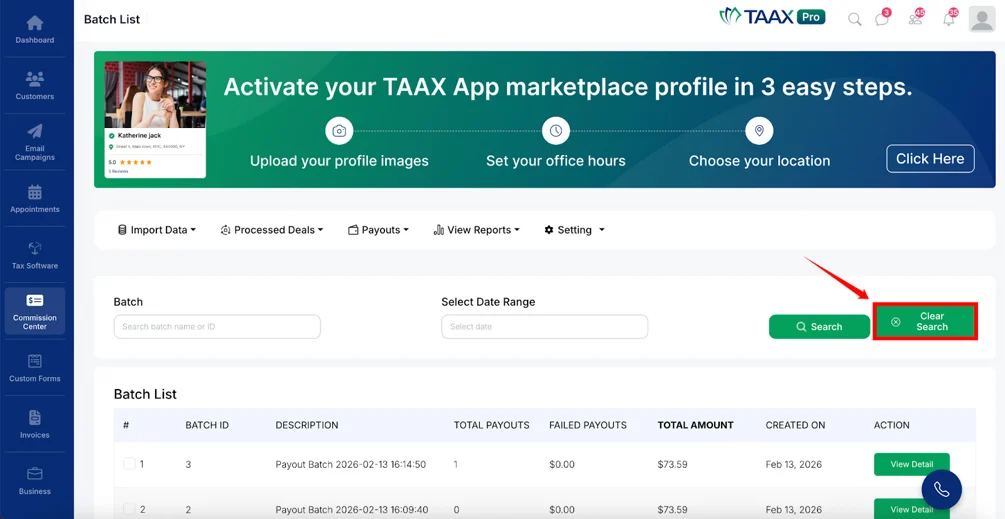
Step 3: Click the Search button to apply the selected filters.
Step 4: Click Clear Search to remove all filters and display all payout batches.
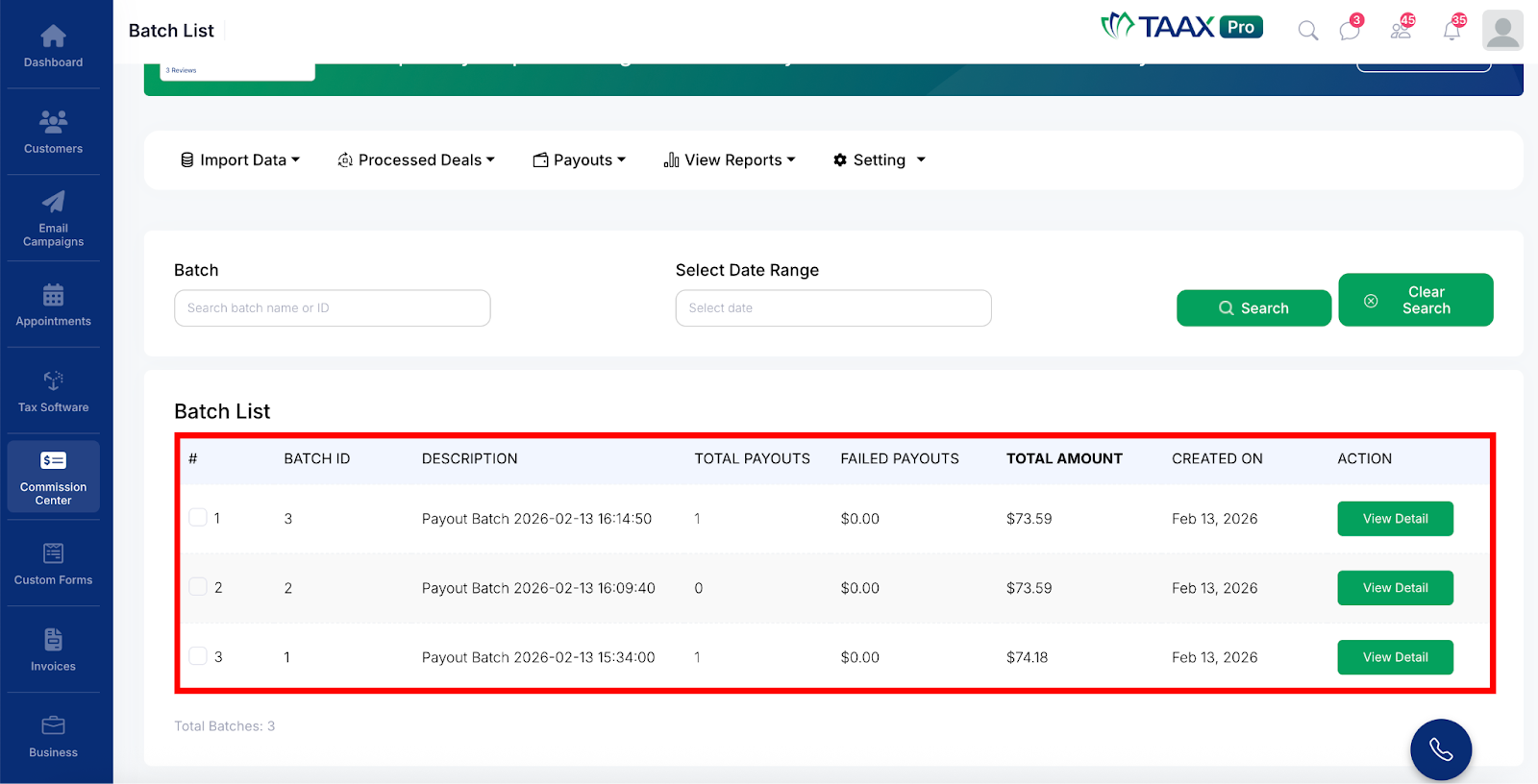
Step 5: Review the payout batches displayed in the Batch List table, which includes details such as Batch ID, Description, Total Payouts, Failed Payouts, Total Amount, and Created On.
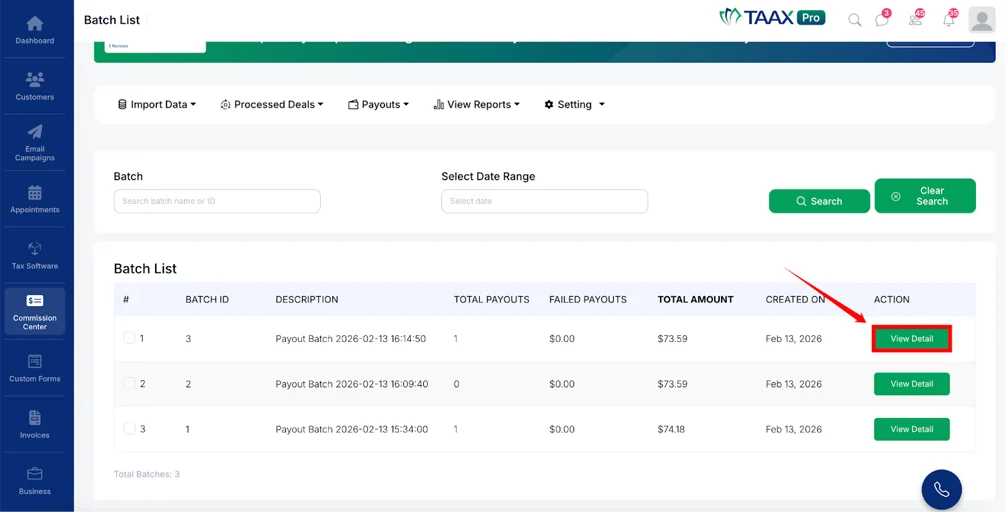
Step 6: Click the View Detail button in the Actions column to open and review detailed information for a specific payout batch.
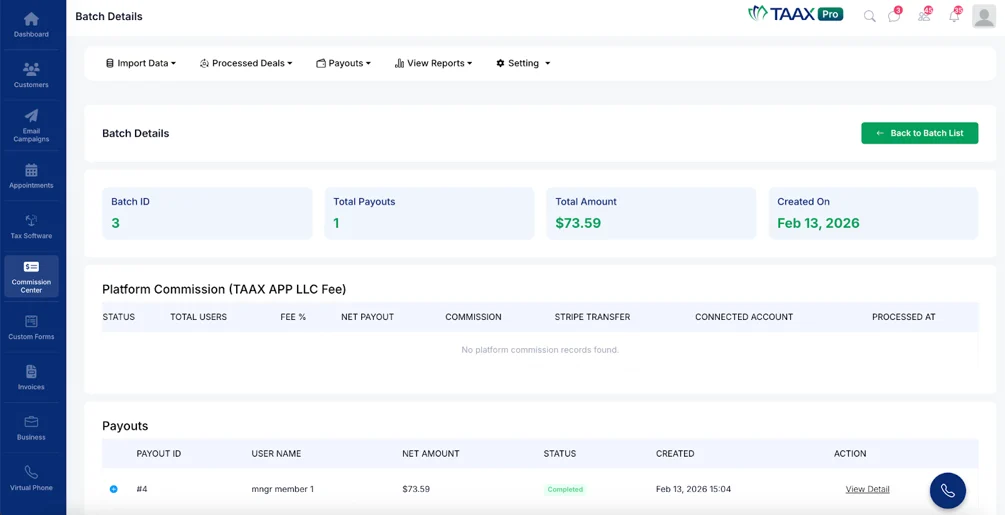
The Batch Details page will open displaying the Batch ID, Total Payouts, Total Amount, Created On, and a Platform Commission table showing the commission breakdown.
Pending Payouts
The Pending Payouts section shows all payouts that are ready to be processed but have not yet been sent. Users can review payout details and send payments directly from this page.
Step 1: Navigate to Payouts and click Pending Payouts to open the Pending Payouts page.
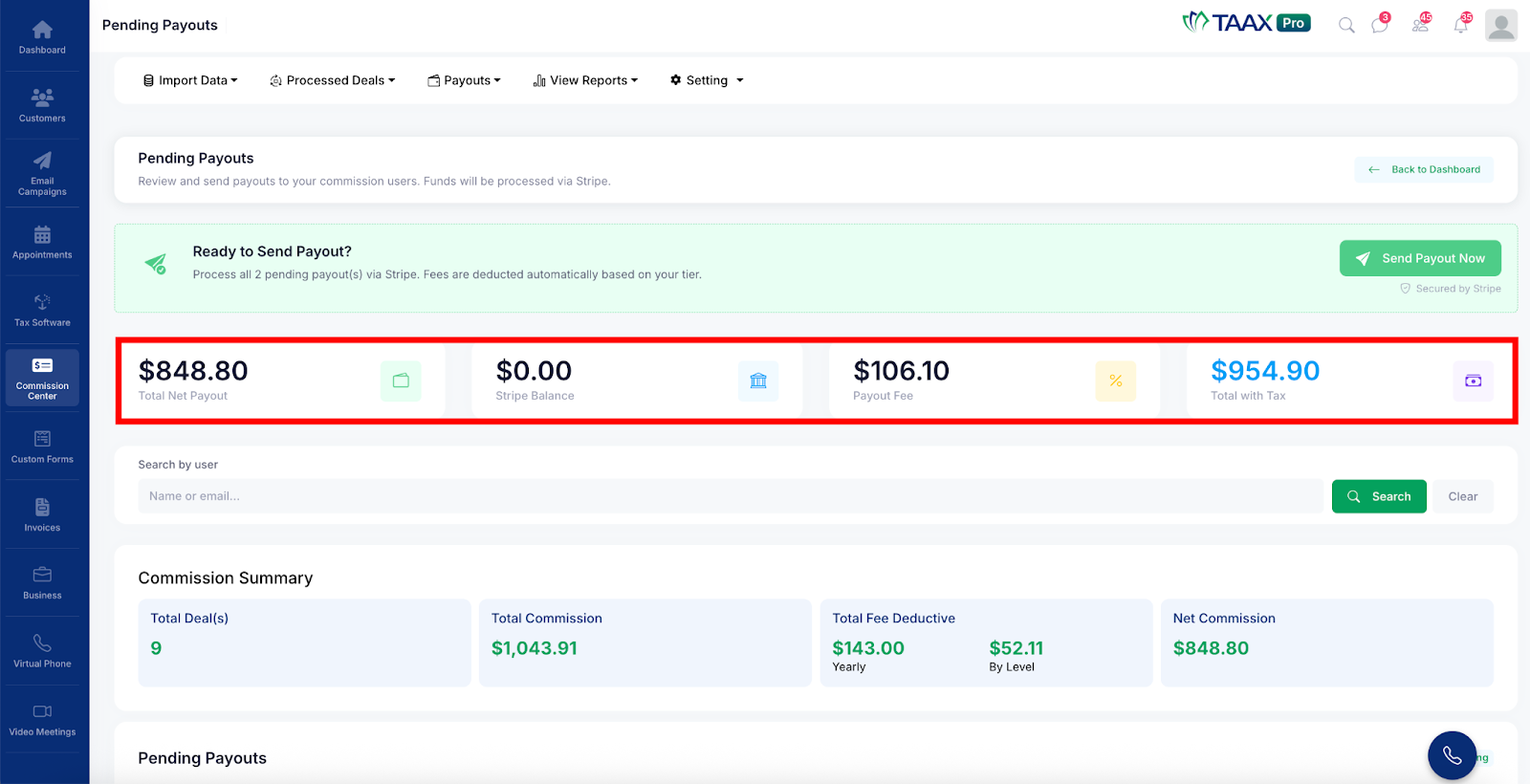
Step 2: Review the payout summary at the top of the page, which includes the following details:
- Total Net Payout – The total amount to be paid out after fees.
- Stripe Balance – The current available balance in your Stripe account.
- Payout Fee – The fee applied to the payout.
- Total with Tax – The total payout amount including applicable taxes.
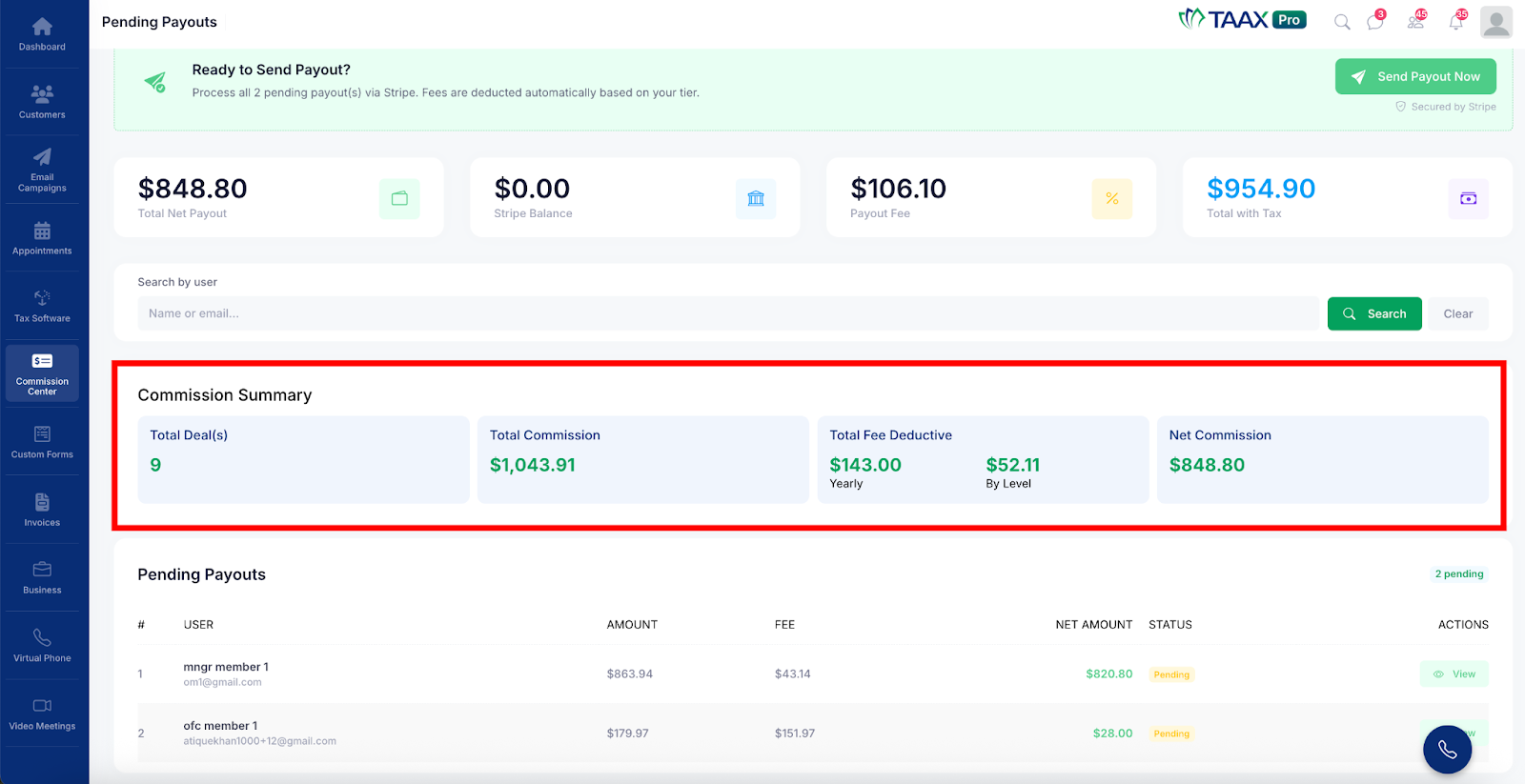
Step 3: Review the Commission Summary section, which includes Total Deals, Total Commission, Total Fee Deductive, and Net Commission.
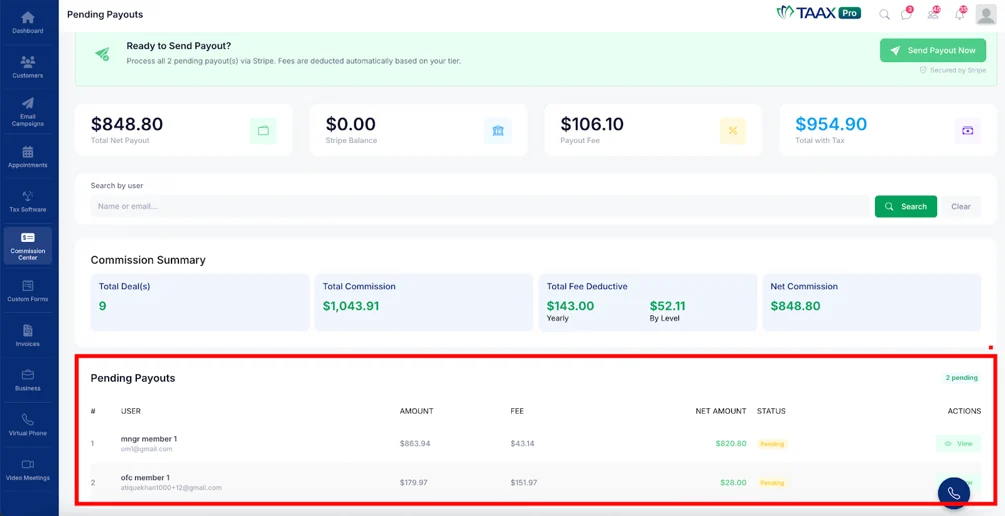
Step 4: Review the Pending Payouts table, which lists each user along with their Amount, Fee, Net Amount, and Status.
Step 5: Use the Search by user field to find payouts for a specific user by entering their name or email address.
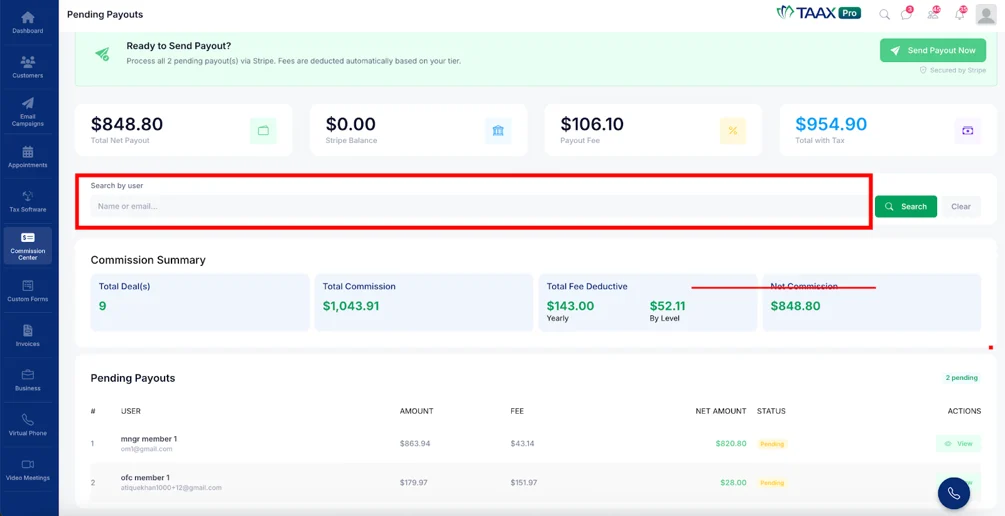
Step 6: Click the View button in the Actions column in the Pending Payouts table to open a detailed payout summary for a specific user.
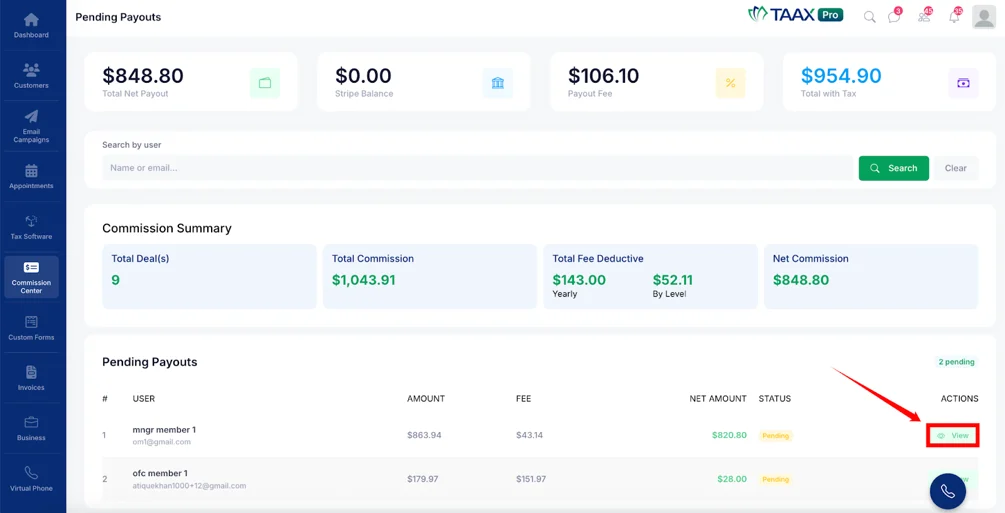
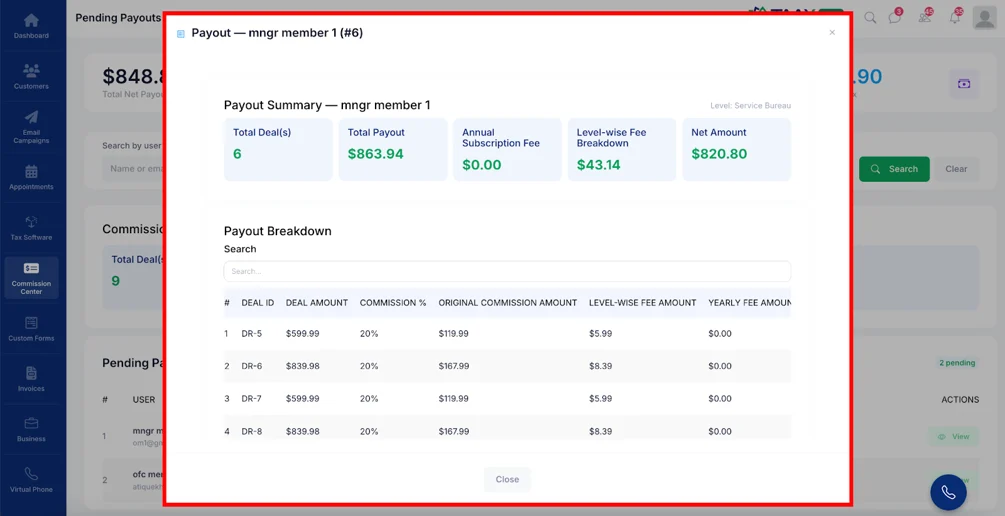
The popup will display the Payout Summary including Total Deals, Total Payout, Annual Subscription Fee, Level-wise Fee Breakdown, and Net Amount, along with a Payout Breakdown table showing individual deal details.
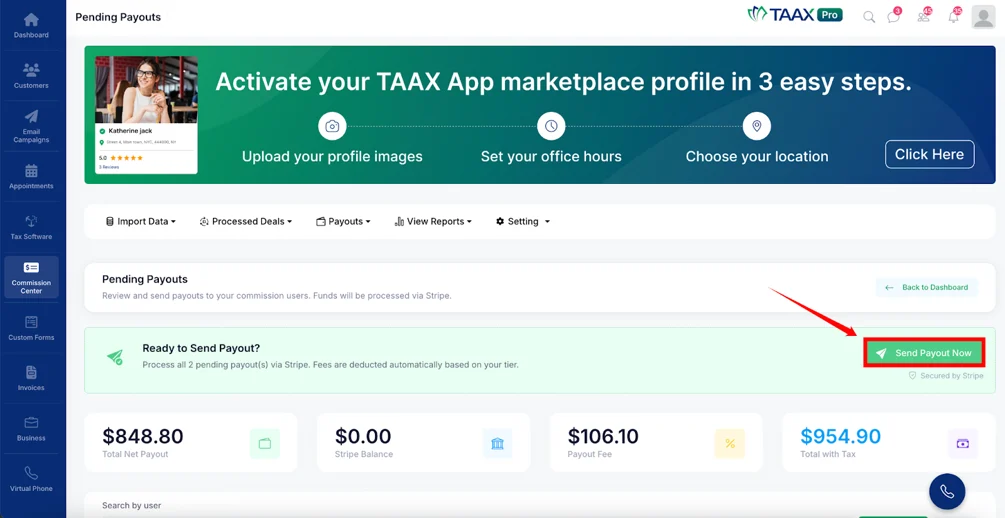
Step 7: Click Send Payout Now to process and send all pending payouts at once.
All Payouts
The All Payouts section displays all payout records including both completed and pending transactions. Users can search, filter, and review detailed information for any payout from this page.
Step 1: Navigate to Payouts and click All Payouts to open the All Payouts page.
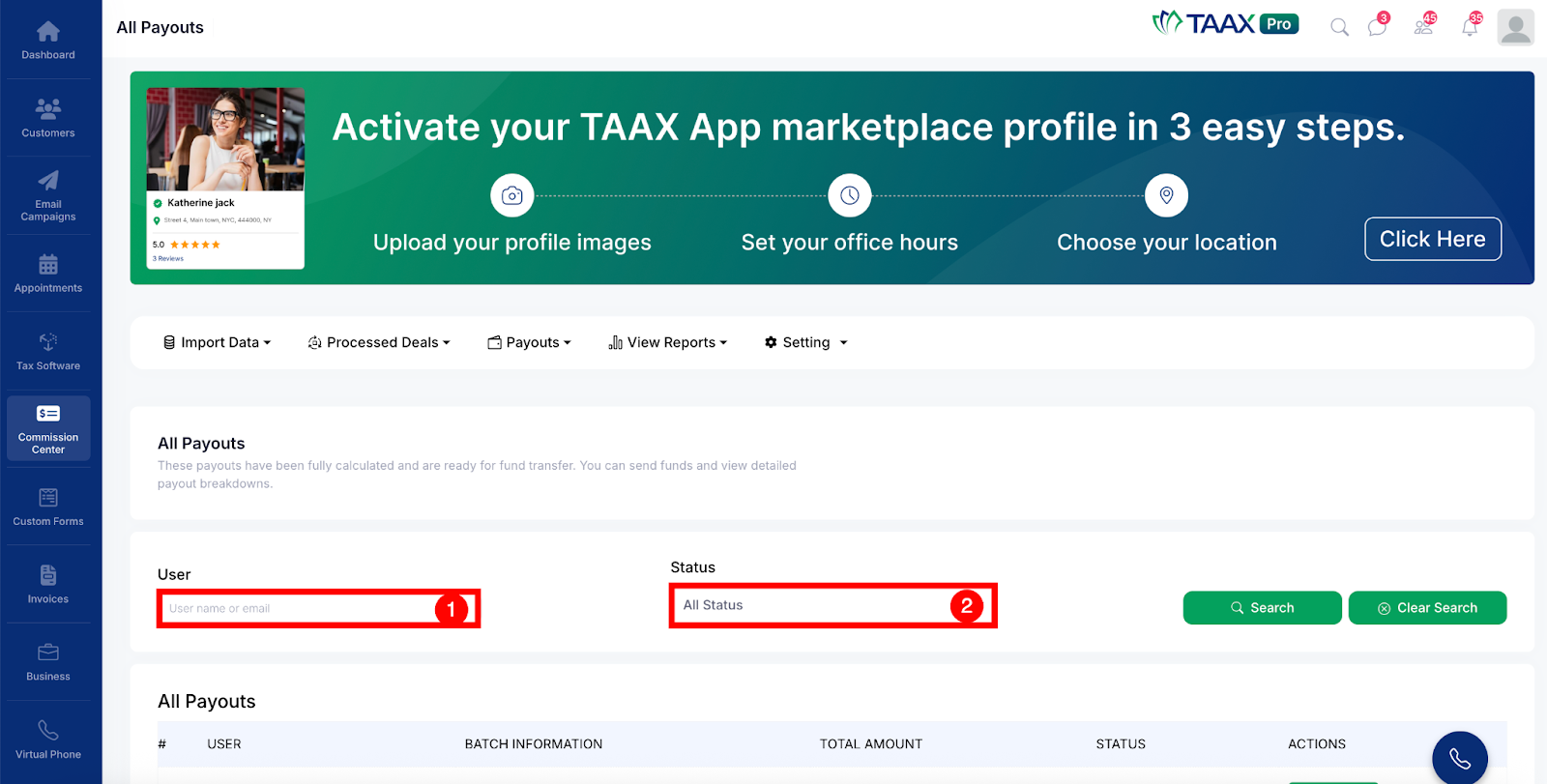
Step 2: Use the available filters to search for specific records:
- User – Enter the user name or email to find payouts for a specific user.
- Status – Select a status to filter payouts based on their current state.
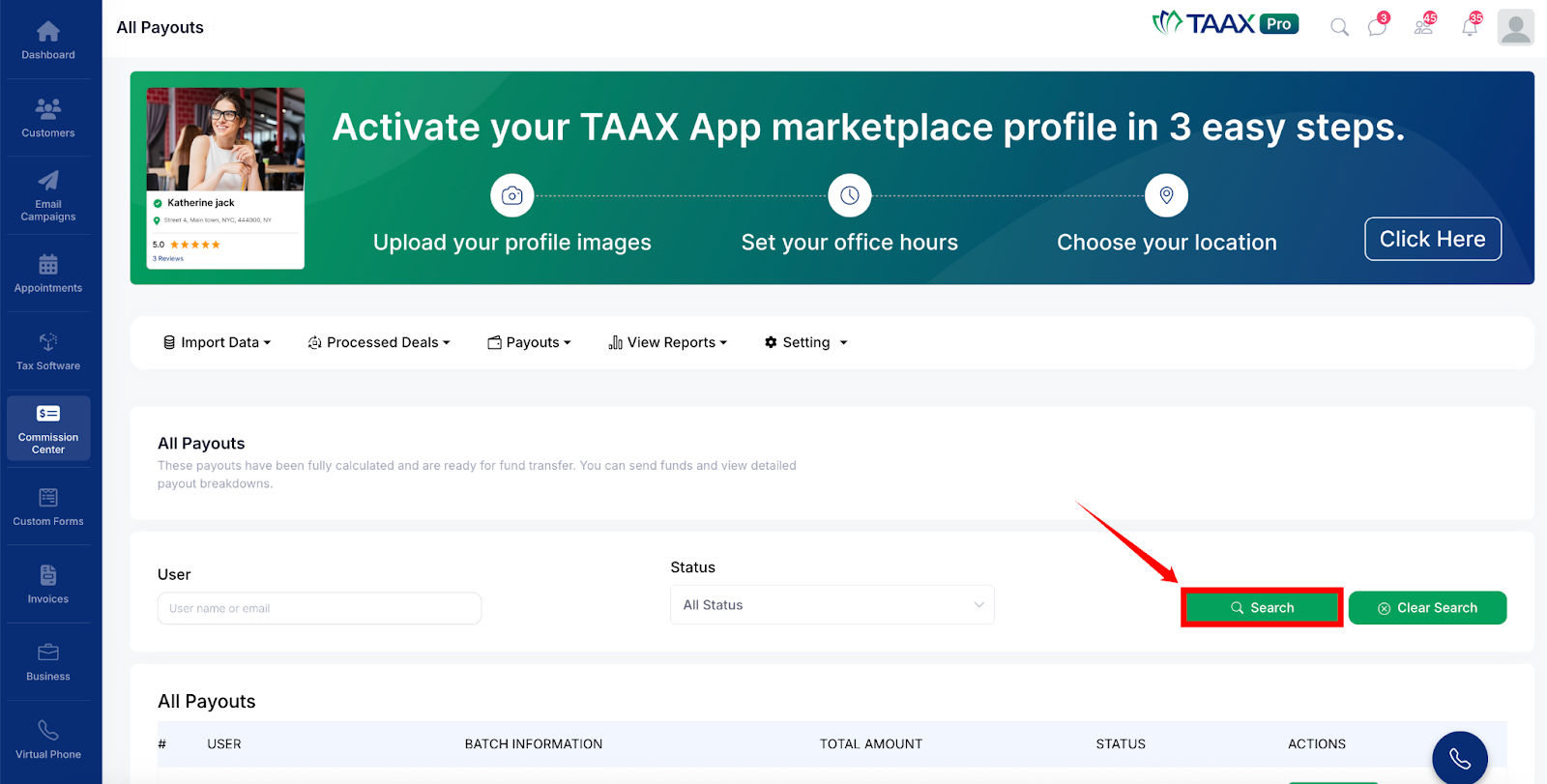
Step 3: Click the Search button to apply the selected filters.
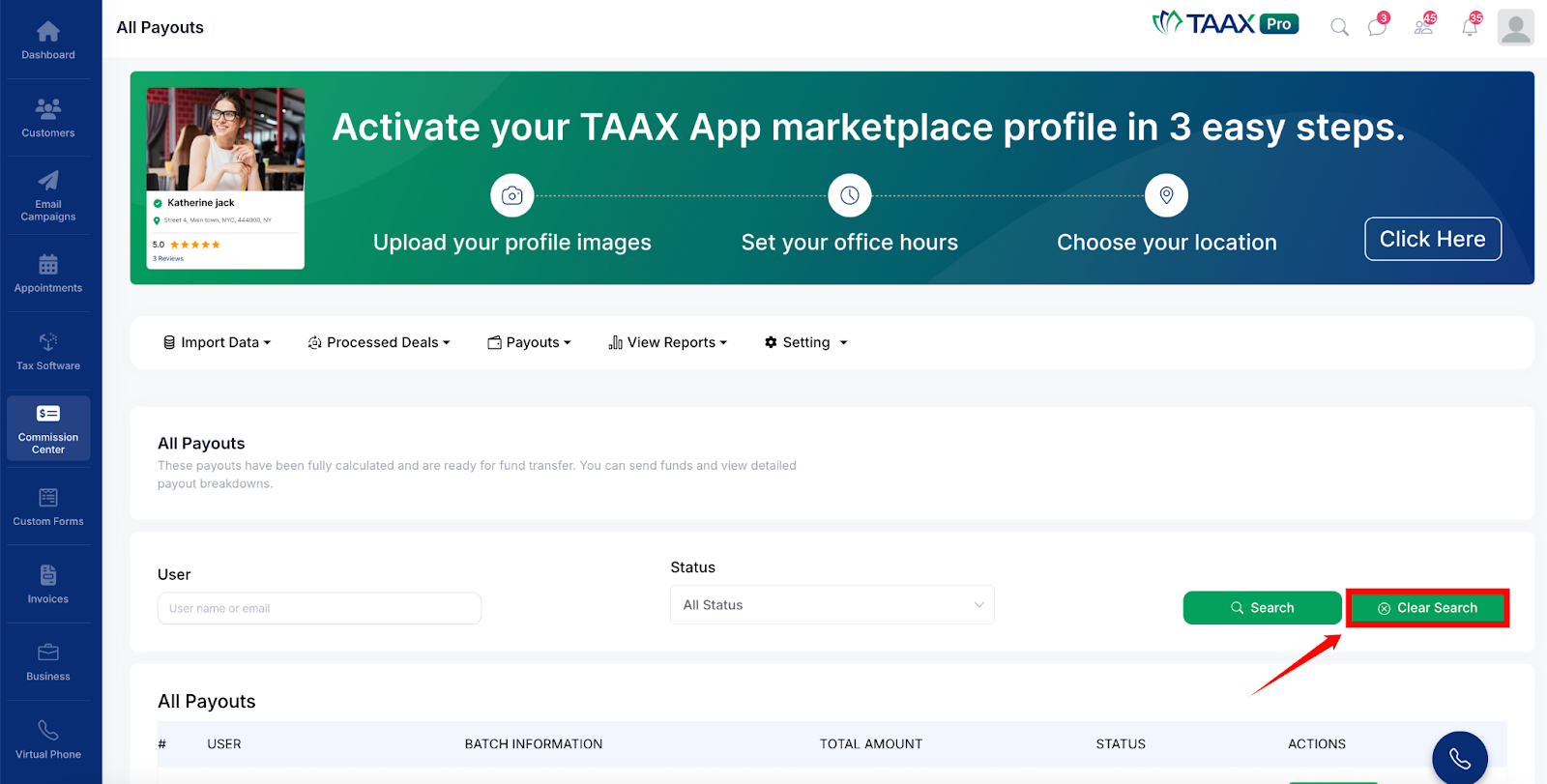
Step 4: Click Clear Search to remove all filters and display all payout records.
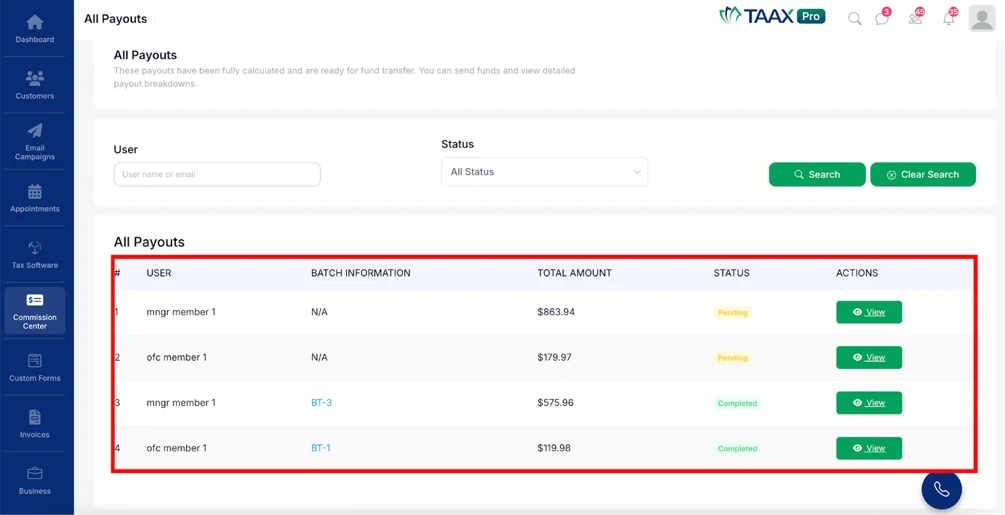
Step 5: Review the payout records displayed in the All Payouts table, which includes details such as User, Batch Information, Total Amount, Status, and Actions.
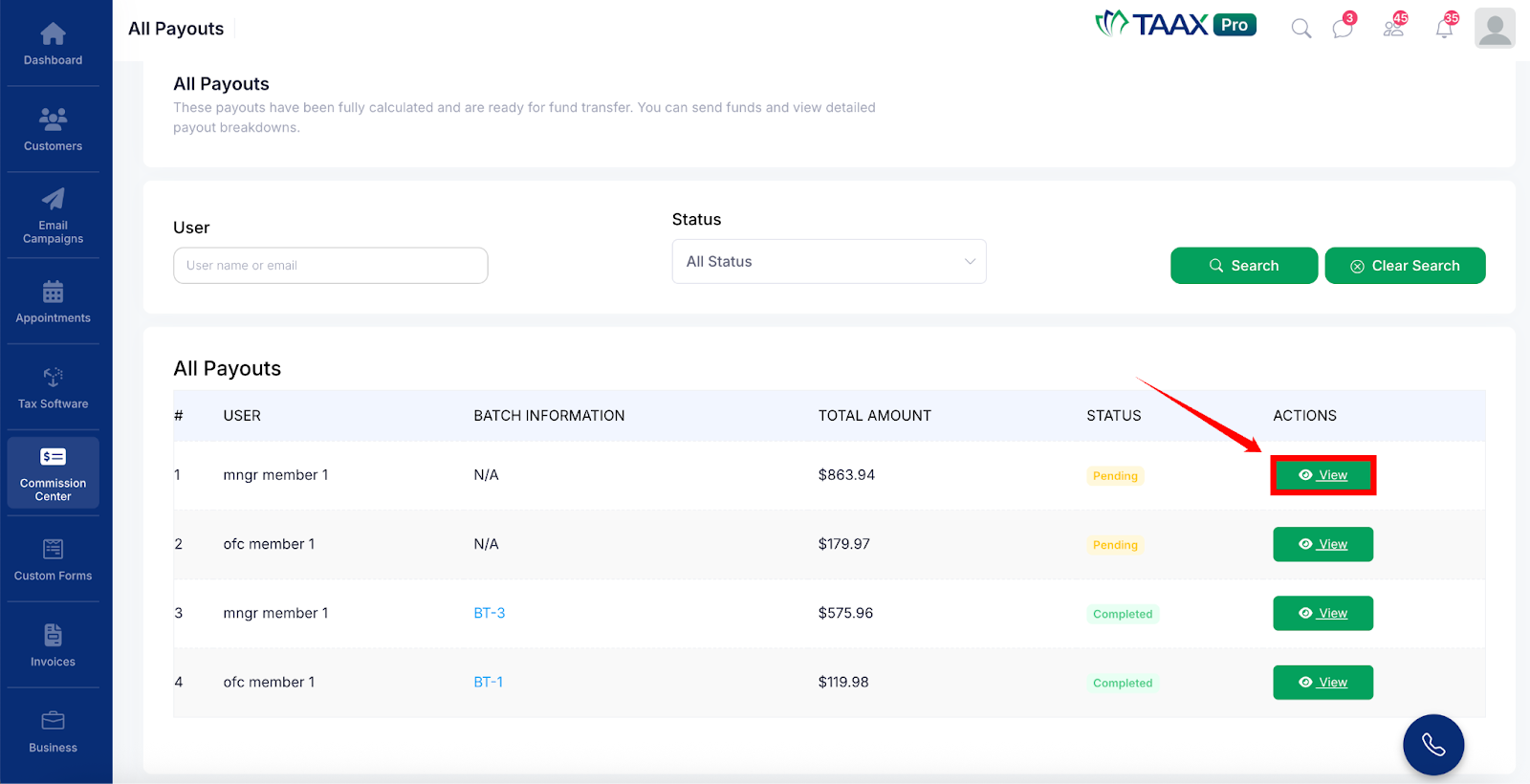
Step 6: Click the View button in the Actions column to open and review detailed information for a specific payout.
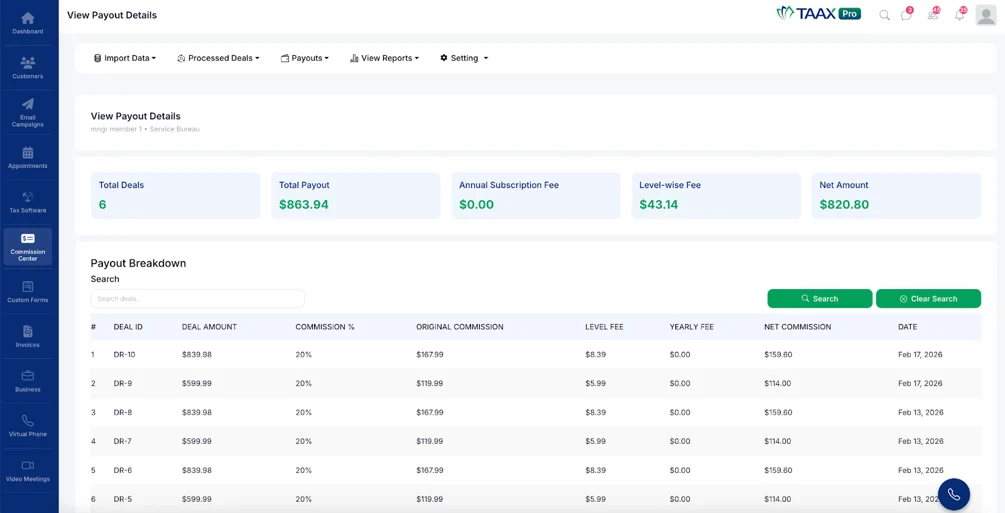
The View Payout Details page will display a summary including Total Deals, Total Payout, Annual Subscription Fee, Level-wise Fee, and Net Amount, along with a Payout Breakdown table and Stripe Transfer Detail section.
Failed Payouts
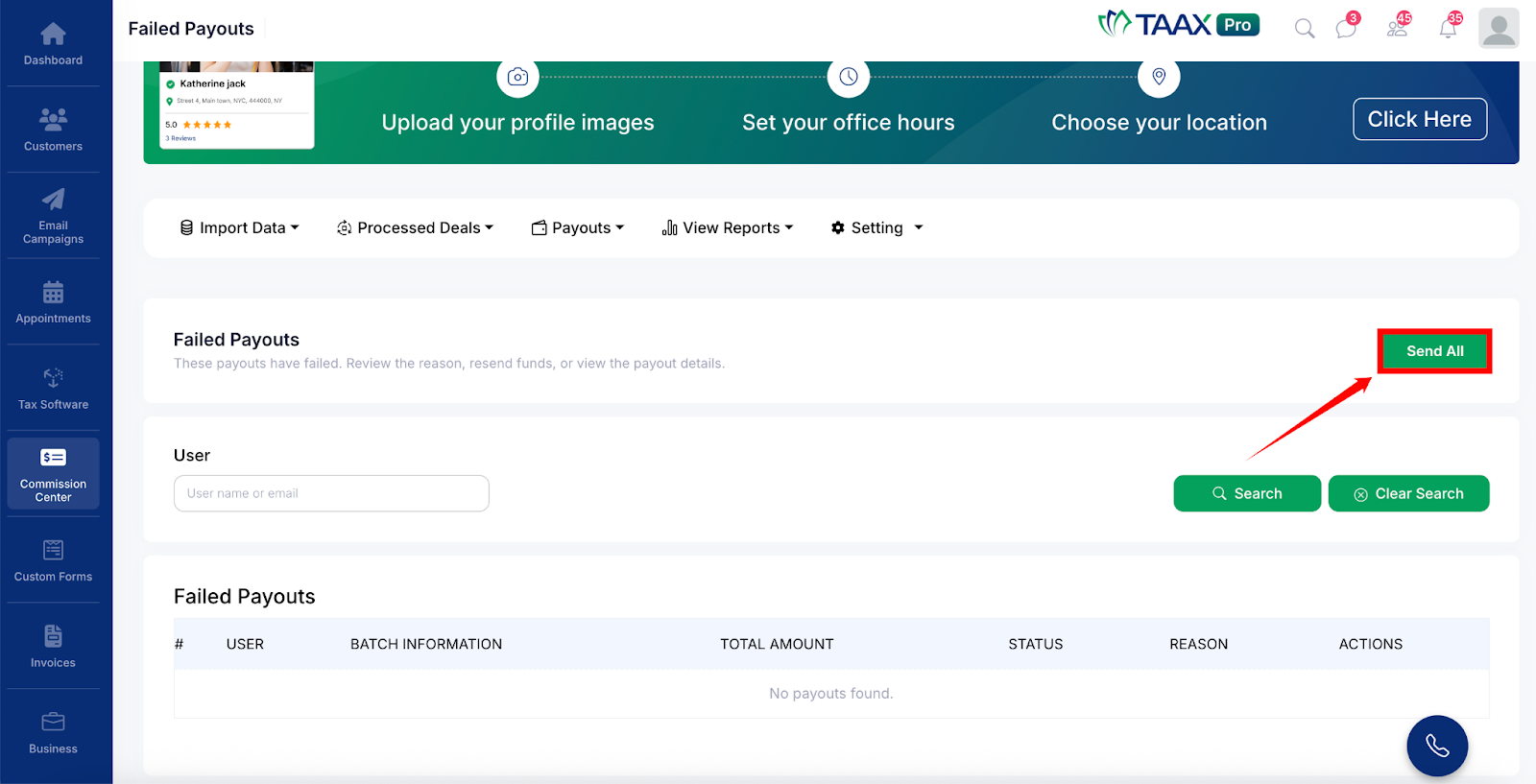
The Failed Payouts section displays all payout transactions that could not be processed. Users can review the reason for failure and resend the payouts from this page.
Step 1: Navigate to Payouts and click Failed Payouts to open the Failed Payouts page.
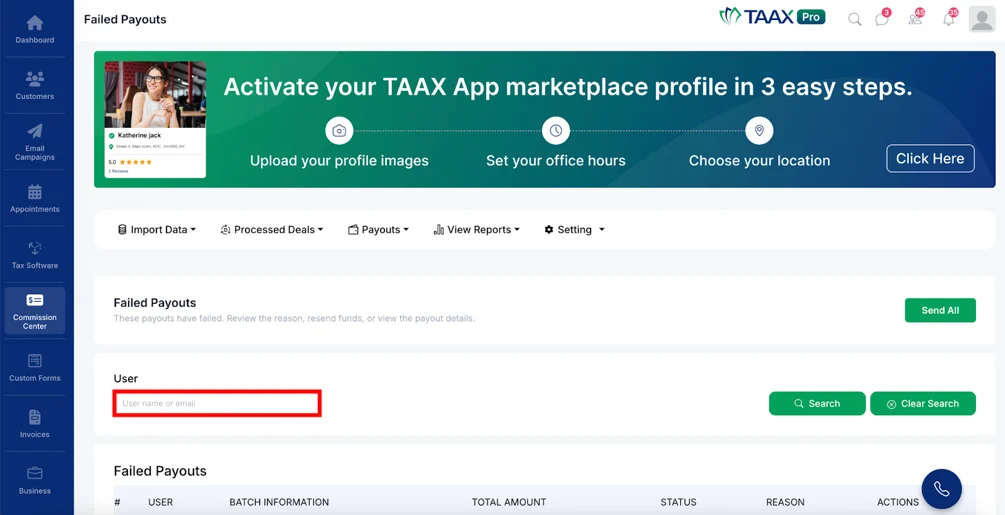
Step 2: Use the User field to search for failed payouts by entering the user name or email address.
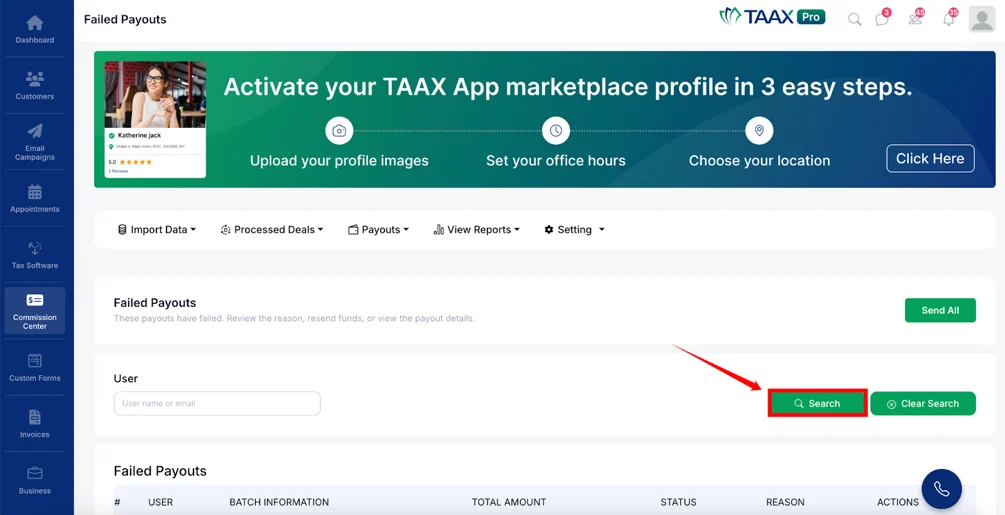
Step 3: Click the Search button to apply the filter.
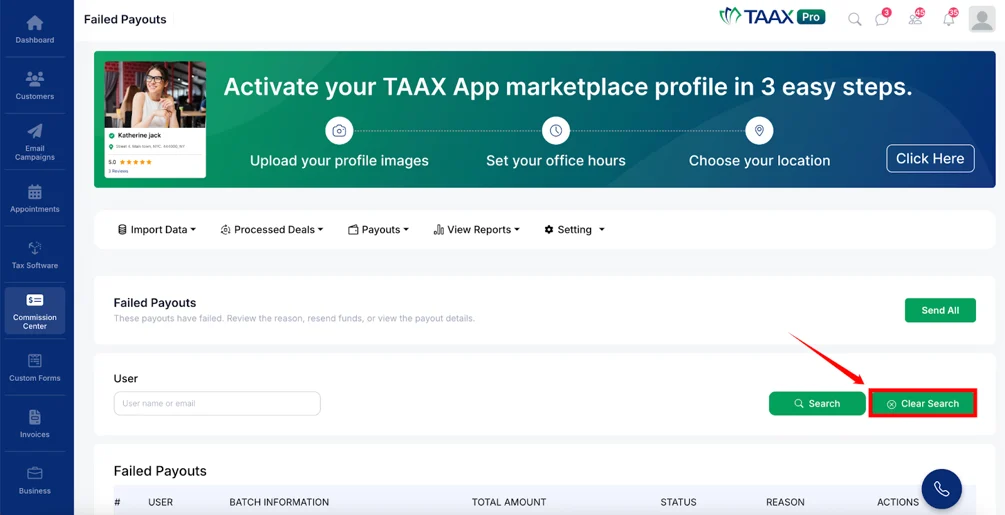
Step 4: Click Clear Search to remove the filter and display all failed payout records.
Step 5: Review the failed payout records displayed in the Failed Payouts table, which includes details such as User, Batch Information, Total Amount, Status, and Reason.
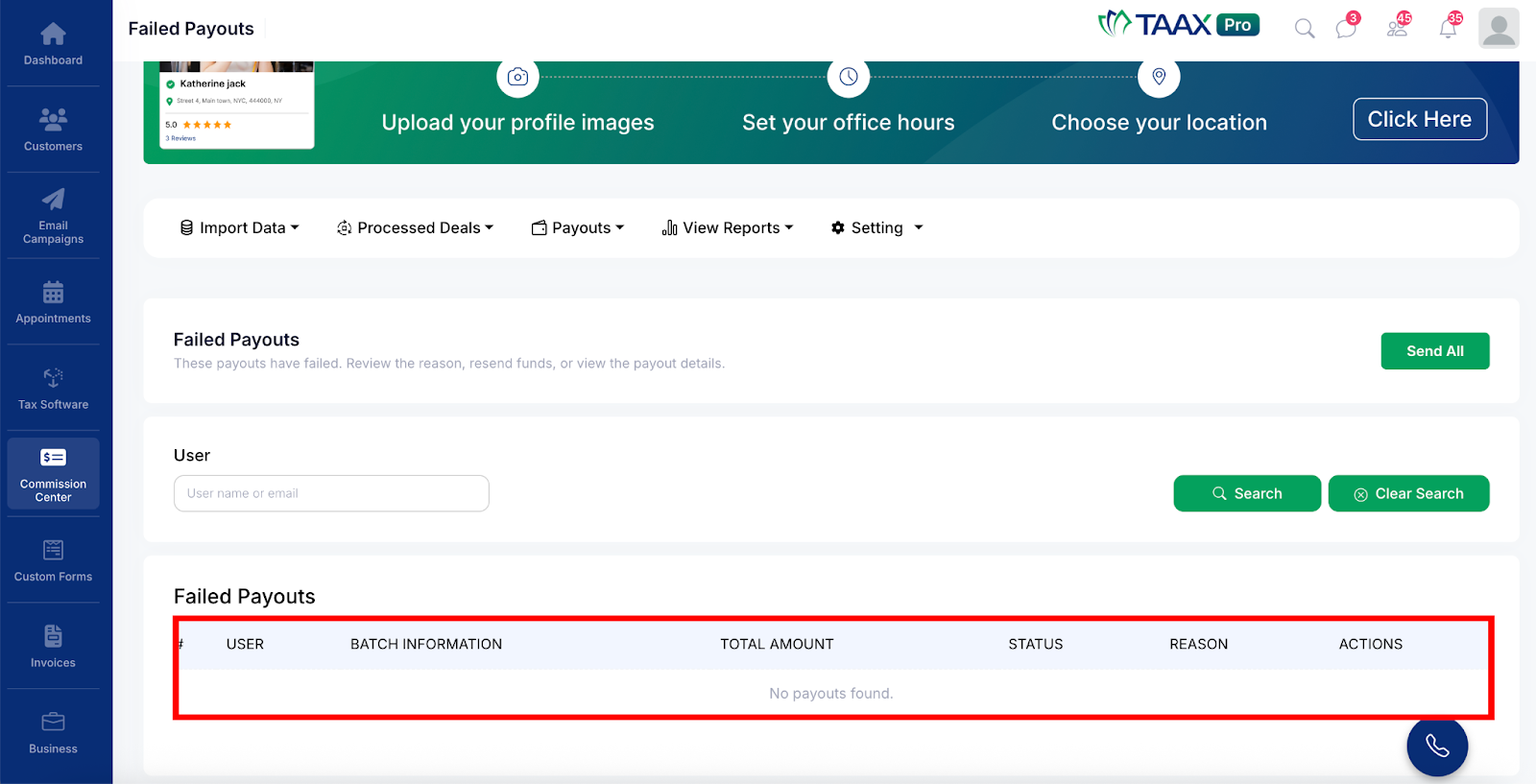
Info: You can review the Reason column to understand why a payout failed.
Step 7: Click the Send All button to retry sending all failed payouts.