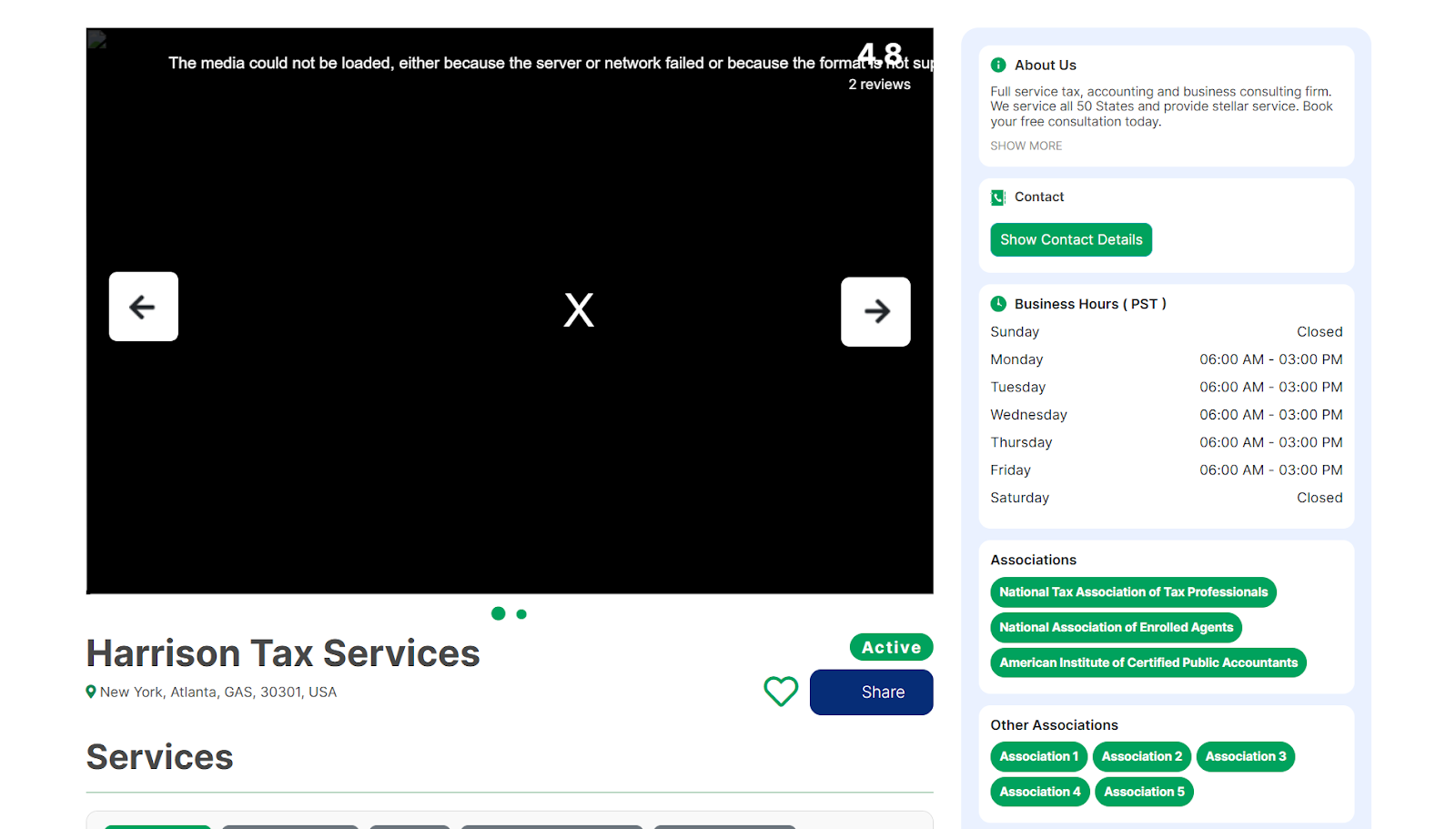
In TAAX Pro, the business profile holds your company’s core information, such as your business name, address, contact details, and branding elements. This profile is used across the platform and appears on customer-facing items like invoices, appointment confirmations, and reports.
Editing the business profile ensures that your company’s information stays accurate and up to date, especially during changes in ownership, location, or branding. Keeping this information current helps maintain professionalism, avoids confusion with customers, and ensures all communications reflect your correct business identity.
Follow the step-by-step guide below on how to edit the business profile in the TAAX Pro platform.
Step 1: Navigate to the left side panel, hover over the “Businesses” section, then click on the “Edit Business” option.
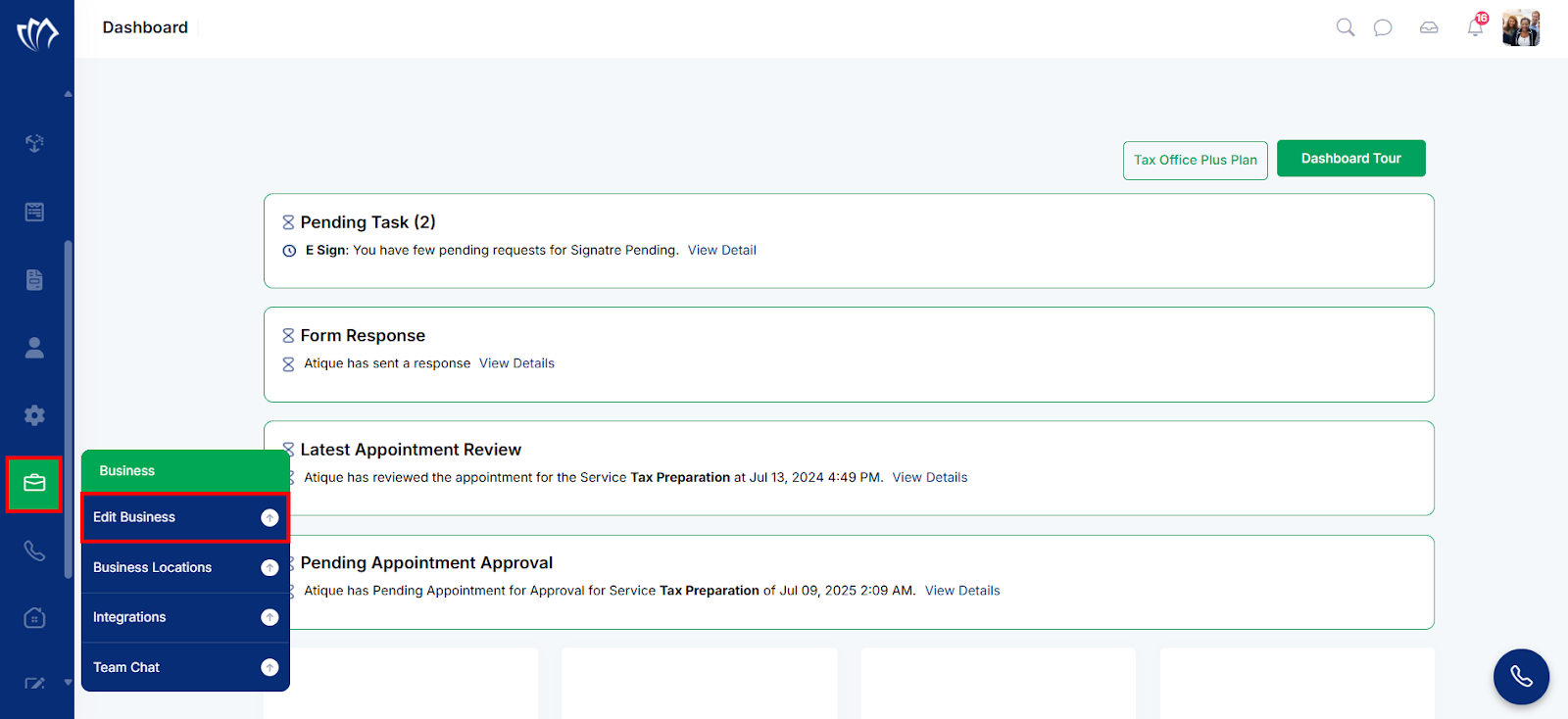
Step 2: The Edit Business Profile screen will appear, prompting you to enter the business profile details.
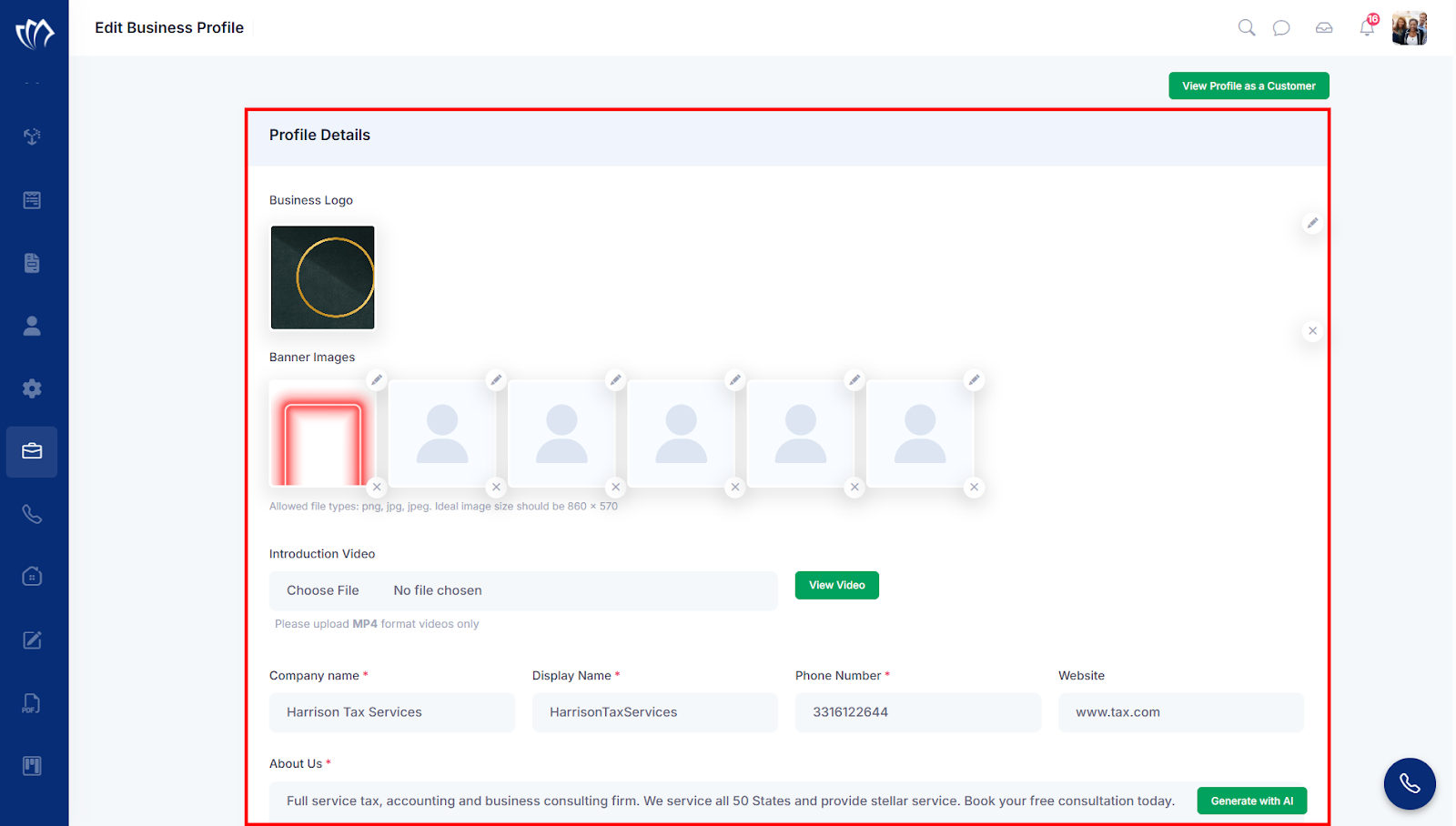
Step 3: Provide the following information based on your new product requirements:
| Fields | Descripton |
| Business Logo | Upload your company’s primary logo to visually represent your business across the platform. |
| Banner Images | Add one or more banner images to visually brand the top of your profile page. |
| Introduction Video | Choose and upload a short MP4 video to introduce your business to users. |
| Company Name | Enter your business’s official legal name as registered. |
| Display Name | Type the name you want customers to see on the platform. |
| Phone Number | Add your business contact number for customer or client communication. |
| Website | Enter your business website URL so users can visit your site directly. |
| About Us | Write a short description that explains what your business does and what services you provide. |
| Search By | Select whether customers can find you by Virtual or Physical location. |
| Address Visibility | Check this option if you want to hide your address when offering online-only services. |
| Select Country | Choose your operating country from the dropdown list. |
| Social Media | Paste your social media profile links (e.g., Facebook) to connect users with your online presence. |
| Associations | Select relevant professional associations your business is officially part of. |
| Other Associations | Add any other associations or affiliations by typing and pressing Enter for each. |
| Business Hours | Set your daily opening and closing times, and mark specific days as Open or Closed using the toggle. |
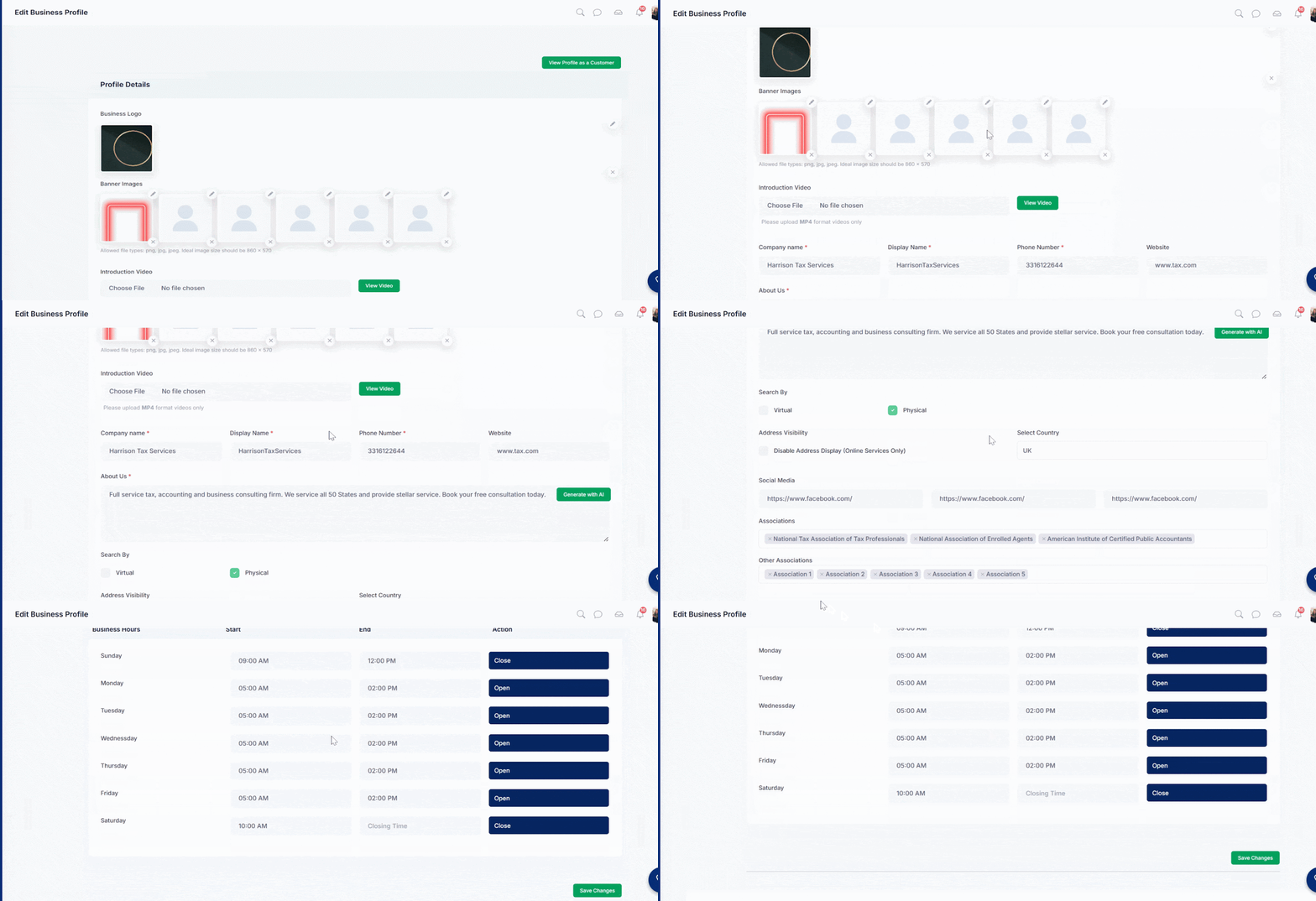
Step 4: After entering the details in all the fields, click on the “Save Changes” button at the end of the page.
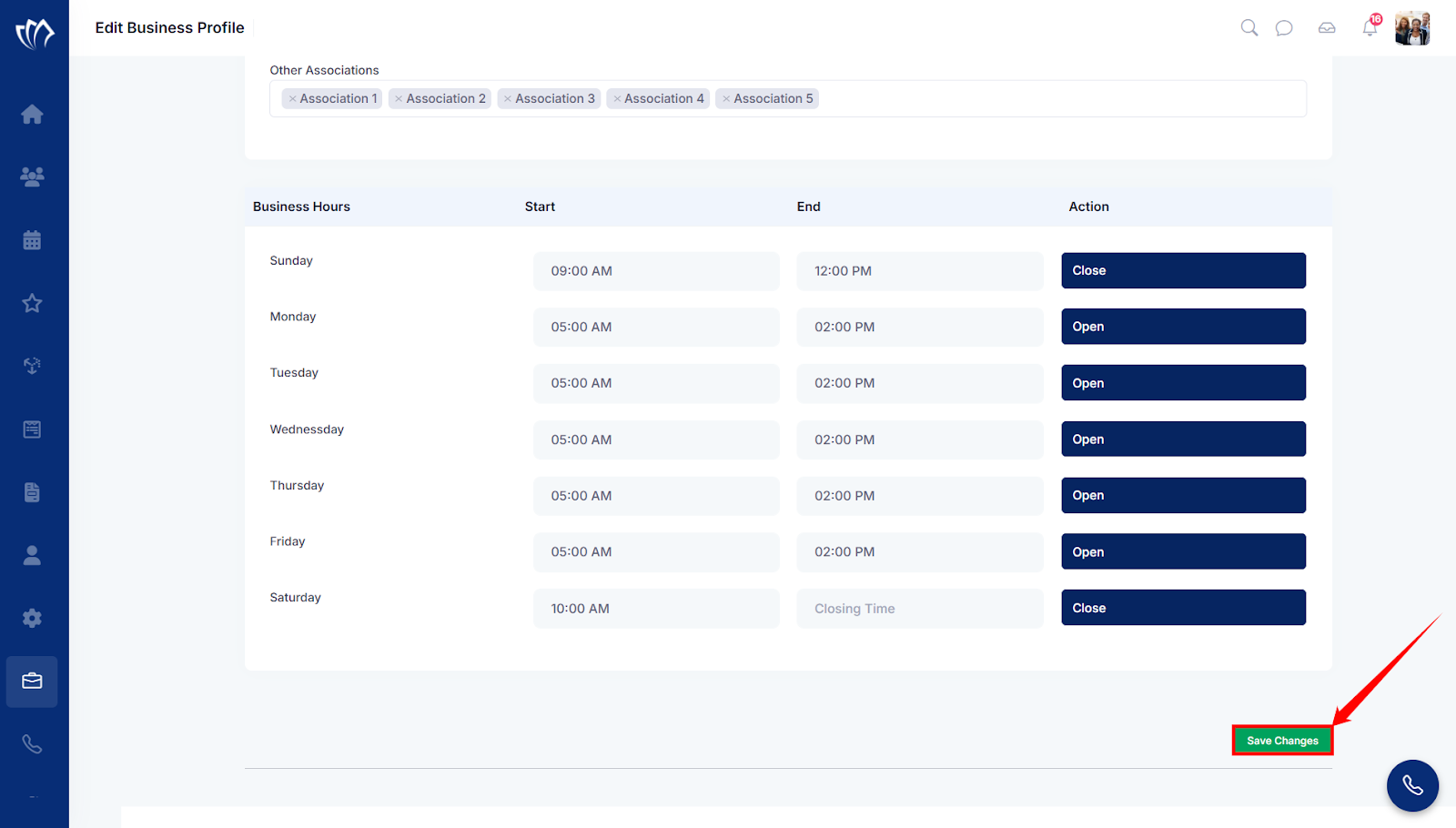
After clicking on the “Save Changes” button, a success message will flash at the top of the screen.
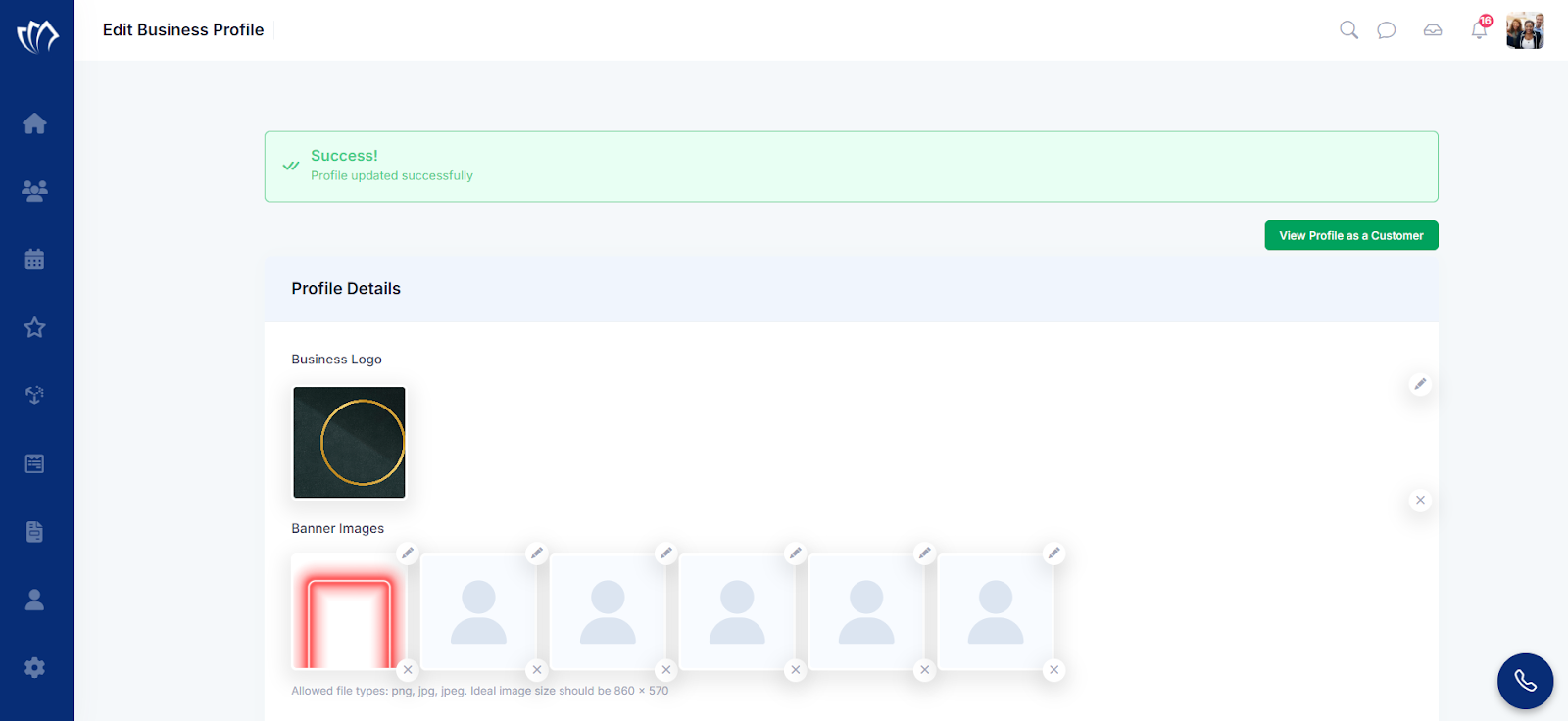
After updating your business profile, you can view how it appears to customers in its customer-facing version. Follow the section below to see how your business information is displayed from the customer’s perspective.
View Profile as a Customer
The View Profile as a Customer button allows you to preview how your business profile appears to customers on the TAAX platform. This includes your business name, branding, contact details, services offered, and any other visible information.
By using this preview, you can verify that all updates, such as logo changes, contact info, or service listings, have been applied correctly. It ensures your profile looks accurate, complete, and professional from the customer’s perspective.
On the Edit Business Profile screen, click on the “View Profile as a Customer” button at the top-right corner of the screen.
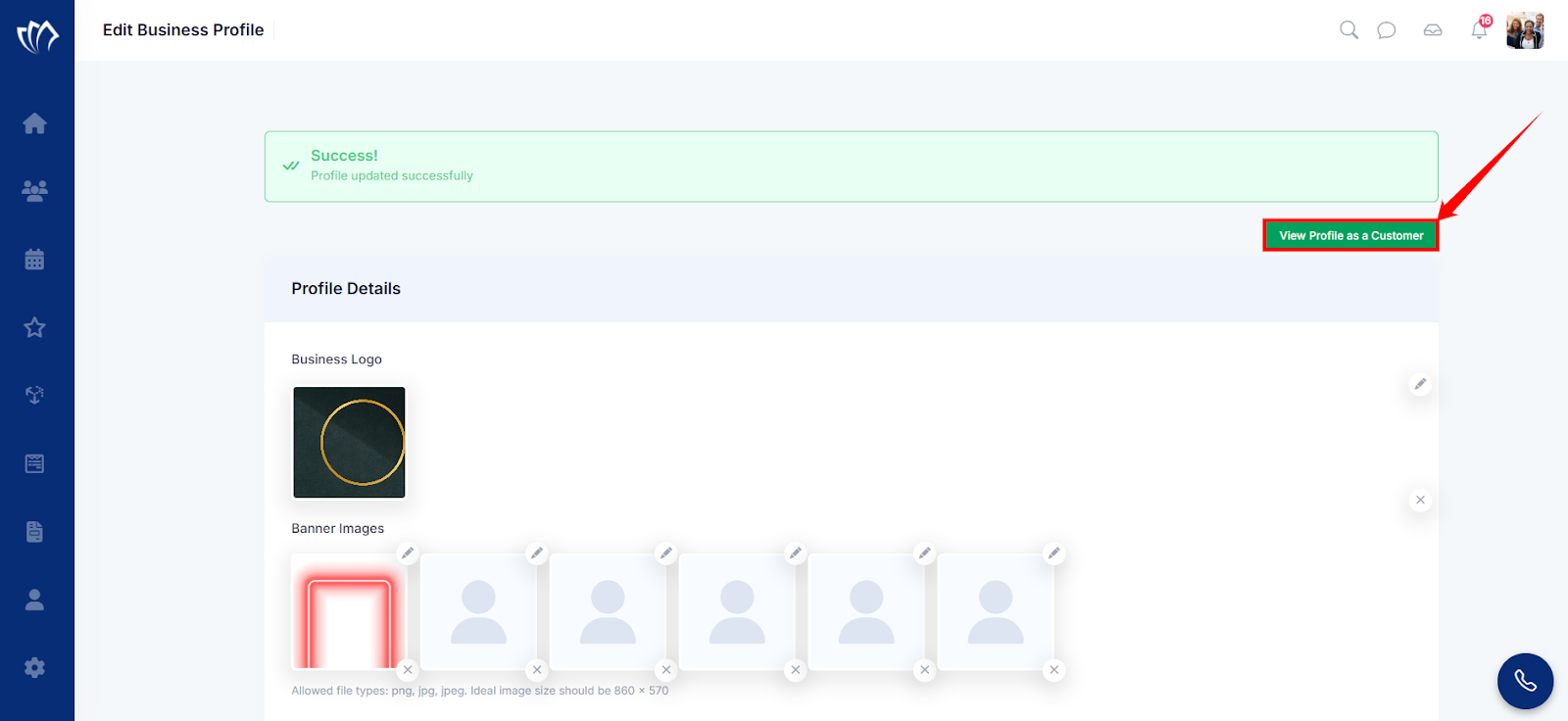
After clicking the View Profile as a Customer button, you’ll see a preview of how your business profile appears to customers