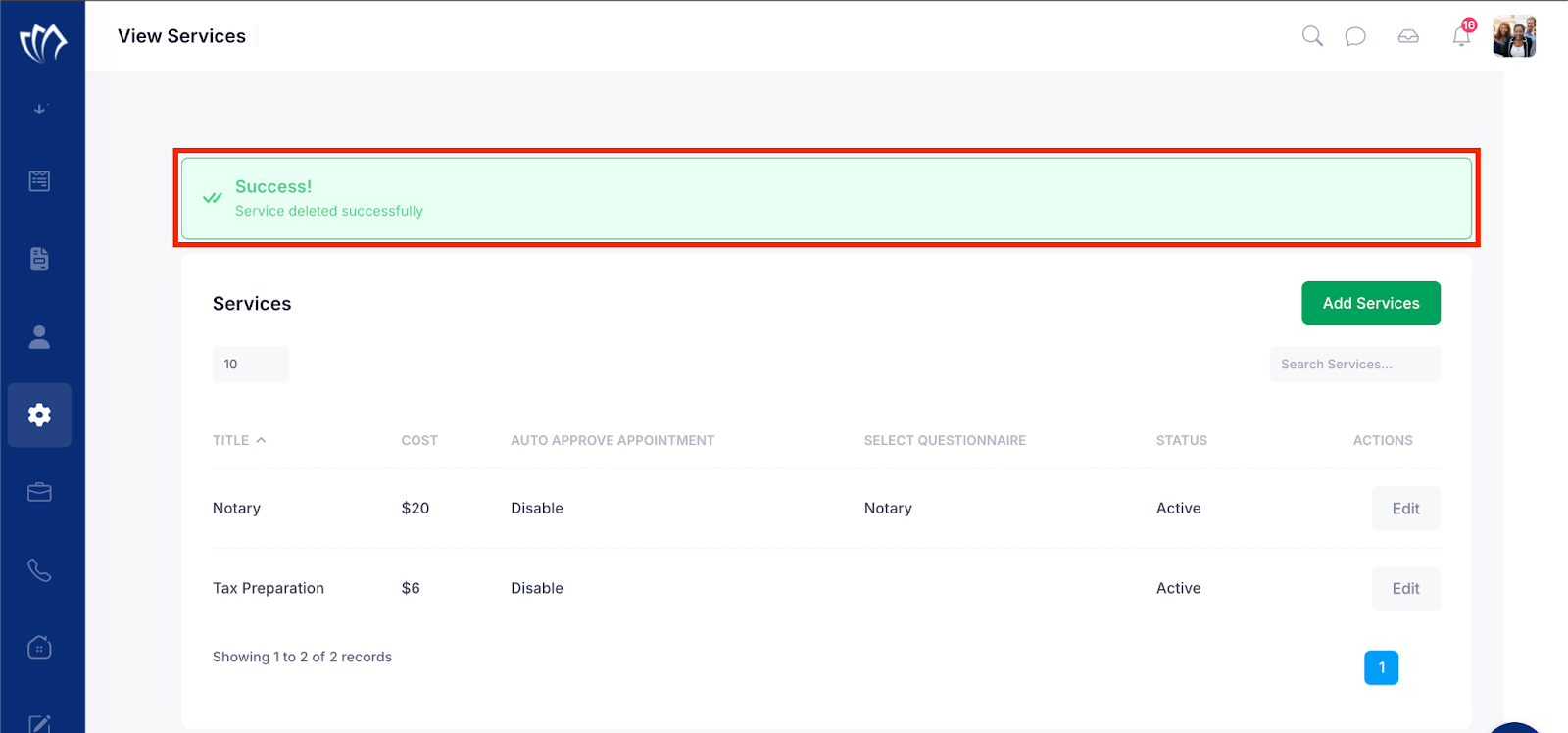
In our system, Managing Services allows you to keep your business offerings accurate, up to date, and aligned with your operations. Once services like Tax Preparation, Accounting, Notary, and more are added, you can easily edit them to update details such as pricing, assigned forms, and Auto Approve Appointment settings. You can also delete services that are no longer offered to keep your service list clean and relevant.
Follow the step-by-step guide below to edit the services on the TAAX Pro platform.
Step 1: Navigate to the left side panel, hover over the “Services” section, then click on the “View Services” option.
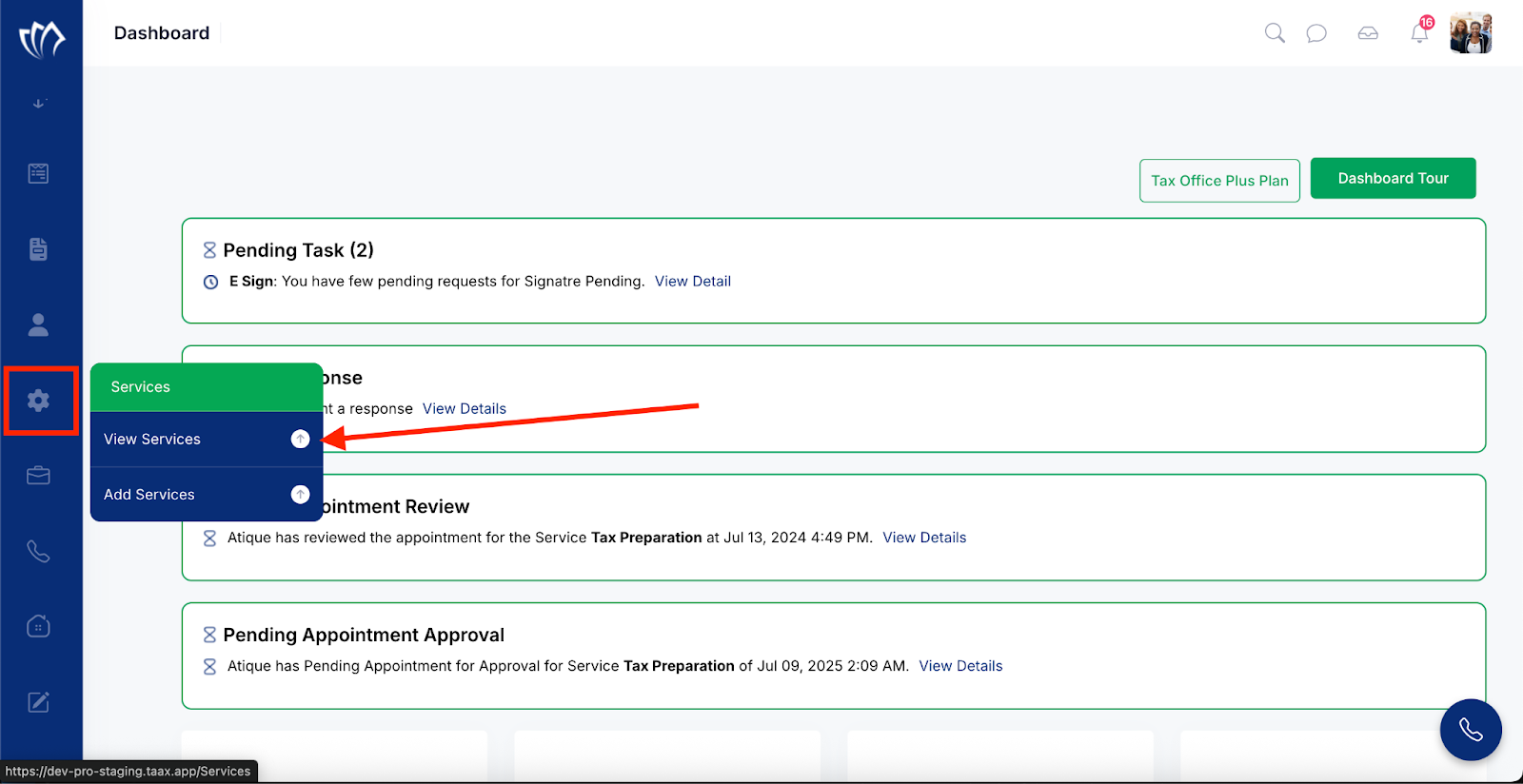
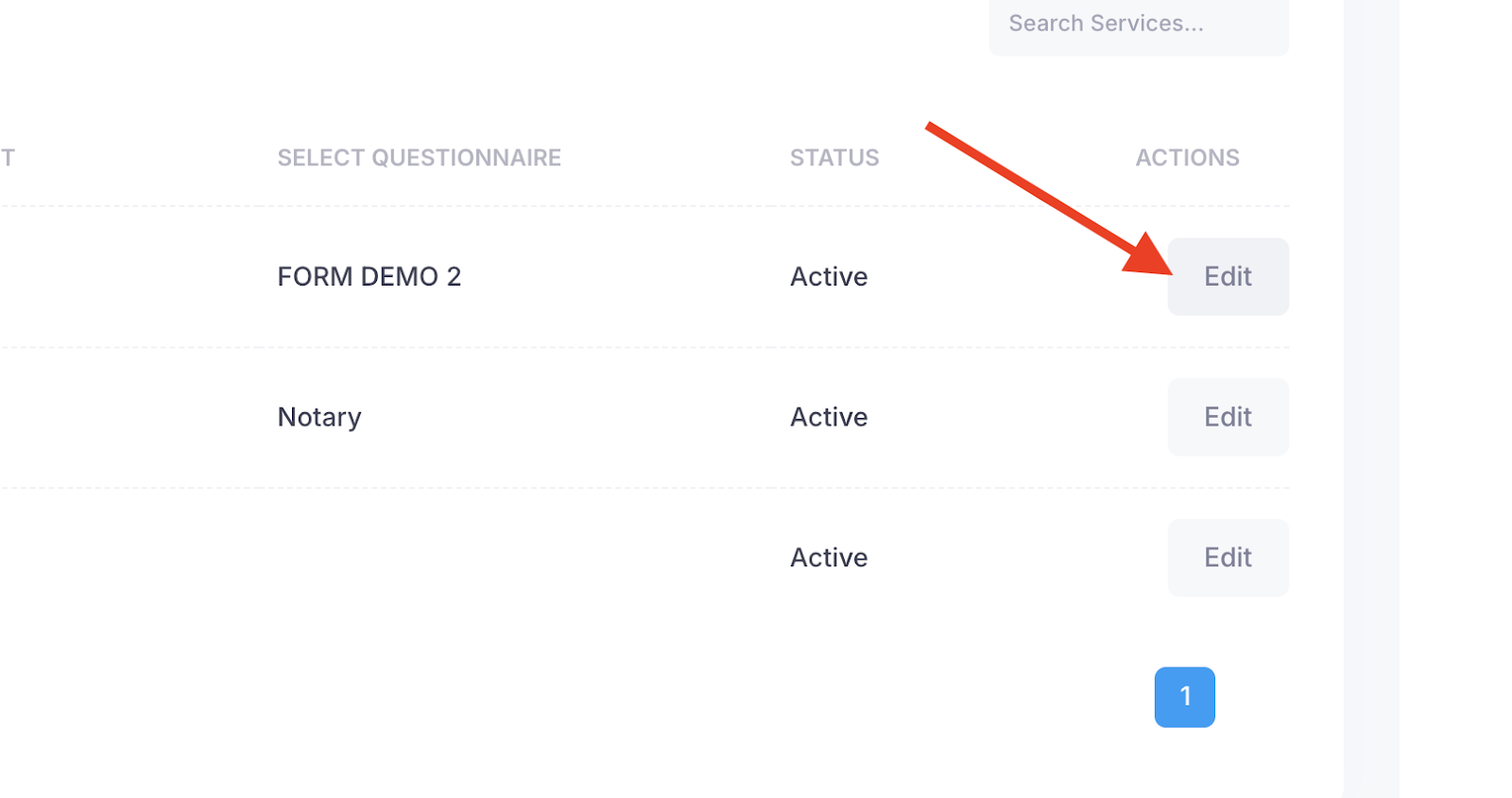
Step 2: The View Services screen will appear, displaying a list of all the services you’ve added. Here, you can review each service along with its details such as service name, cost, status, assigned form, and auto-approved appointments.
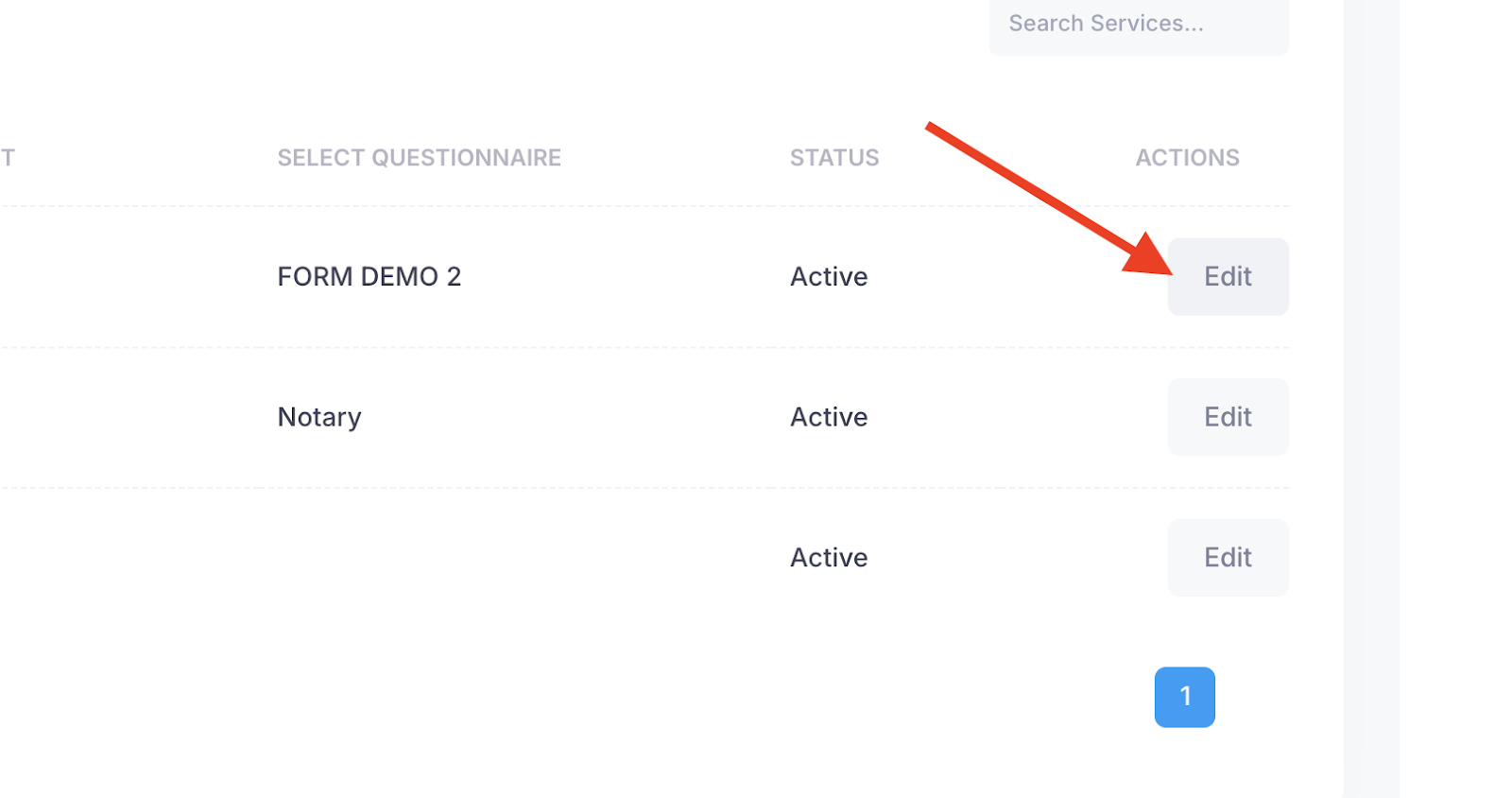
Click the Edit button next to each listed service. This allows you to update details like service name, cost, form, or settings.
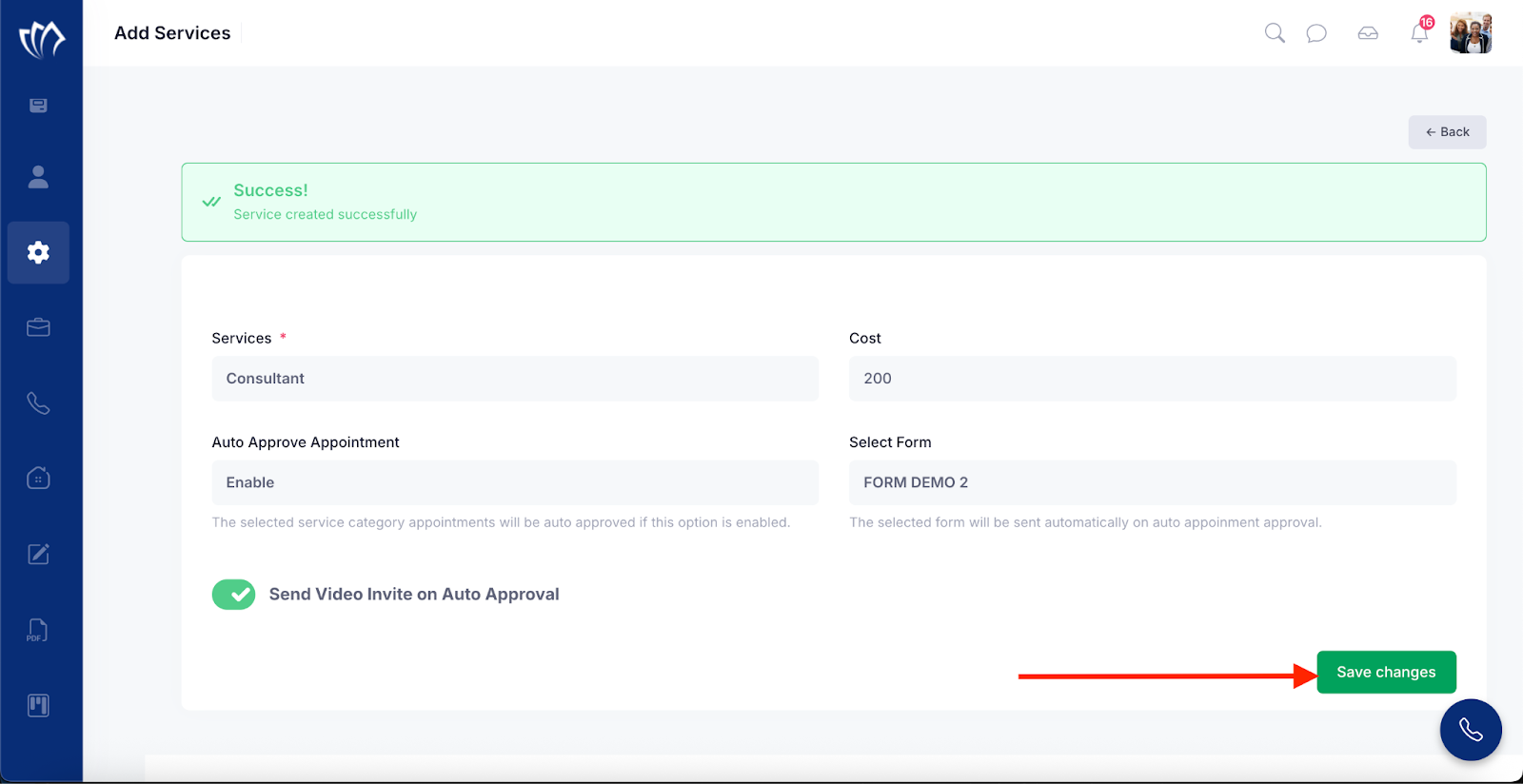
Step 3: The Edit Services screen will appear, prompting you to re-enter the necessary service details. Fill in the following fields to define your service:
| Field | Options | Description |
| Services | Values (Options): Tax Preparation, Accounting, Bookkeeping, Credit Specialist, Financial Advisors, Mortgage, Realtor, Notary, Debt Consolidation, Tax Relief, Business Loan, Attorney, Paralegal, Consultant, Insurance, Investment Banker. | This dropdown lets you select the type of service you want to offer (e.g., Tax Preparation, Accounting). This defines the core purpose of the appointment or engagement. |
| Cost | Value (e.g., $250). | Enter the price charged for the selected service. This is the amount the customer will see and is expected to pay. It must be a numerical value. |
| Auto Approve Appointment | Options: Enable, Disable | When enabled, the appointment will be automatically approved without manual confirmation, speeding up the scheduling process. |
| Select Form | Select the saved forms | Choose a form that should be automatically sent to the customer once their appointment is approved. This could be an intake form, consent form, or any relevant document required before the service. |
| Send Video Invite on Auto Approval Toggle | Options: Enabled (Toggle On): Sends video link automatically Disabled (Toggle Off): No video invite sent |
This toggle allows you to include a video meeting invite (e.g., Zoom or other platform) when the appointment is auto-approved. This is useful if your service involves a virtual meeting. |
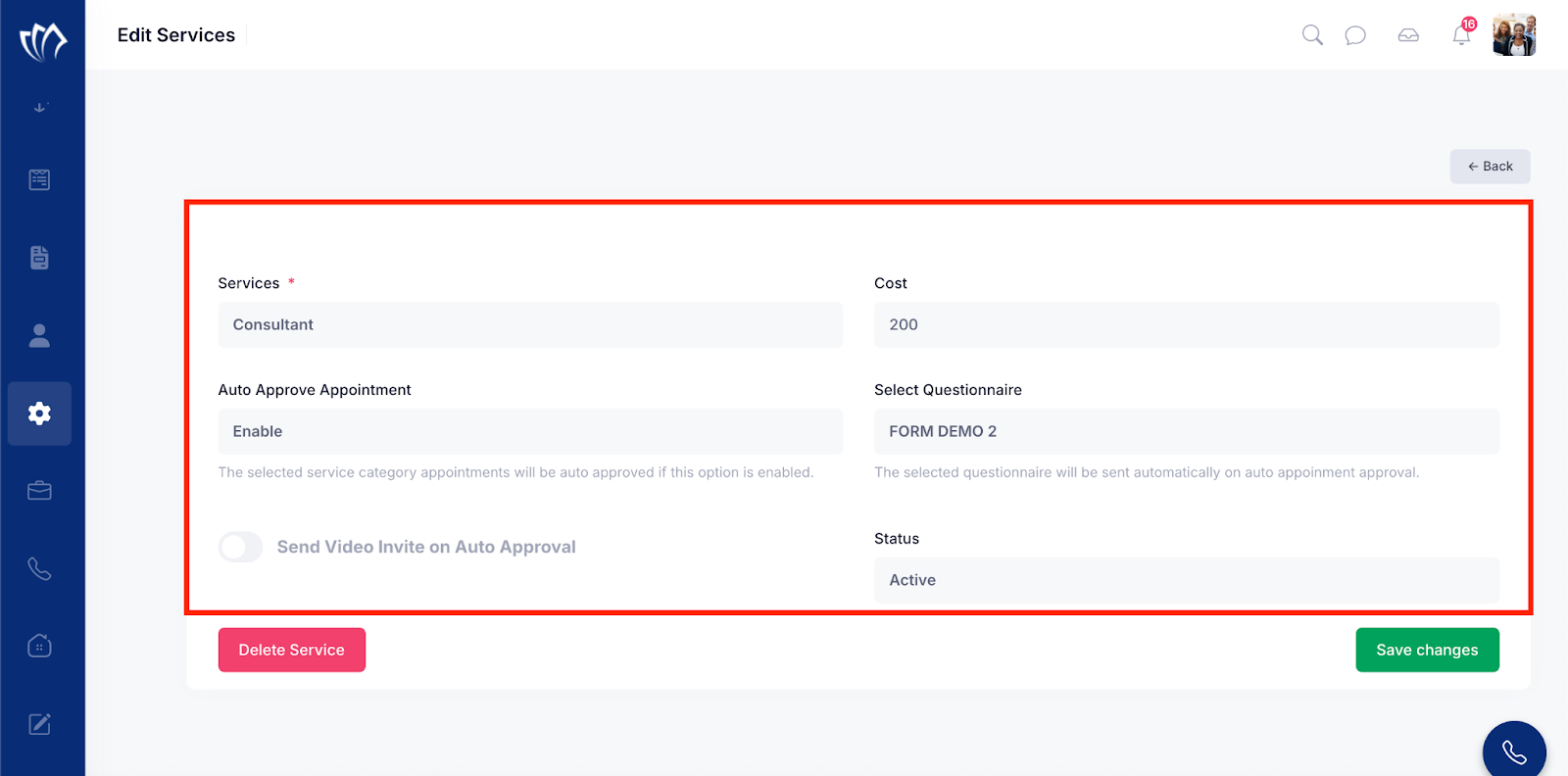
Step 4: Once all service details are re-entered correctly, click the Save changes button to save the service details.
After successfully editing a service, you can delete it from the system. Follow the section below to delete the added services.
Deleting Services
If a service is no longer offered or was added by mistake, you can delete it to keep your service list clean and up to date.
Step 1: Navigate to the left side panel, hover over the “Services” section, then click on the “View Services” option.
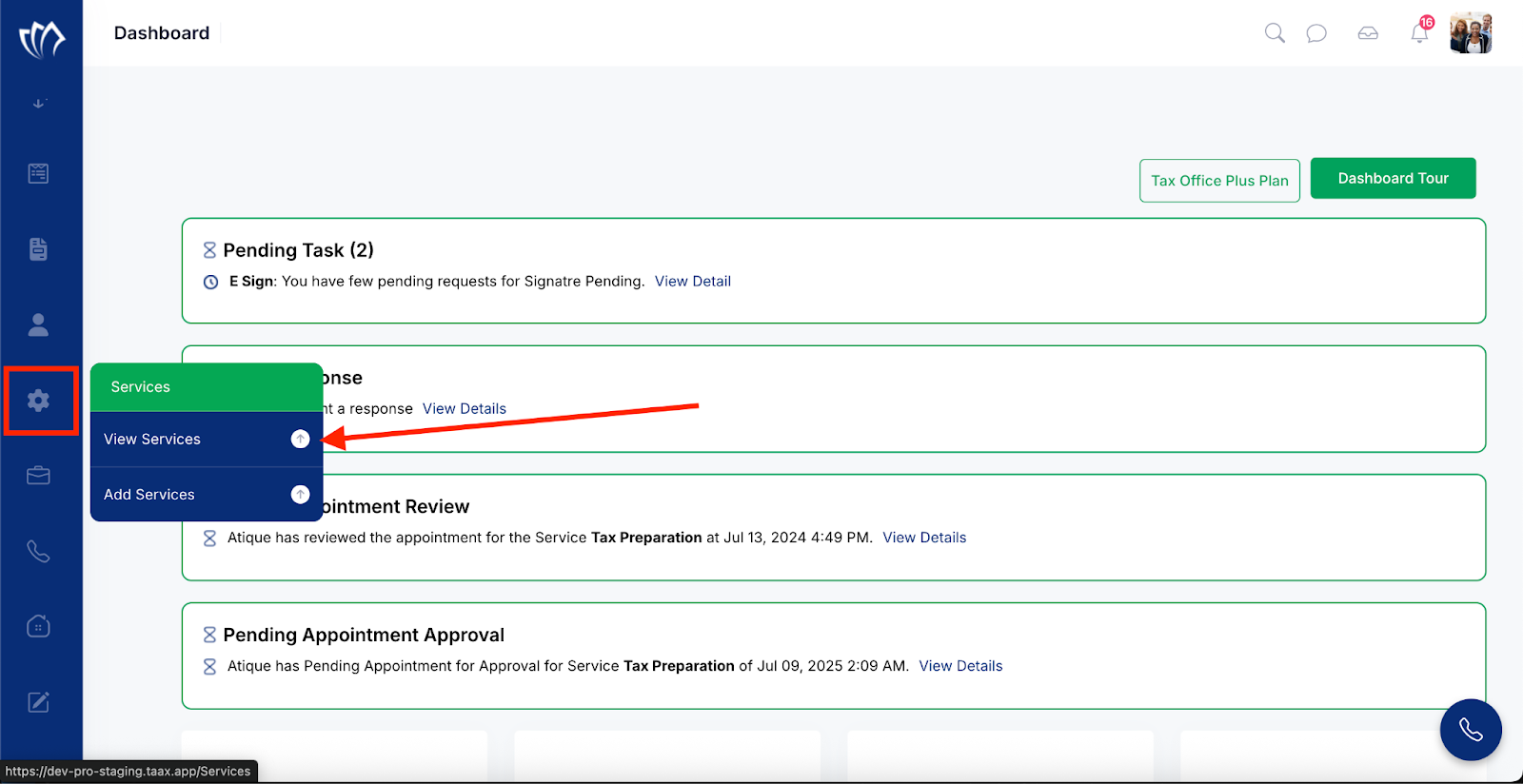
Step 2: The View Services screen will appear, displaying a list of all the services you’ve added. Here, you can review each service along with its details such as service name, cost, status, assigned form, and auto-approved appointments.
Click the Edit button next to each listed service. This allows you to update details like service name, cost, form, or settings.
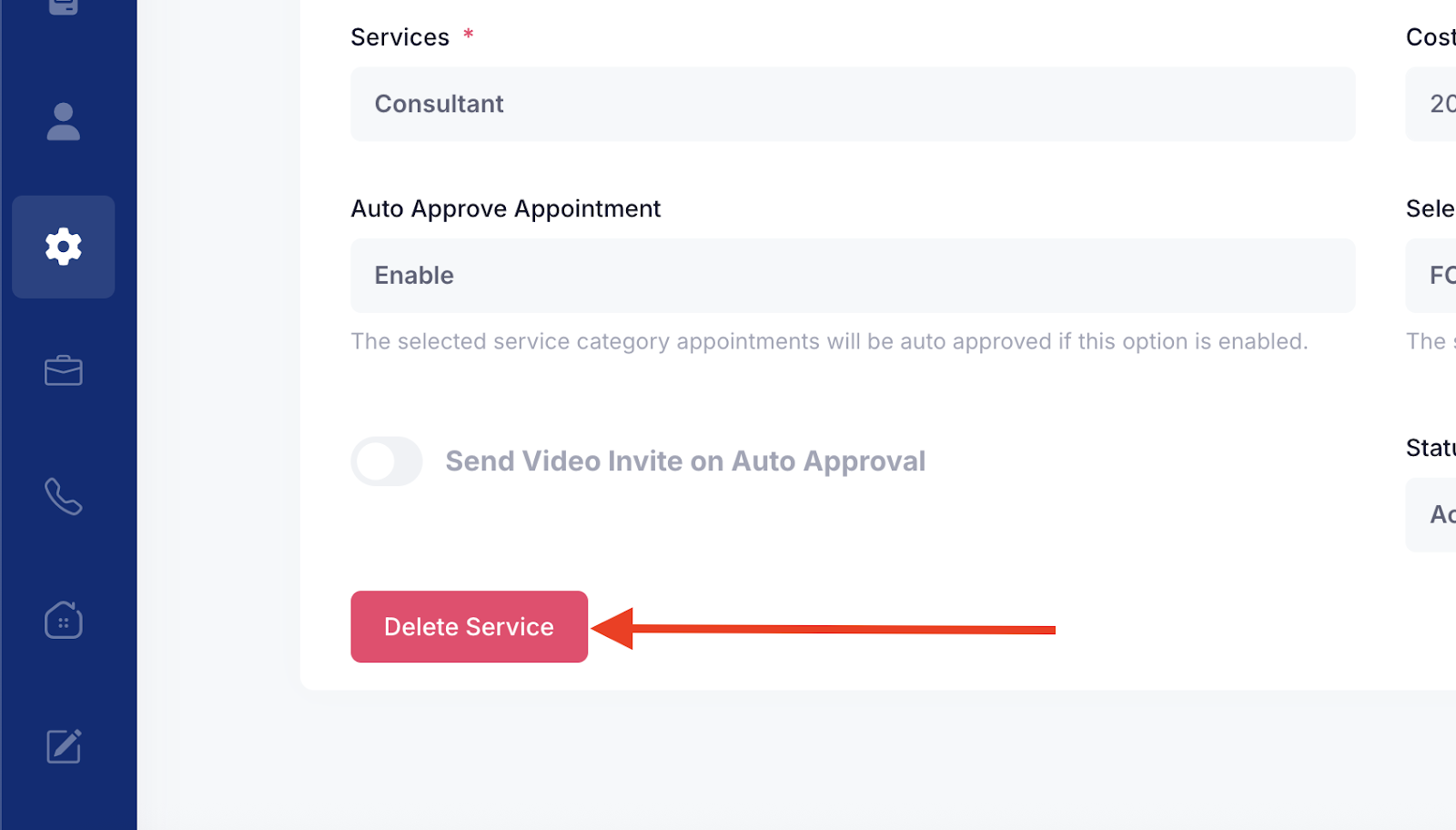
Step 3: An Edit Services screen will appear. Click the “Delete” button to remove the selected service from the system.
After successfully deleting a service, a message will flash on the View Services screen.