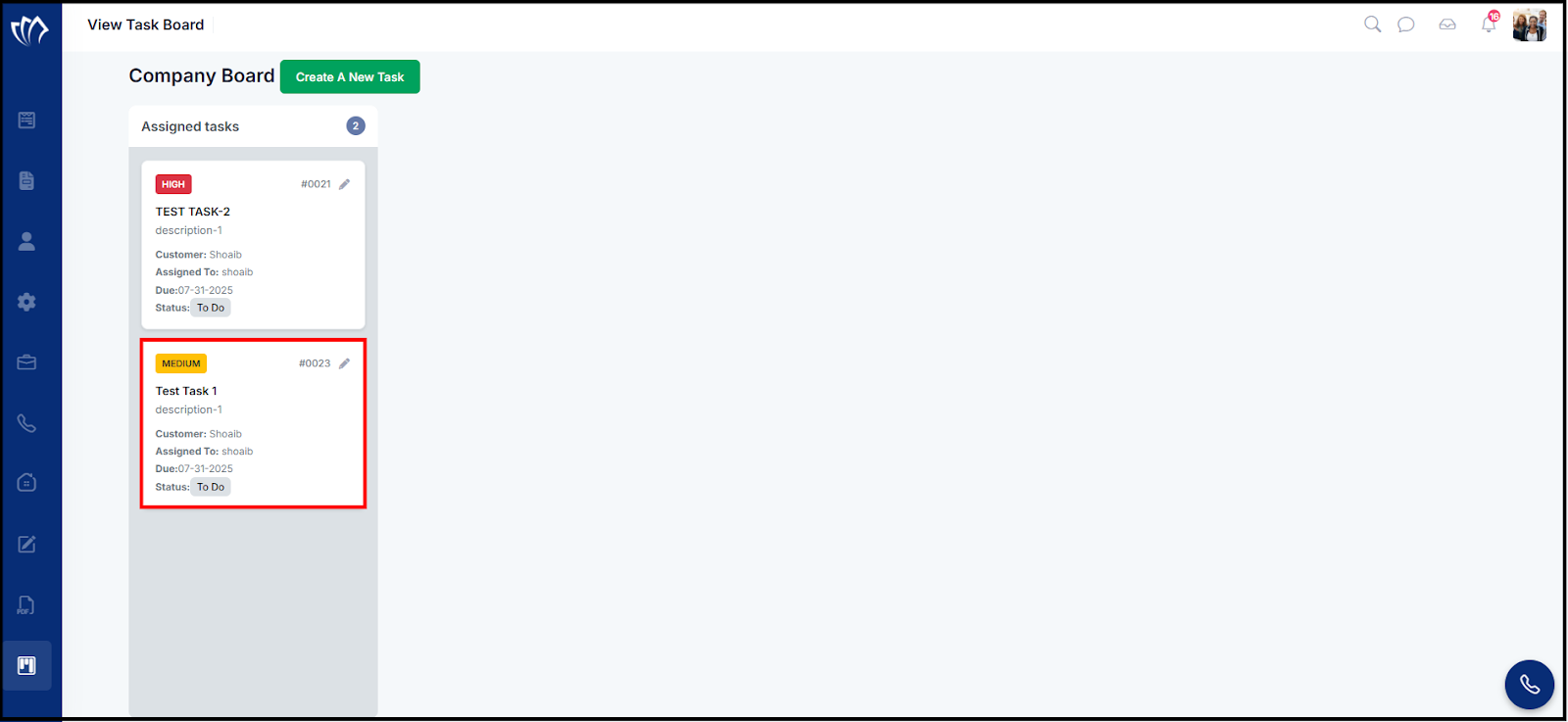
Creating a new task in TAAX Pro helps you assign responsibilities, set priorities, and track progress efficiently within your team. By defining key details like the assignee, customer, due dates, and estimated hours, you ensure that work is organized and timelines are met. Tasks added to the Company Board provide visibility for better planning and streamlined execution.
Let’s walk through the step-by-step guide on how to create a new task on the TAAX Pro platform.
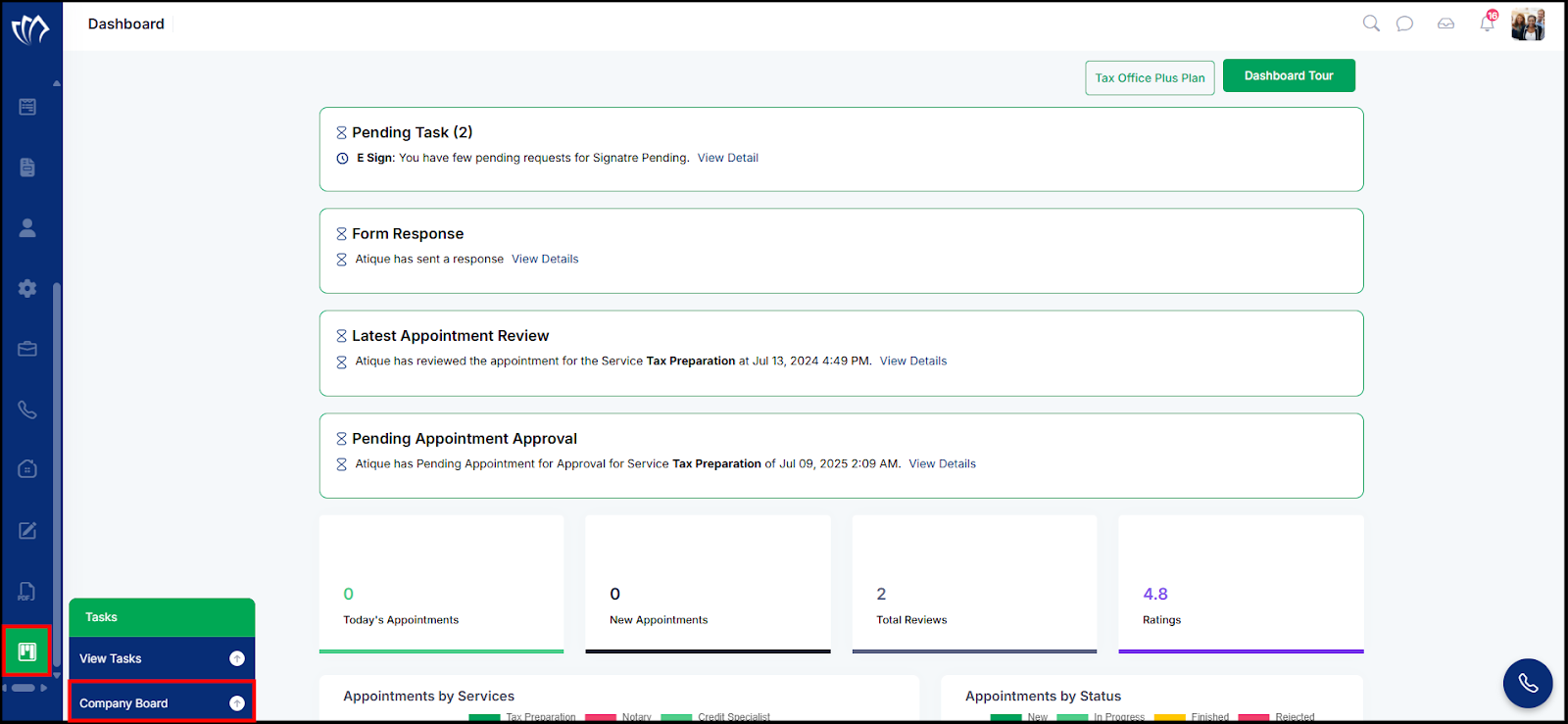
Step 1: Navigate to the left side panel, hover over the “Tasks” section, then click on the “Company Board” option.
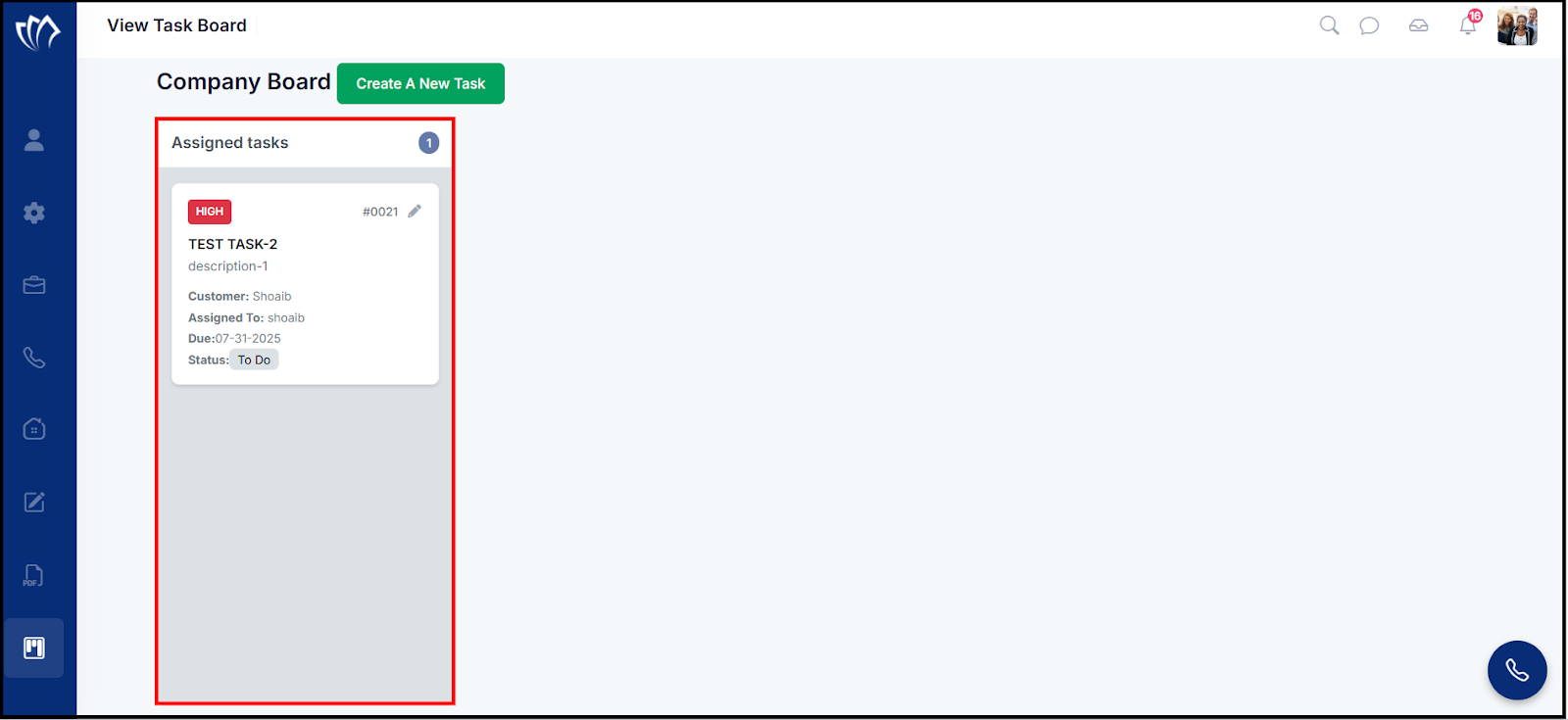
Step 2: The View Task Board screen will appear, showing all assigned tasks under the Company Board. Each task displays details such as priority, task name, description, customer name, assignee, due date, and current status.
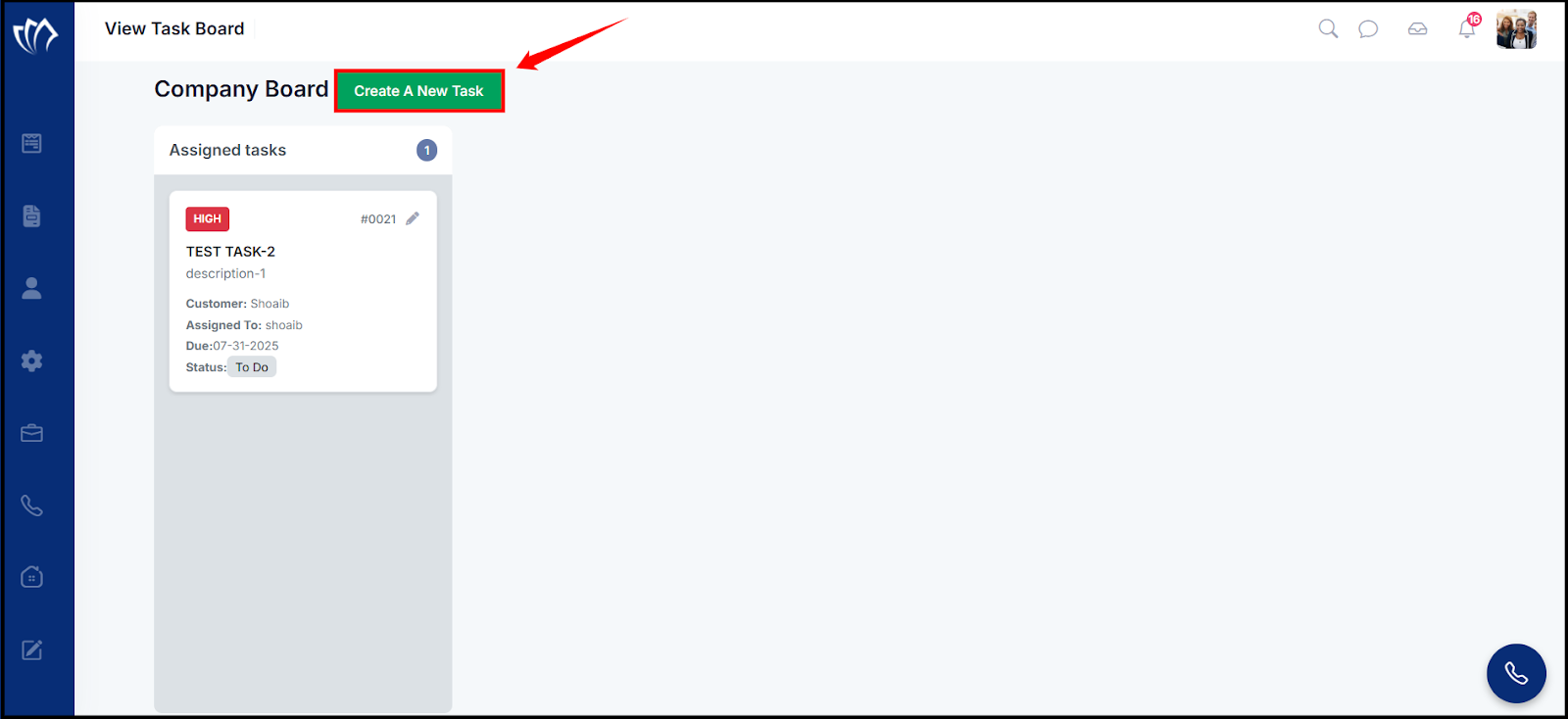
Step 3: Click on the “Create A New Task” button to begin creating a new task.
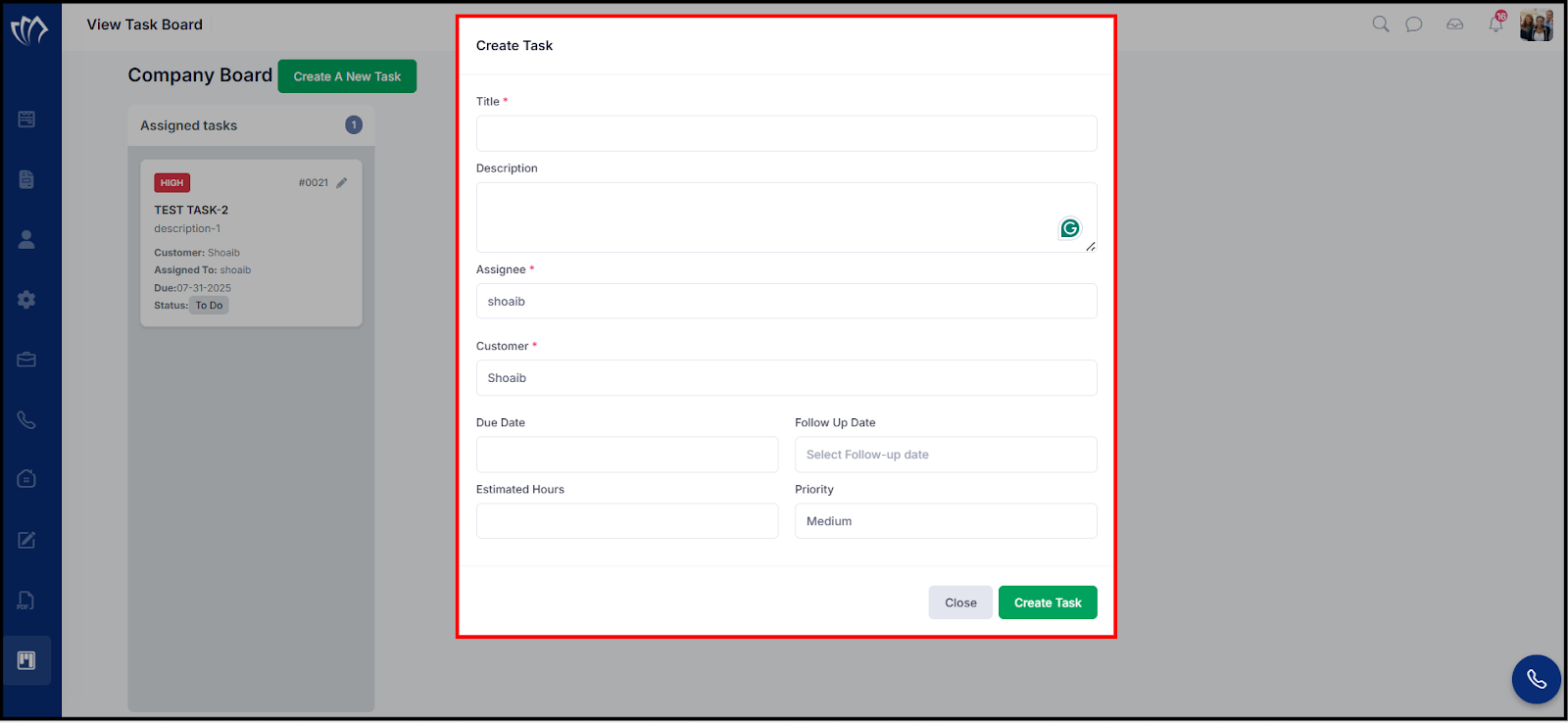
Step 4: A “Create Task” window will appear. Enter the required details such as title, description, assignee, customer, due date, estimated hours, priority, etc.
Step 5: After entering all necessary fields, click the Create Task button to save the new task.
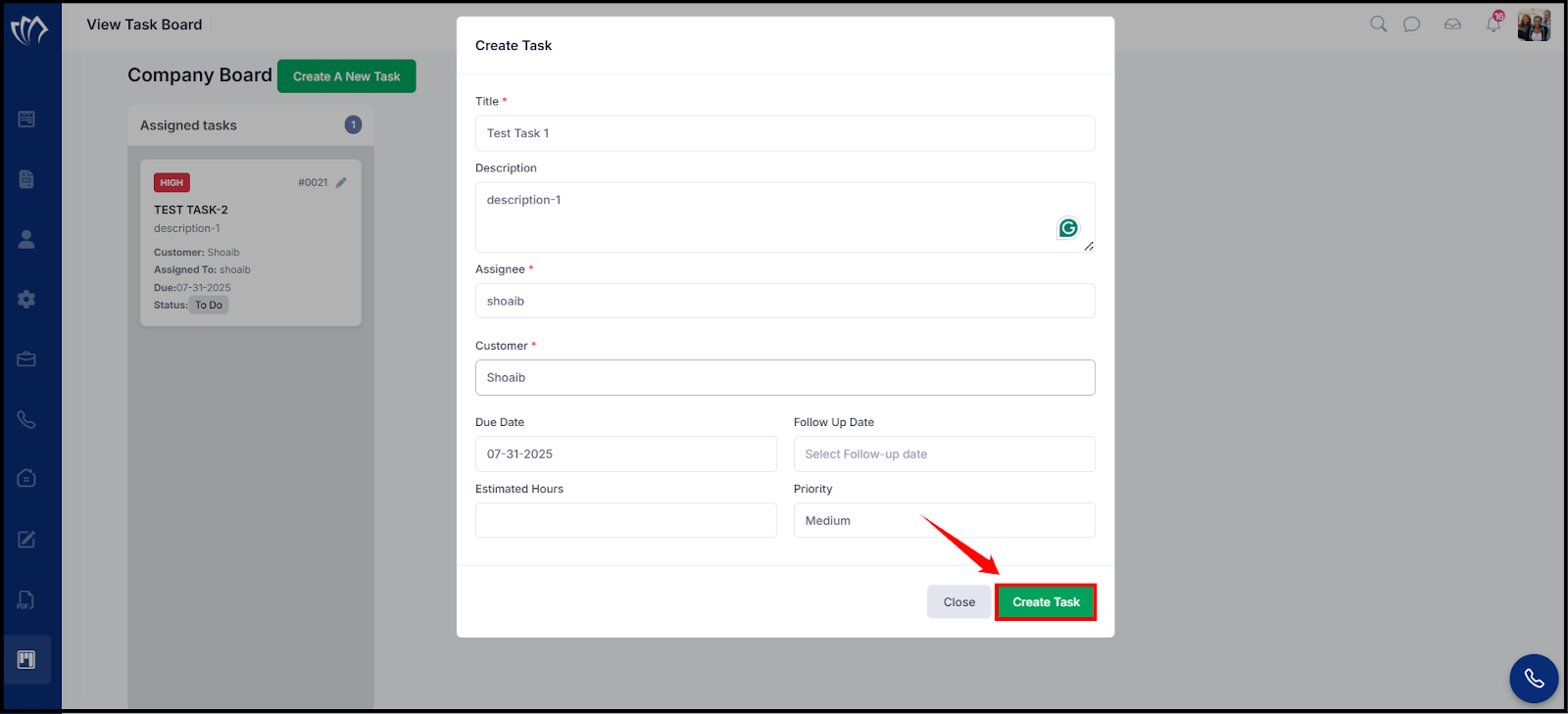
After creating the task, it will appear in the Assigned Tasks section.