
The Task Board offers a centralized view of all tasks assigned under the Company Board, helping you monitor workload, deadlines, and responsibilities. You can view key task details such as title, priority, due dates, assignees, and current status, all in one place.
Additionally, it allows easy access to task-specific actions like editing or updating progress, ensuring streamlined task management.
Follow the step-by-step guide below on how to view the task board on the TAAX Pro platform.
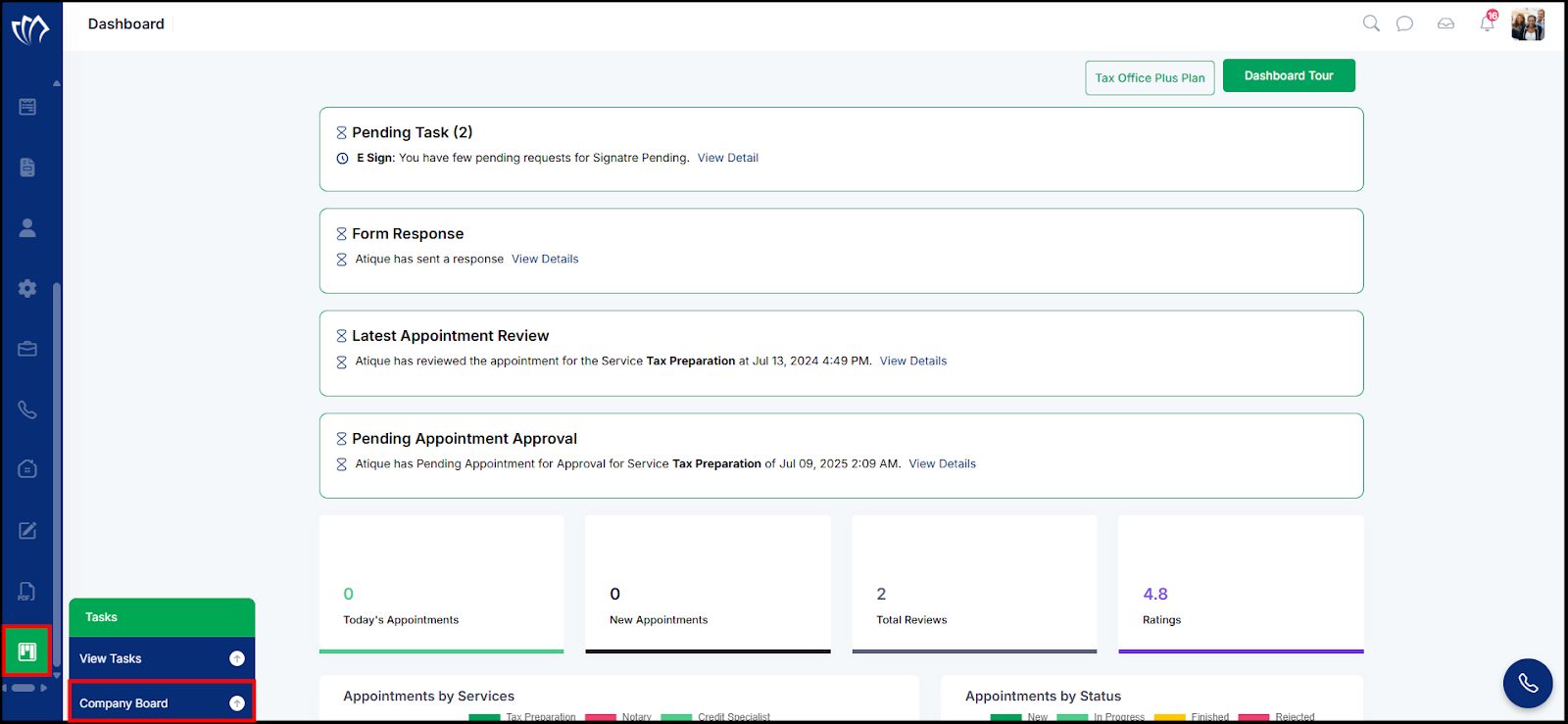
Step 1: Navigate to the left side panel, hover over the “Tasks” section, then click on the “Company Board” option.
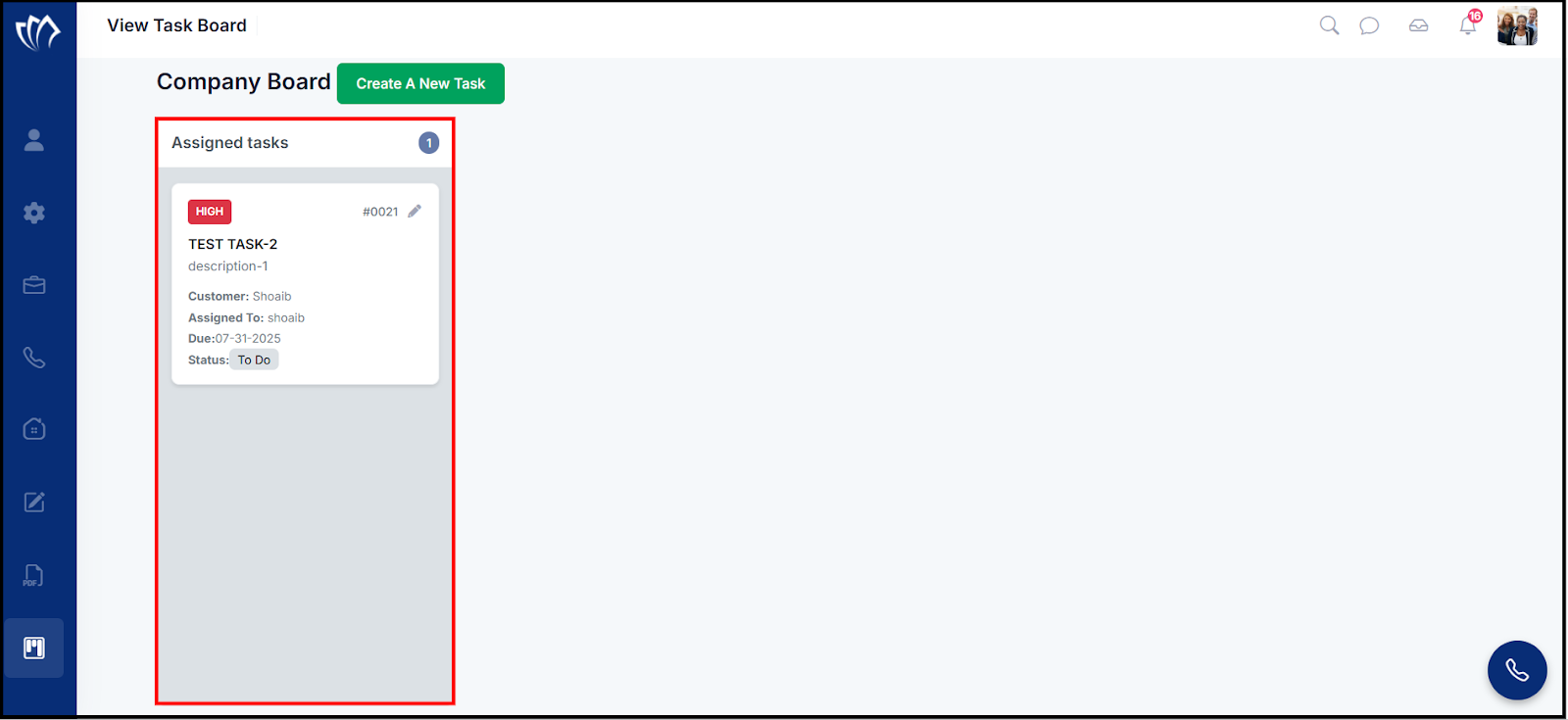
Step 2: The View Task Board screen will appear, showing all assigned tasks under the Company Board. Each task displays details such as priority, task name, description, customer name, assignee, due date, and current status.
View Task
Viewing tasks lets you check details like priority, due dates, and assignees, helping you track progress and manage work efficiently.
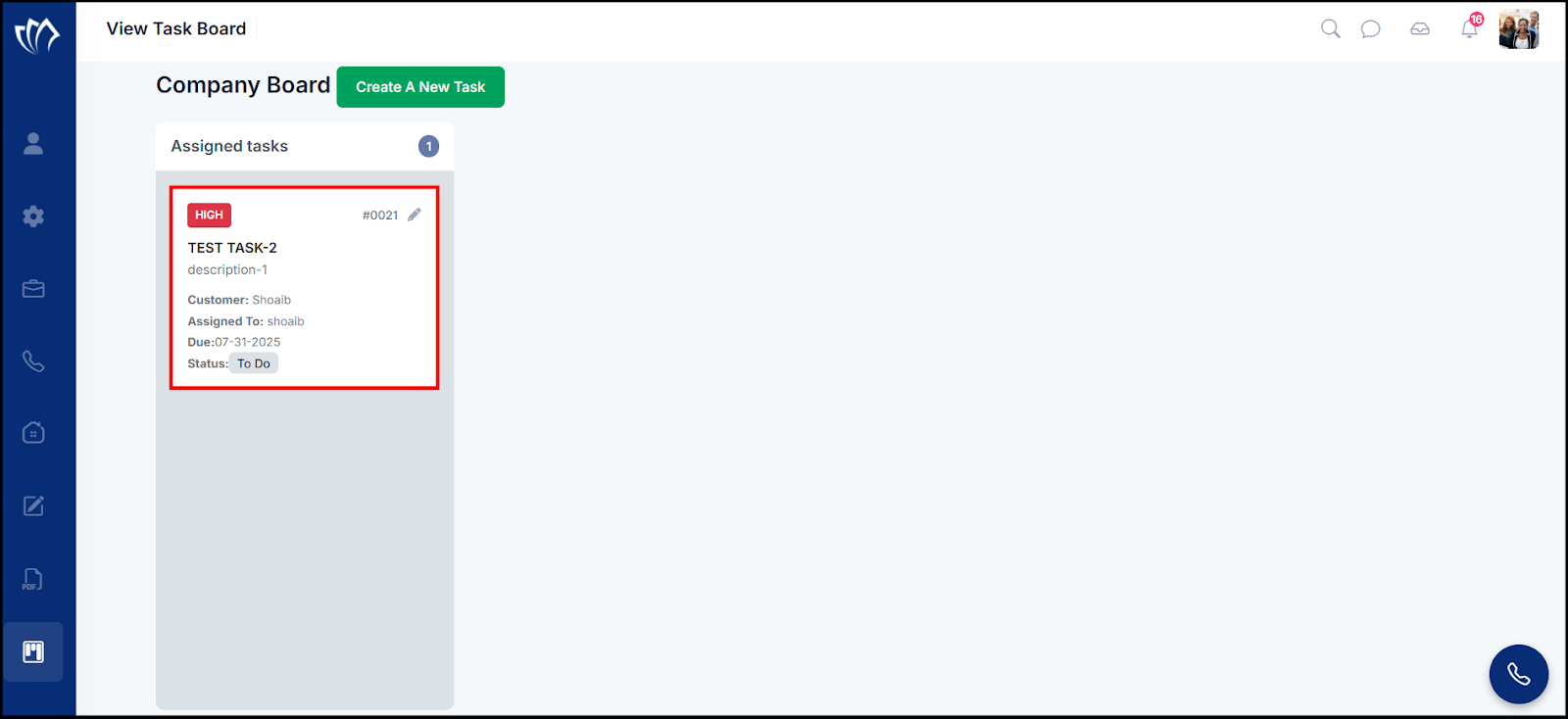
Step 1: Click on the task from the Assigned Tasks section on the Company Board to view its details.
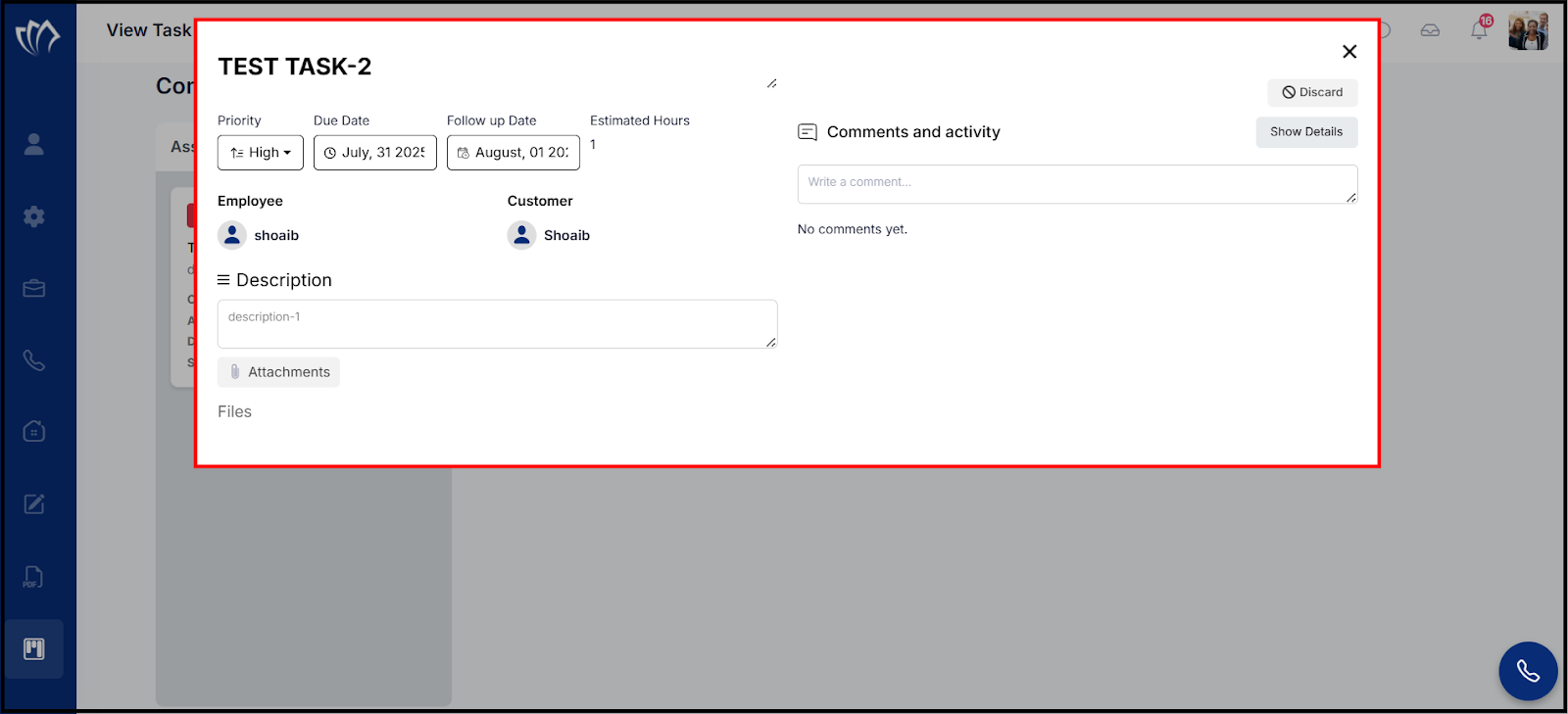
Step 2: The task details window will appear, displaying information such as priority, due date, follow-up date, estimated hours, assigned employee, customer, description, and activity comments.
Edit Task
Update existing task details such as title, description, due date, priority, and estimated hours to keep assignments accurate and up to date.
Step 1: Click the edit icon on the task card to open the editing interface for the assigned task.
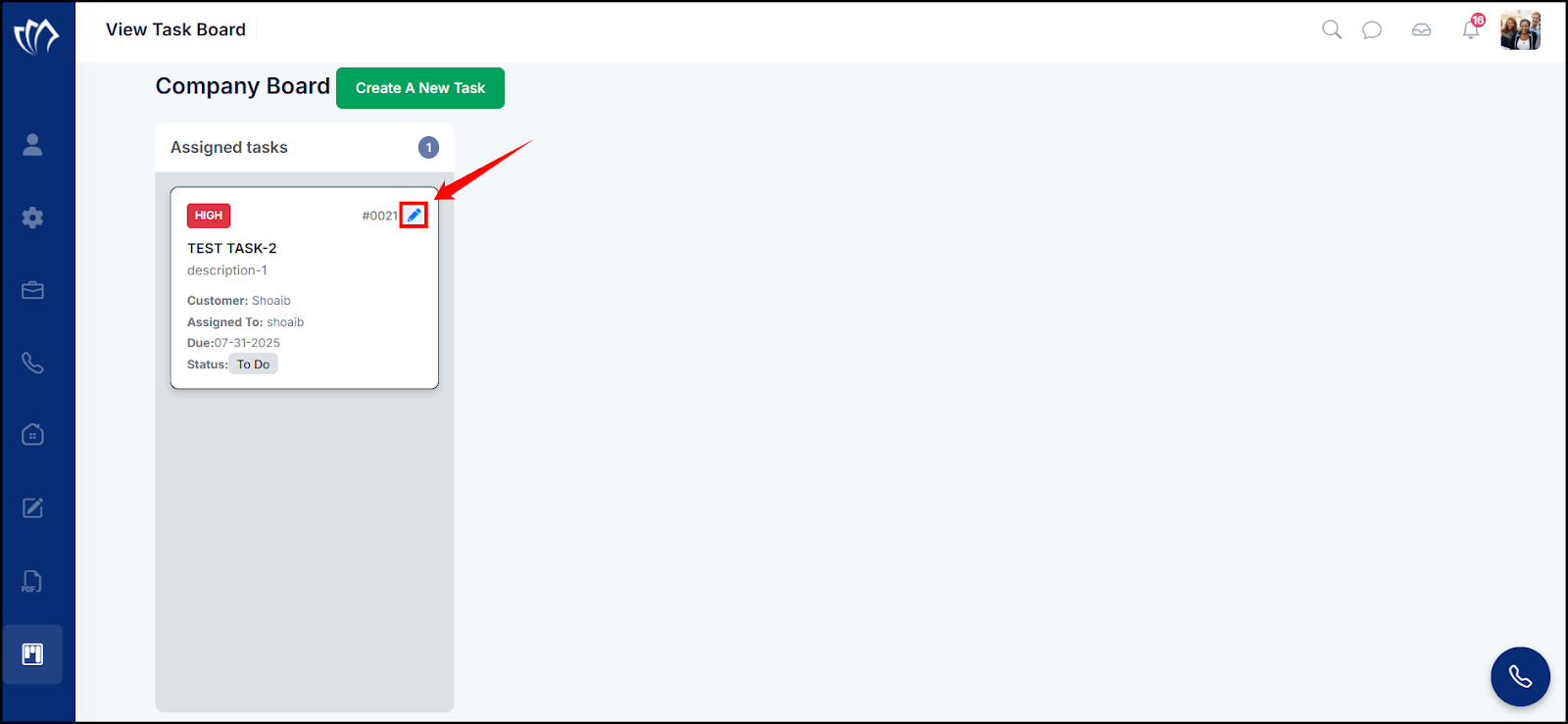
Step 2: The Edit Task window will appear, allowing you to update the task details such as title, description, due date, follow-up date, estimated hours, and priority.
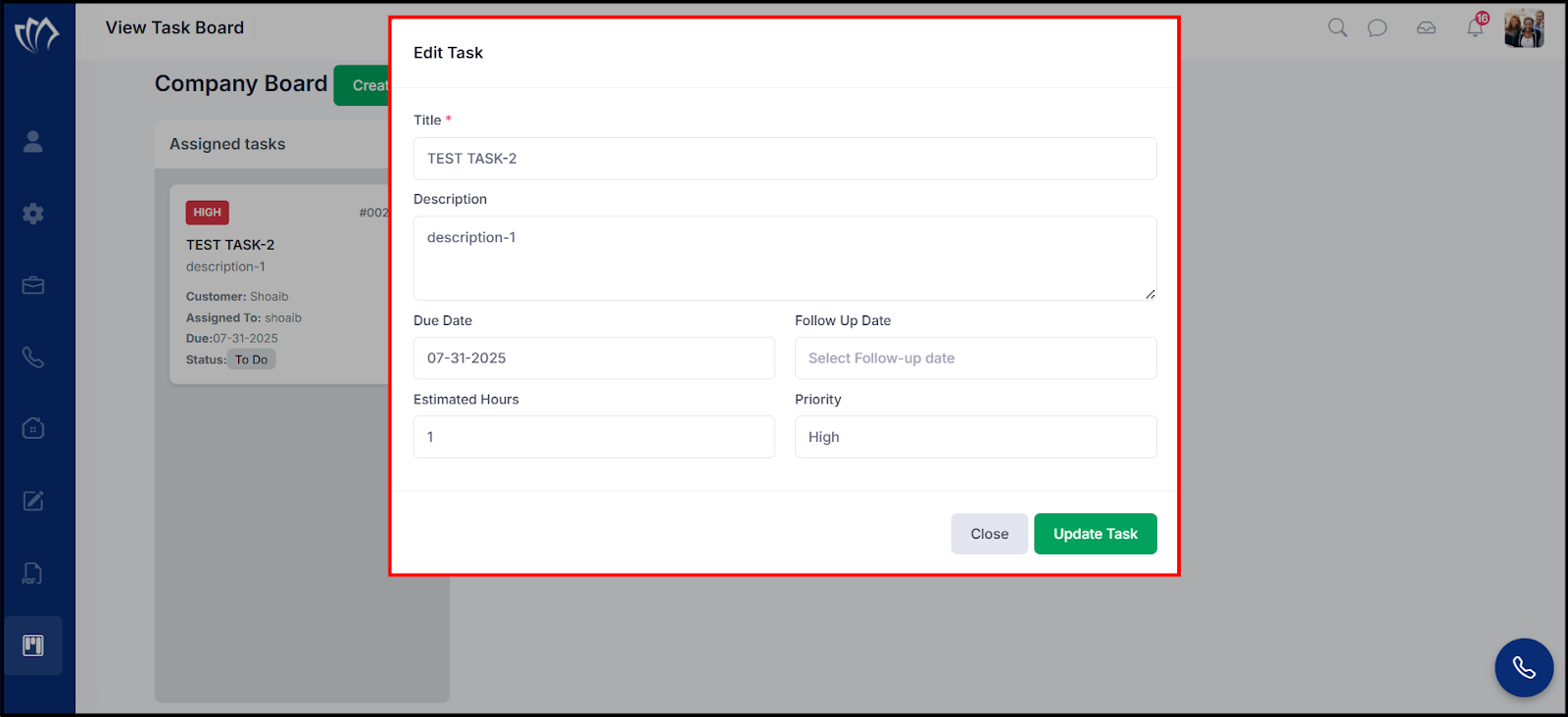
Step 3: After updating the task details, click the Update Task button to save the changes.
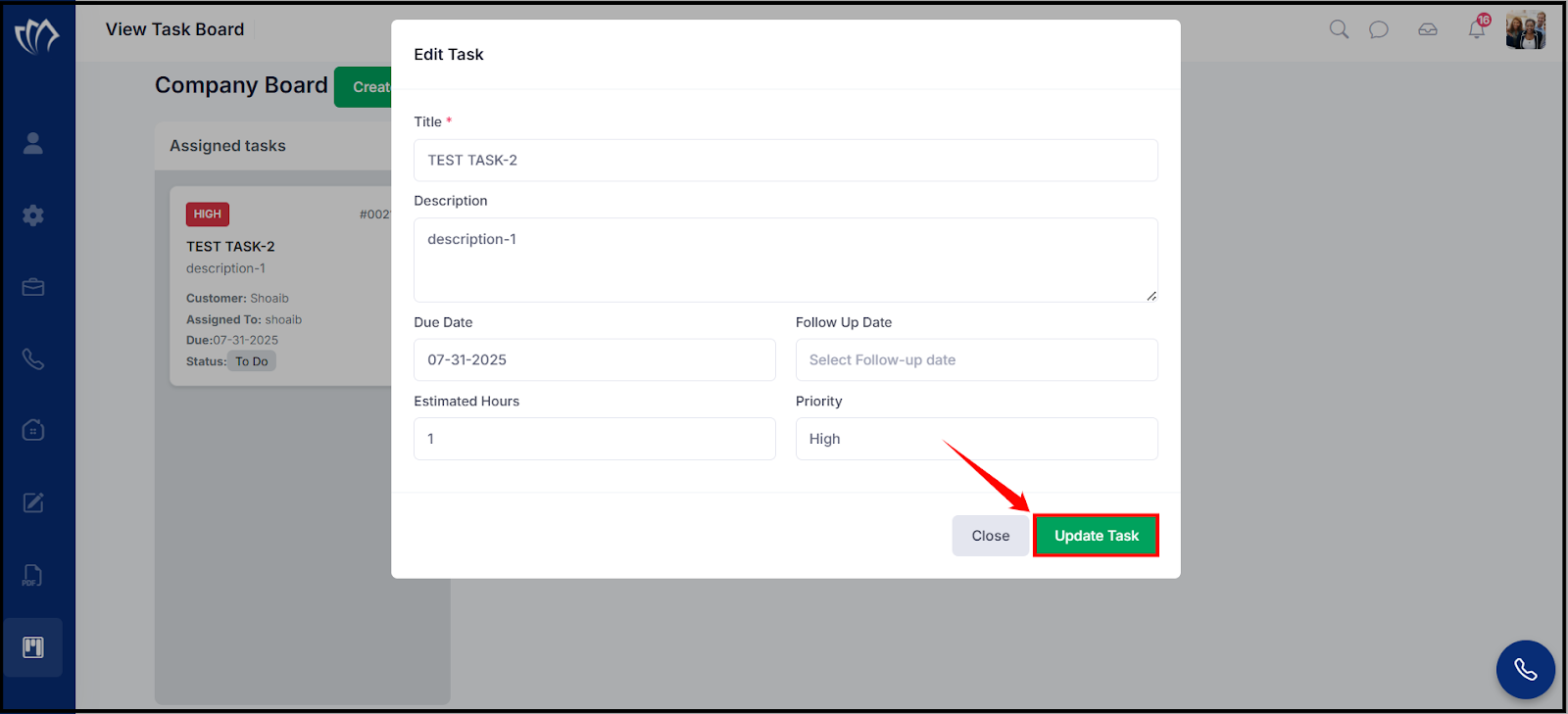
After updating the task, the changes will be reflected on the Task Board.
