
Easily access and review documents that have been fully signed through the e-signature process. Once a document is signed, its status is updated to “Document Completed”, and it becomes available for viewing directly within the platform.
This gives you a clear, finalized view of the signed document, confirming that all required signatures have been collected. It ensures transparency, supports record-keeping, and allows you to reference or download the completed file whenever needed, all in one place.
Follow the step-by-step guide below to view documents that have been electronically signed on the TAAX Pro platform.
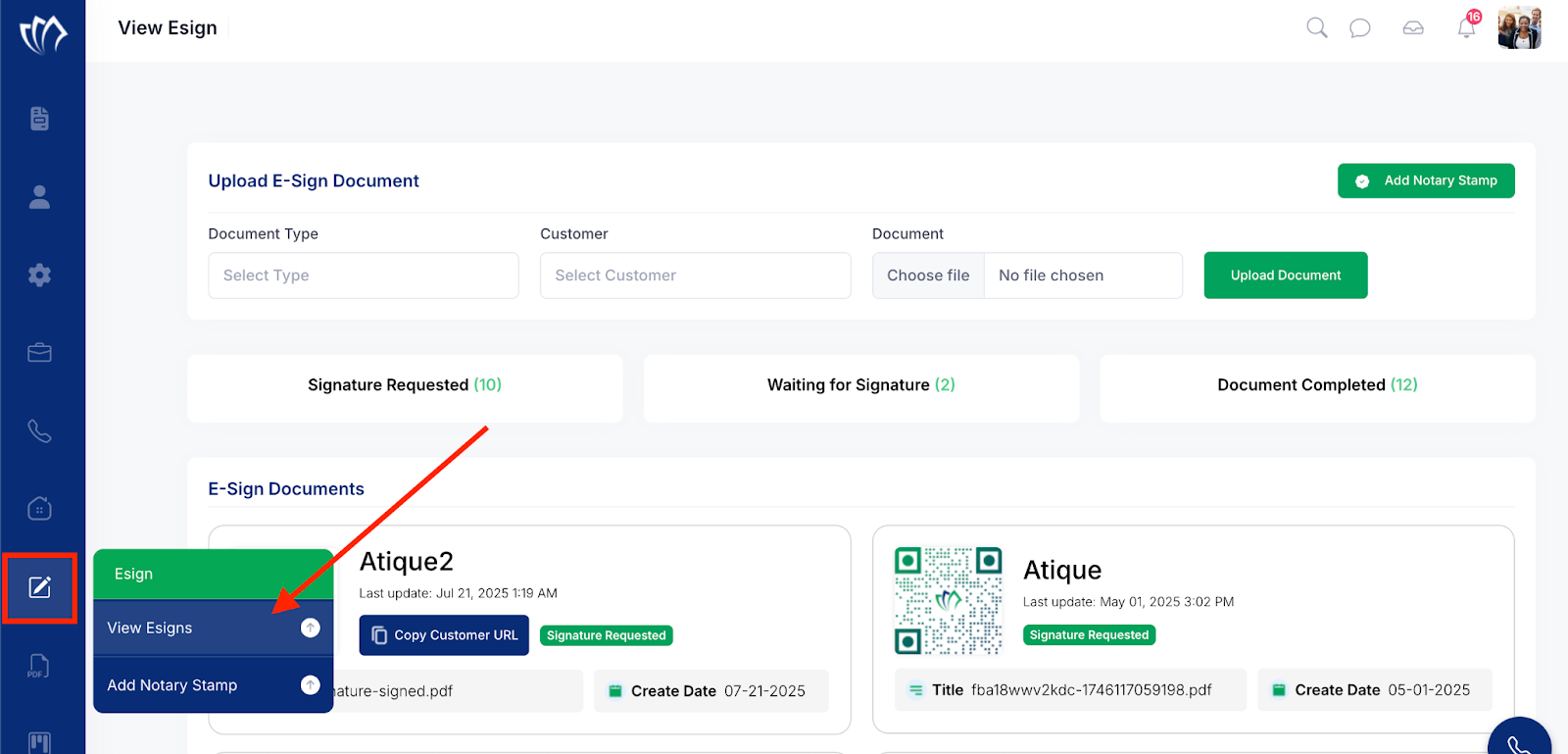
Step 1: Navigate to the left side panel, hover over the “Esign” section, then click on the “View Esign” option.
Step 2: The E-Sign screen will appear, displaying all documents that have been uploaded for e-signature. Under the E-Sign Documents section, you can view each document’s details, including its status, title, creation date, and the associated customer.
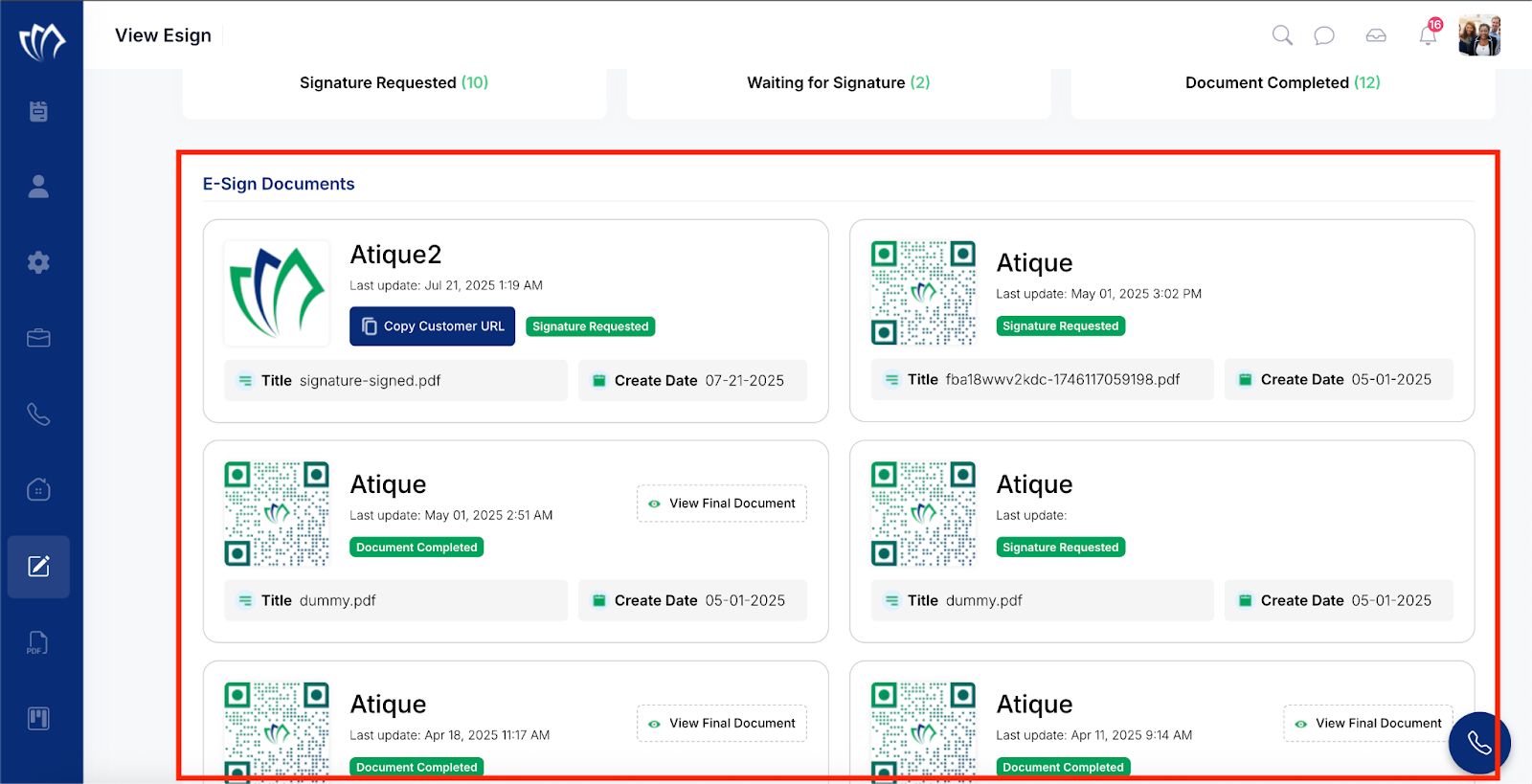
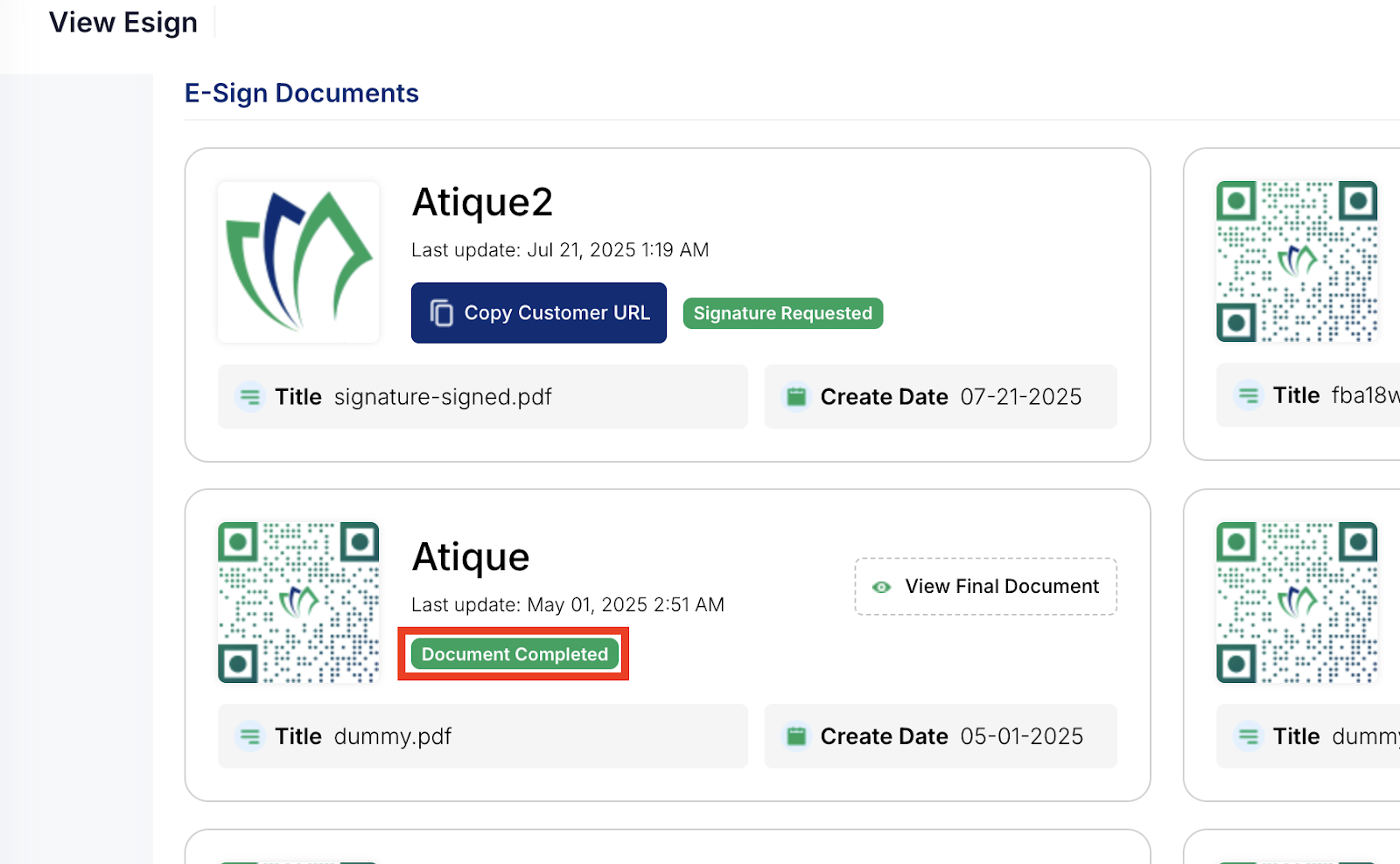
Step 3: Select the customer whose document you want to view. Look for documents with the status “Document Completed”, which indicates that the e-signature process has been successfully finished.
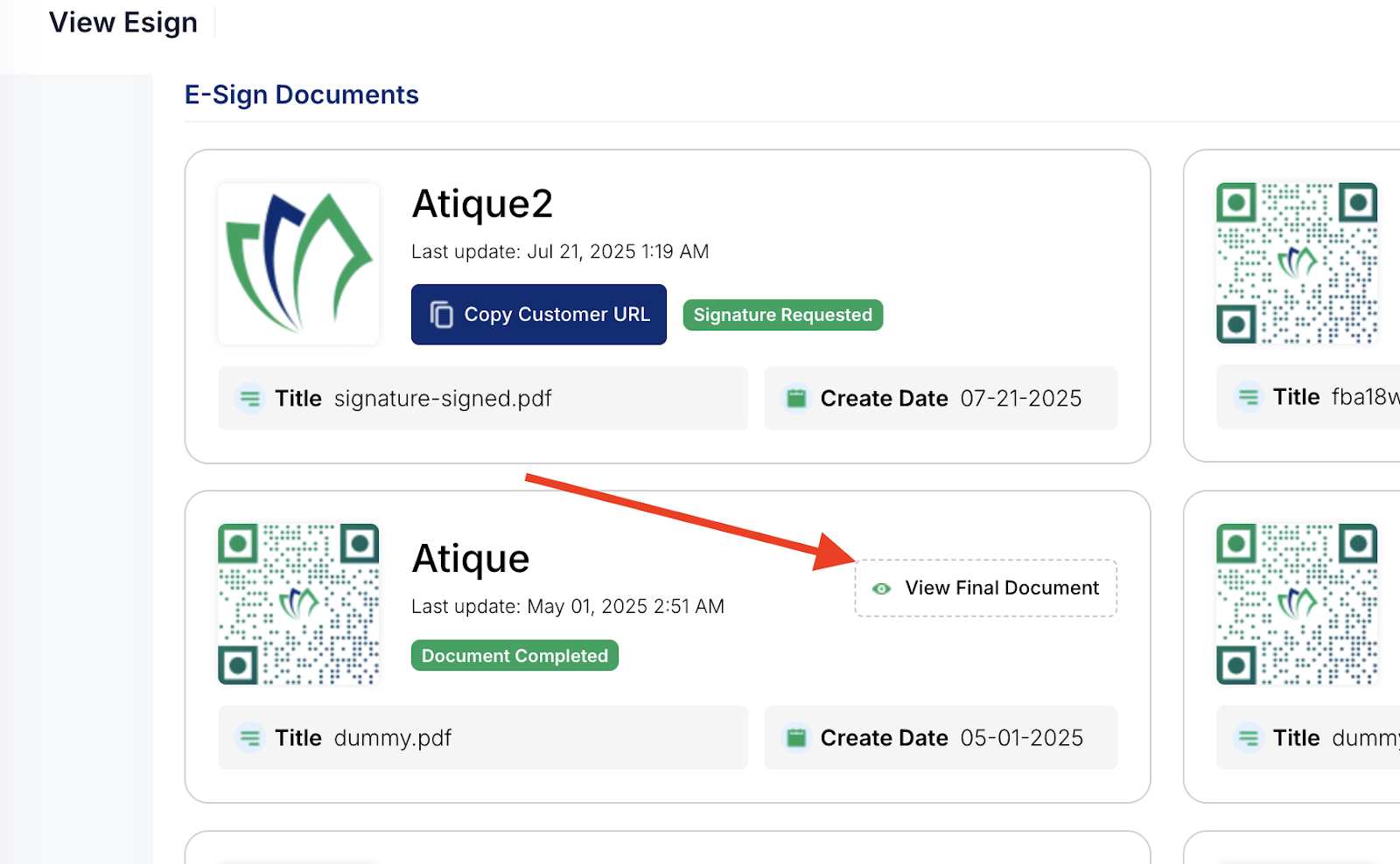
Step 4: Once you’ve confirmed the status is “Document Completed”, you will see a “View Final Document” button. Click this button to open and review the final e-signed document.
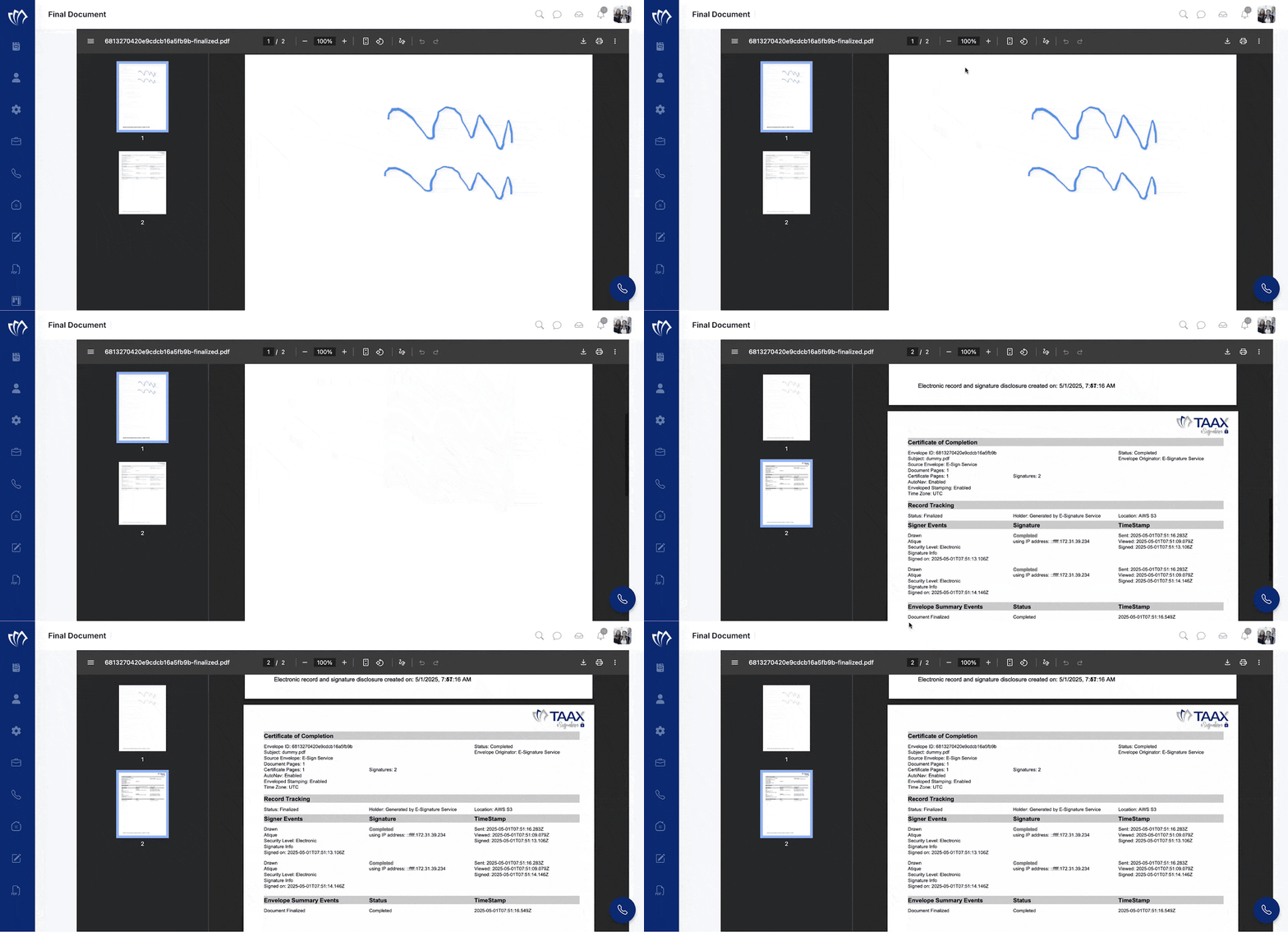
Step 5: After clicking the “View Final Document” button, a new PDF window will open. Here, you can view the completed e-signed document, including the certificate of completion with stamped e-signature details and signer information.

zmwvqiqomqyqvmmszprzeivllifhkq