
Securely share documents with customers for digital signatures. This replaces manual paperwork with a faster, more efficient process, streamlining approvals, reducing delays, and providing a clear, trackable record of all signature requests.
Follow the step-by-step guide below to upload the documents for e-signature on the TAAX Pro platform.
Step 1: Navigate to the left side panel, hover over the “Esign” section, then click on the “View Esign” option.
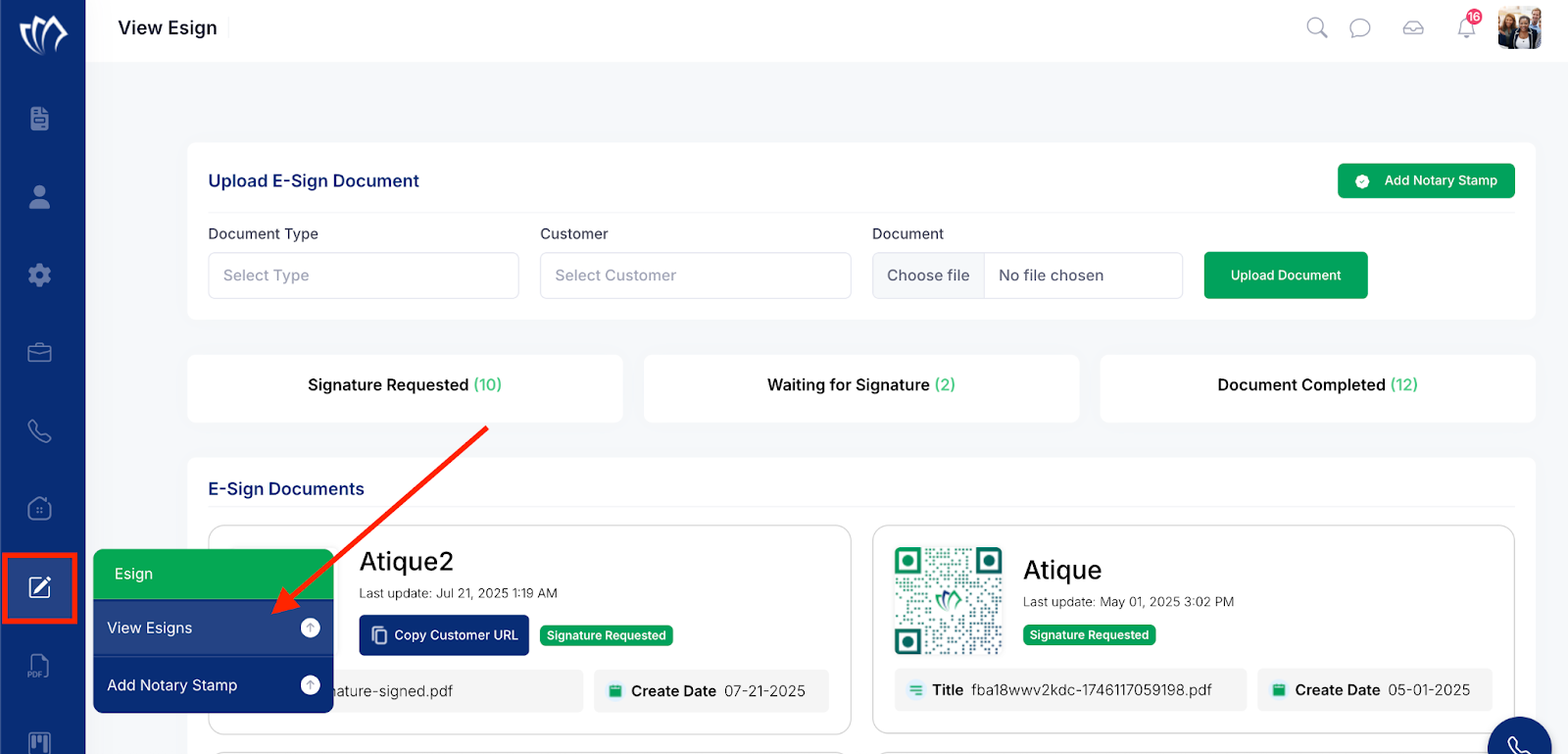
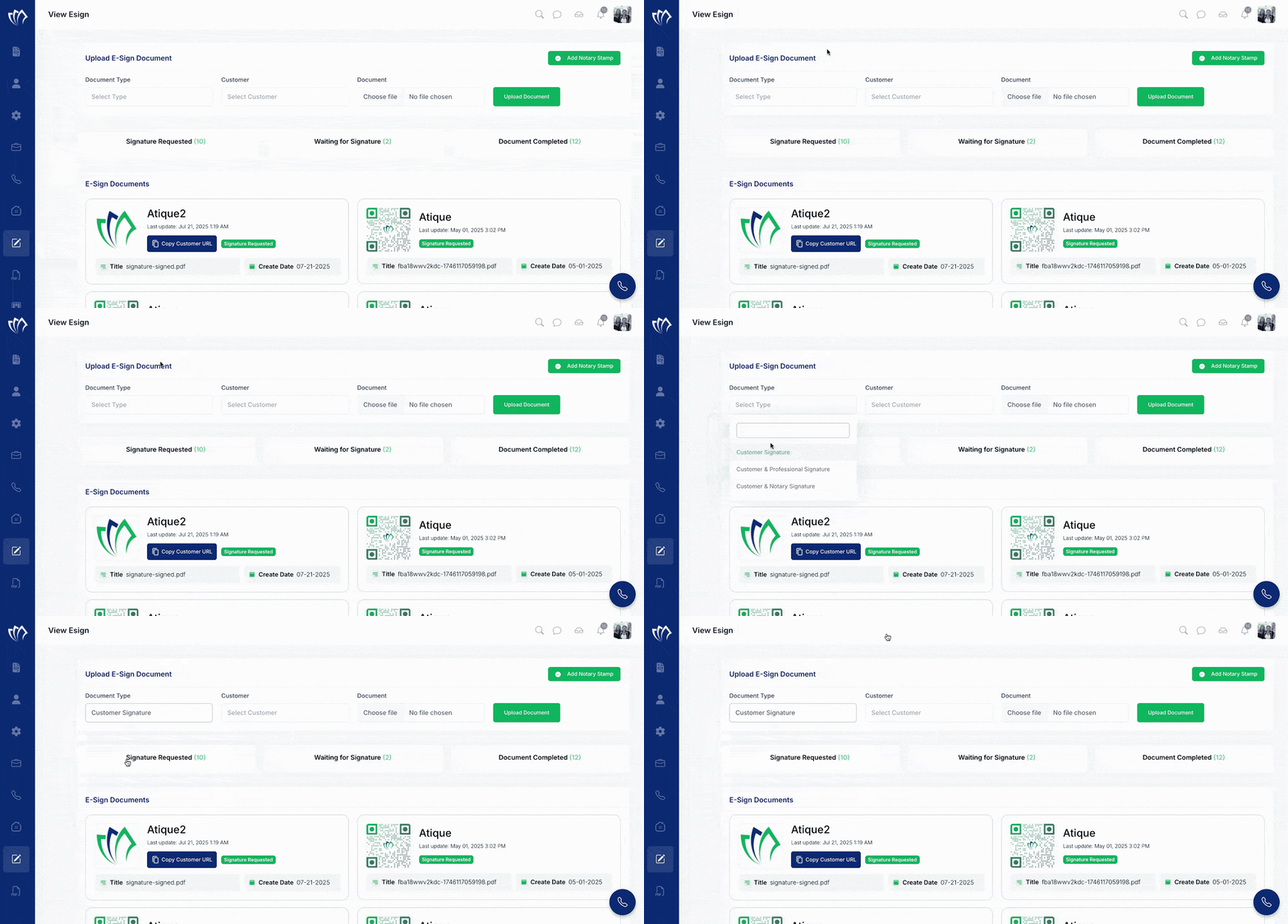
Step 2: The E-Sign screen will appear, displaying all e-signed documents. At the top, under Upload E-Sign Document, select the document type from the dropdown menu. You will find the following e-sign options:
| Document Type | Description |
| Customer Signature | The document requires only the customer’s signature. |
| Customer & Professional Signature | The document needs signatures from both the customer and the assigned professional. |
| Customer & Notary Signature | The document must be signed by the customer and verified with a notary’s signature. |
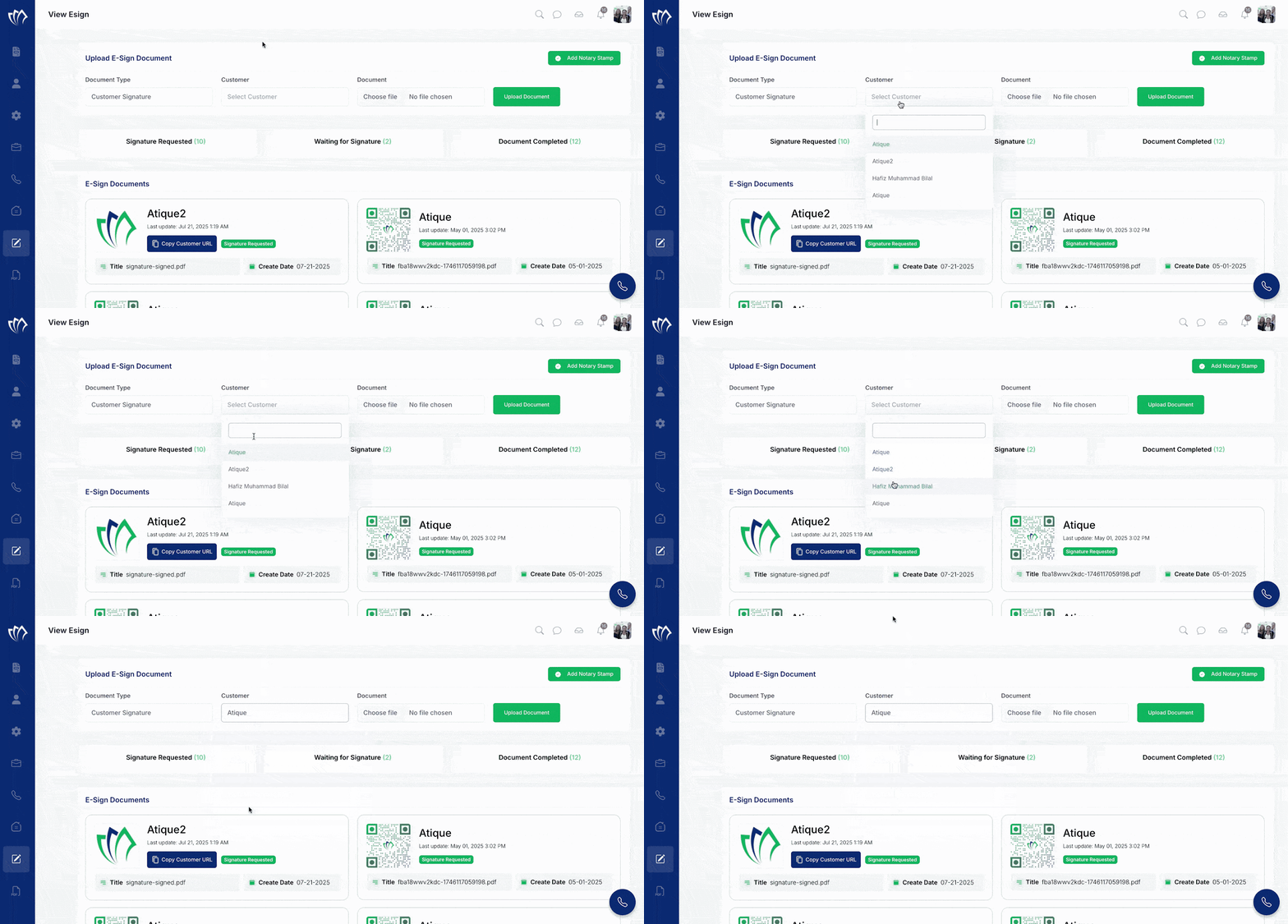
Step 3: Select the Customer from the dropdown to whom you want to send the document for e-signature.
Step 4: Choose the document that needs to be e-signed by selecting it from your system or uploading a new file. Make sure the document is complete and ready for signature before proceeding.
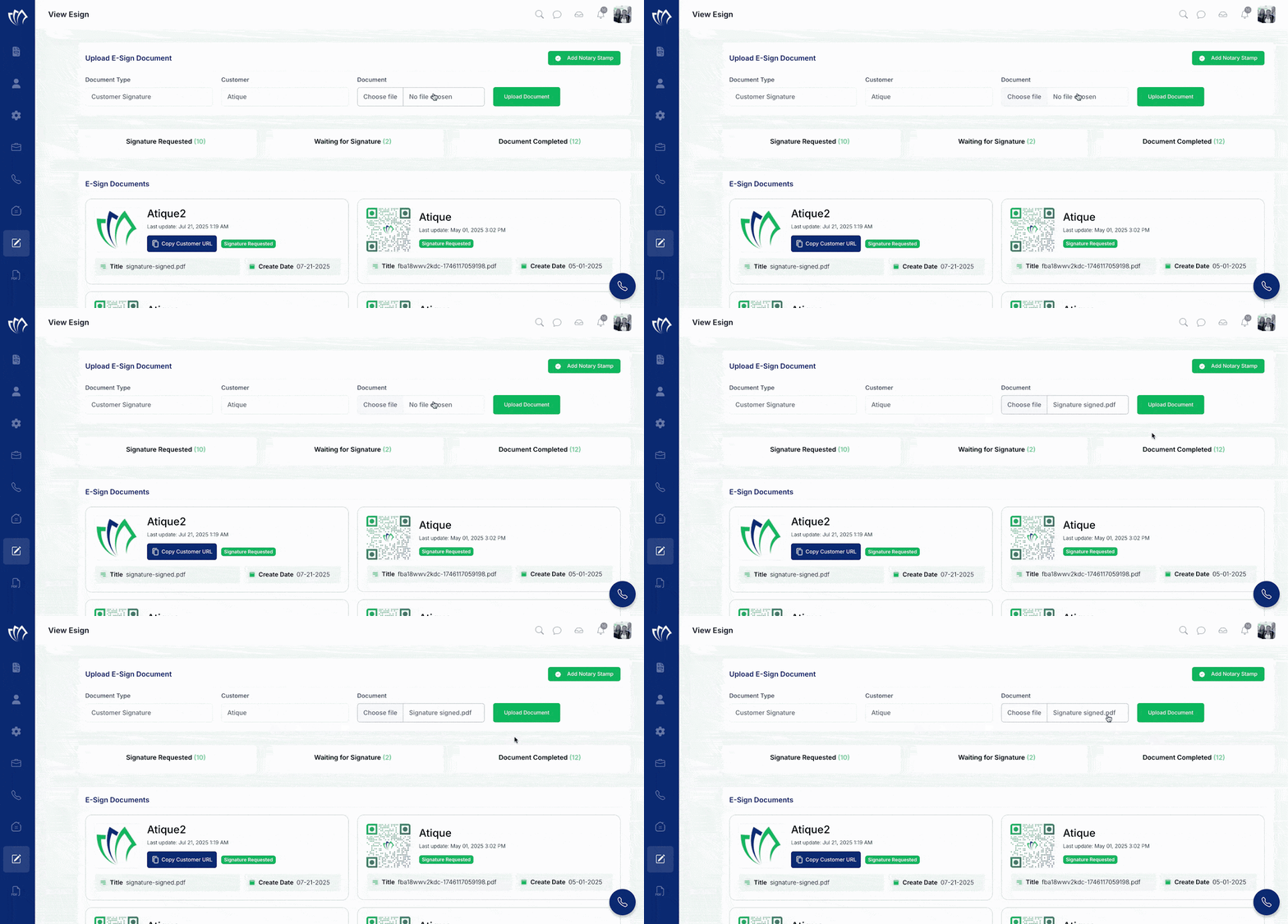
Step 5: After entering the requested values in all the required fields, click on the Upload Document button to submit the document for e-signature. This will send the document to the selected customer.
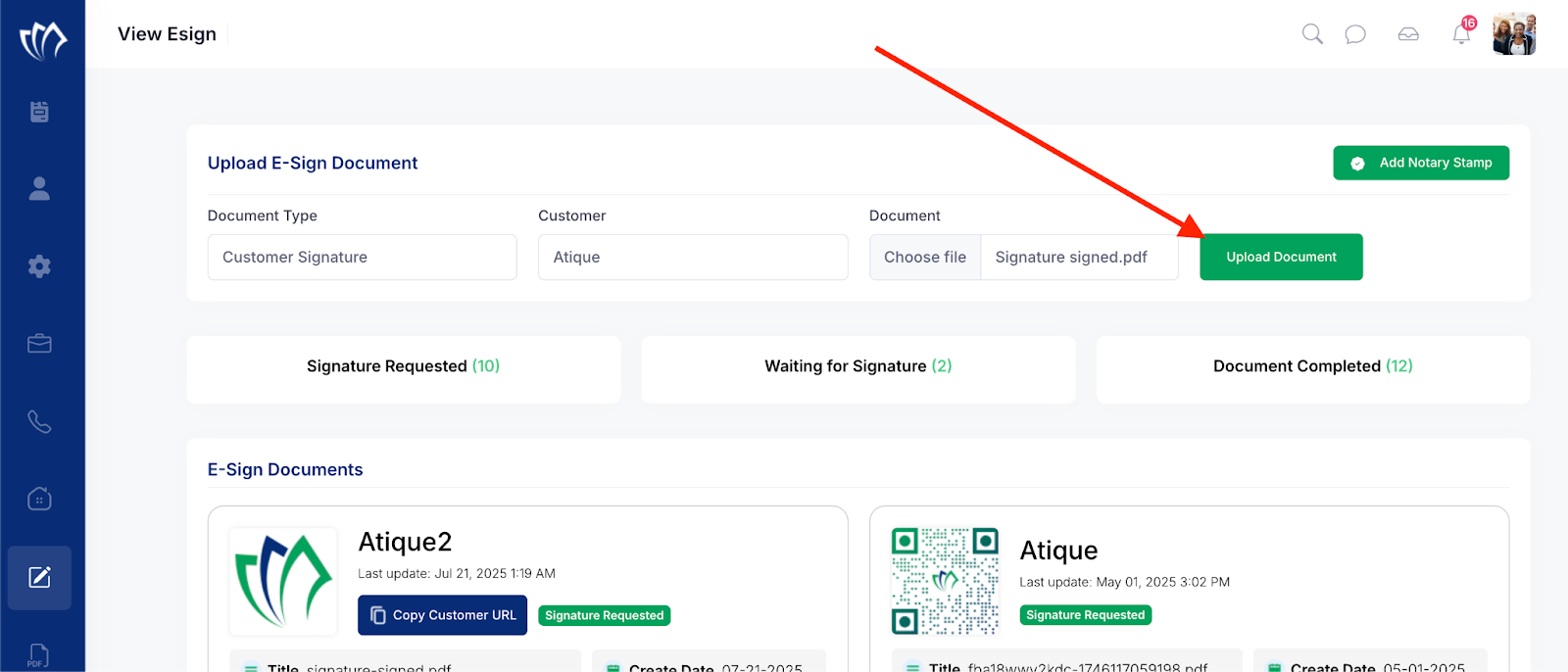
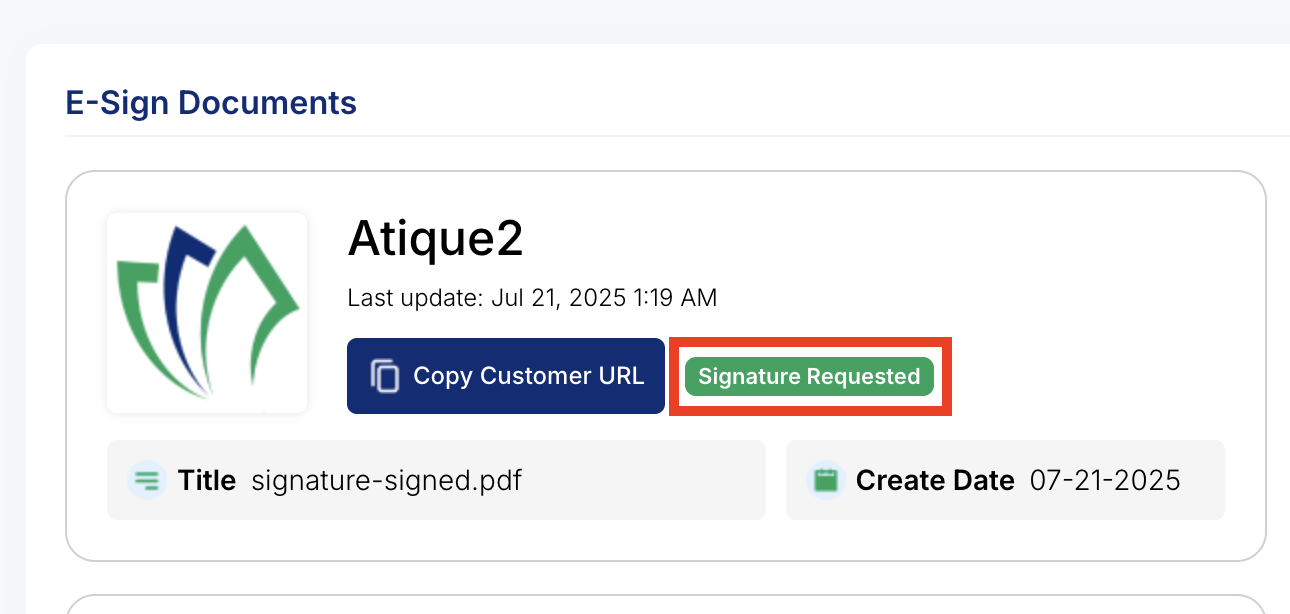
After submitting the document for e-signature, it will appear on the View E-Sign screen with the status “Signature Requested.” At this stage, the document is pending action from the customer. Please wait for the customer to complete the e-signature process.
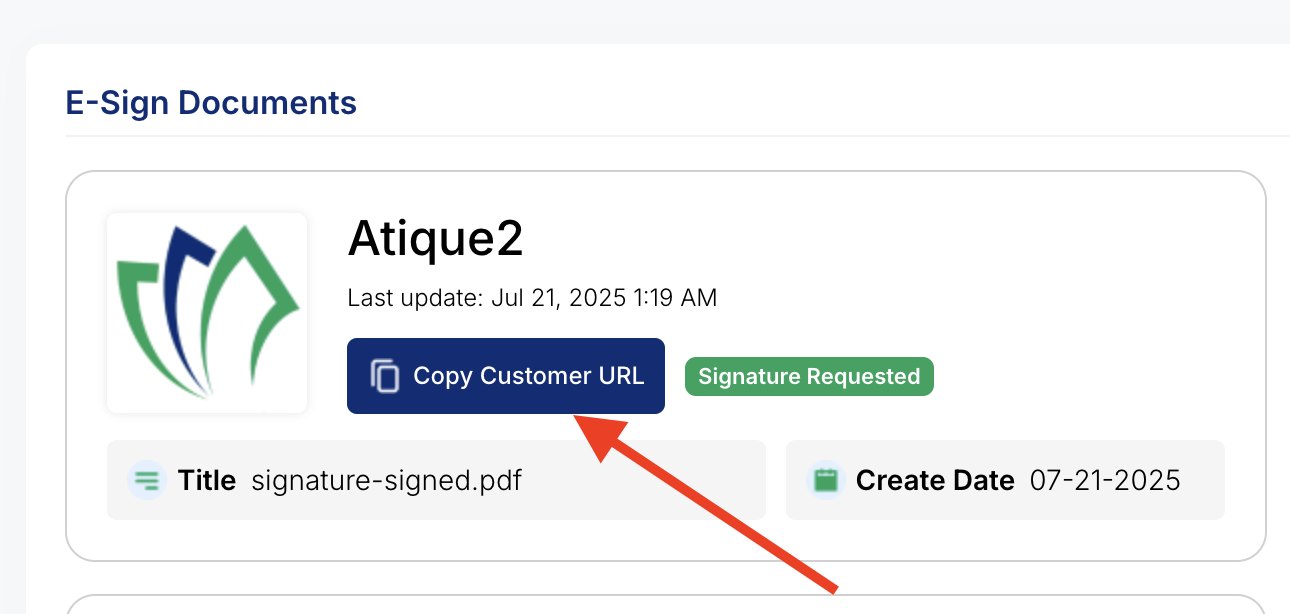
Note: You can also copy the link of the document that is required to e-sign and send this link to the customer directly.
If you want to view the e-signed document, please refer to this guide for detailed instructions on how to access and review it.
