TAAX Pro includes a built in Inbox that lets you view, manage, and reply to emails from your connected business email account without leaving the platform. All your incoming, sent, spam, and deleted messages are organized into views so you can keep track of client communication in one place.
Access the Email Workspace
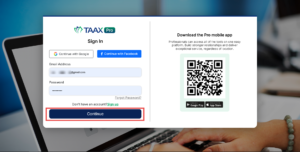
Step 1: Log in to your TAAX Pro account.
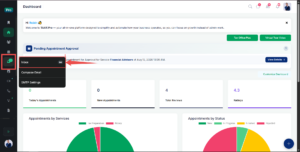
Step 2: On the left sidebar, hover over the Inbox icon to open the flyout menu, then click Inbox.
Mailbox Panel Options
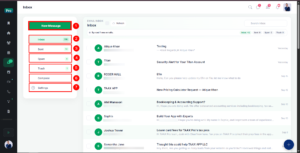
Once inside the Inbox, the mailbox panel on the left gives you quick access to every view and action.
| Ref. | Option | Description |
|---|---|---|
| 1 | New Message | Opens the compose window to write a new email. |
| 2 | Inbox | Shows all incoming emails from clients, leads, and system notifications. |
| 3 | Sent | Shows all emails you have sent from your connected account. |
| 4 | Spam | Shows emails that have been filtered out as junk or unwanted. |
| 5 | Trash | Shows emails that have been deleted. |
| 6 | Compose | Opens the compose window, same as New Message. |
| 7 | Settings | Opens the SMTP Settings page where you manage your email connection. |
Inbox
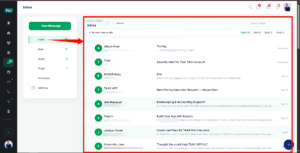
The Inbox lists all incoming emails. From here you can select, delete, search, refresh, and open any email.
Delete Email
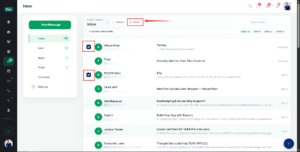
Click the checkbox next to an email to select it. You can select more than one email at a time. Once an email is selected, a Delete button appears next to Refresh, allowing you to remove the selected emails from the Inbox.
Search and Refresh the Inbox
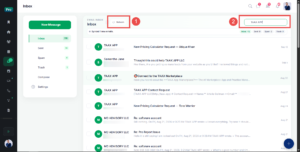
- Click Refresh at any time to sync new emails from your connected account.
- Type a name, email address, or keyword into the Search inbox field to filter the list.
View an Email
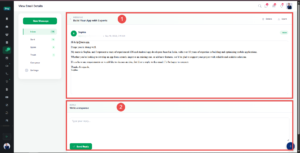
Click on any email in the list to open it. The email view is organized into two main body areas:
- Message Body: The message body shows the sender’s name and email address, along with the date and time the email was received. The full content of the email is displayed below, and you can delete the email or mark it as spam using the buttons at the top right.
- Reply Body: Below the message, the reply box lets you respond without leaving the page. Type your message in the Type your reply field and click Send Reply to send it.
Sent Emails
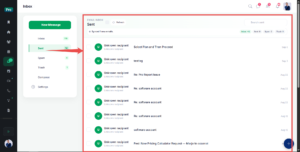
The Sent lists every email you have sent from TAAX Pro. Each row shows the recipient, subject, and the date the email was sent. Click on any email in the list to view its full content, including the message body and signature. This helps you confirm what was sent and to whom, without checking your outside mail provider.
Spam Emails
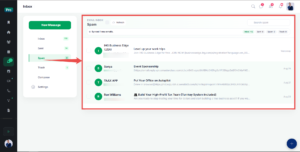
The Spam lists emails that have been identified as junk or unwanted. Each row shows the sender, subject, and a short preview of the message. Click on any email to view its full content before deciding whether to delete it. Keeping these separate from the Inbox helps you avoid unwanted messages mixing with genuine client emails.
Trash Emails
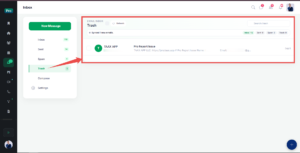
The Trash lists emails that have been deleted from the Inbox. Each row shows the sender, subject, and a short preview of the message. Deleted emails remain here rather than being removed right away, giving you a chance to review them later if needed.