
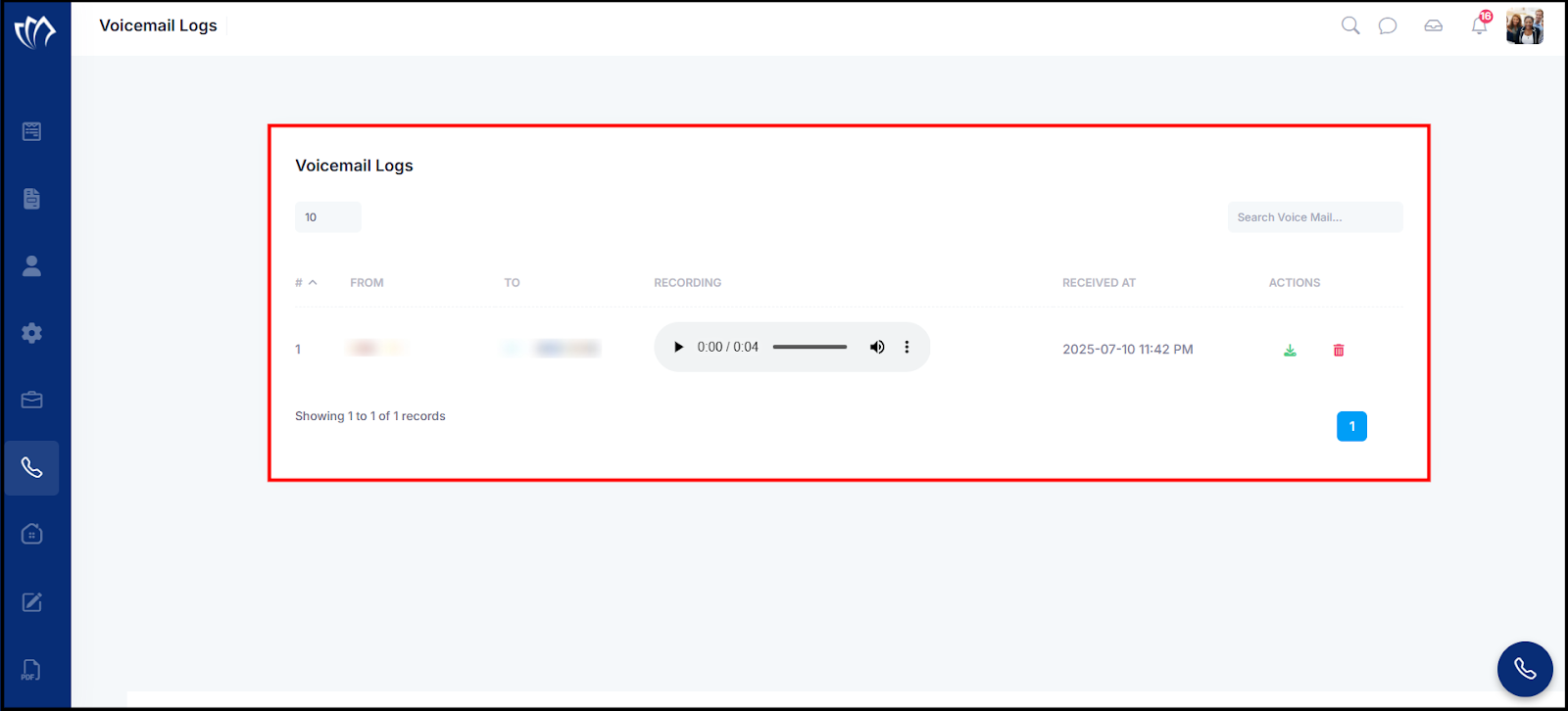
The Voicemail Logs offer a centralized view of all voice messages received on the platform, allowing for easy access and management in one place. You can view caller and receiver details, check the time each message was received, and play recordings directly without needing to navigate away.
Additionally, you can download voicemails to listen to them later or delete them from the system when they are no longer needed, ensuring a smooth experience of all your voice communications.
Follow the step-by-step guide below on how to view the voicemail logs on the TAAX Pro platform.
Step 1: Navigate to the left side panel, hover over the “Virtual Phone” section, then click on the “Voice Mails” option.
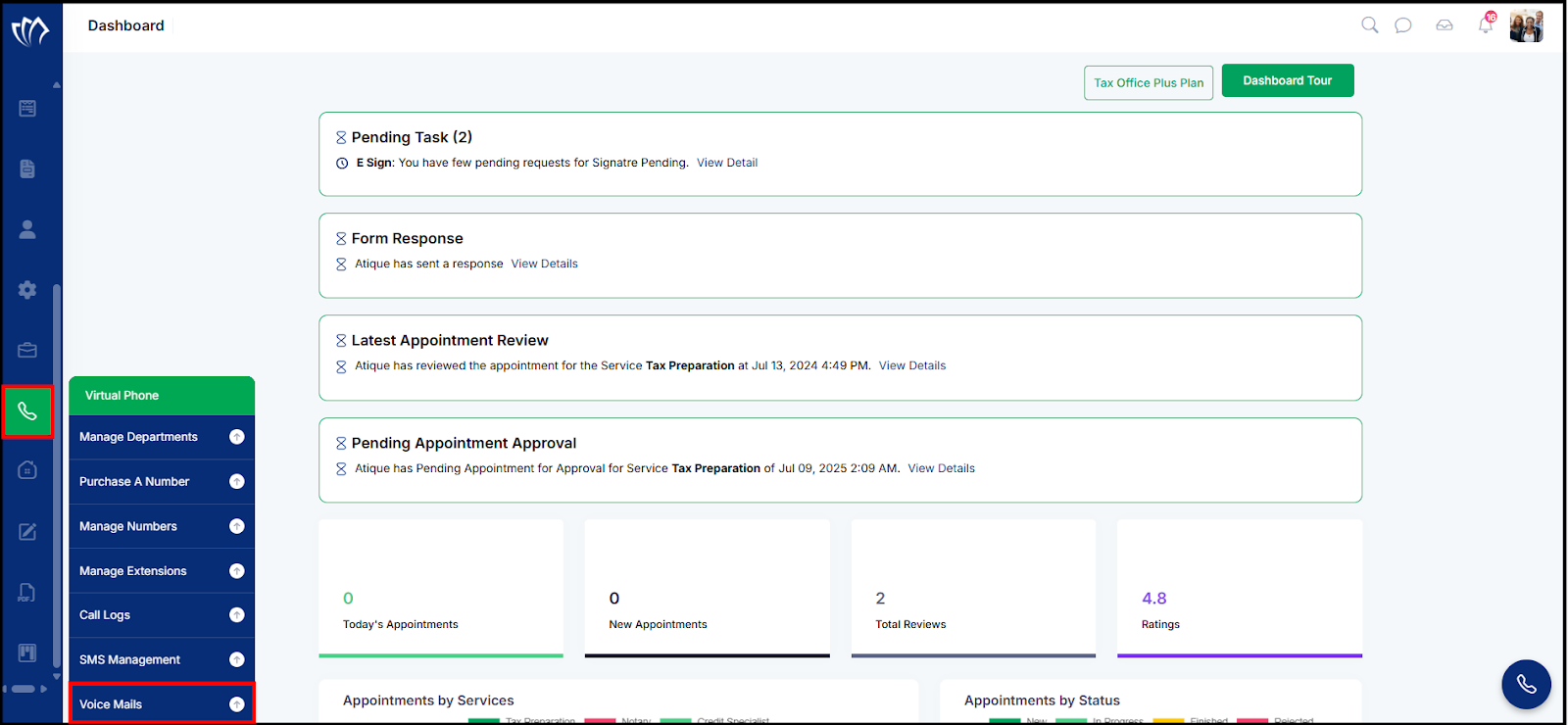
Step 2: The Voicemail Logs screen will appear, displaying all received voicemails. You can view the caller and receiver details, play the recording, check the received time, and download or delete the message.
Search Voice Mail
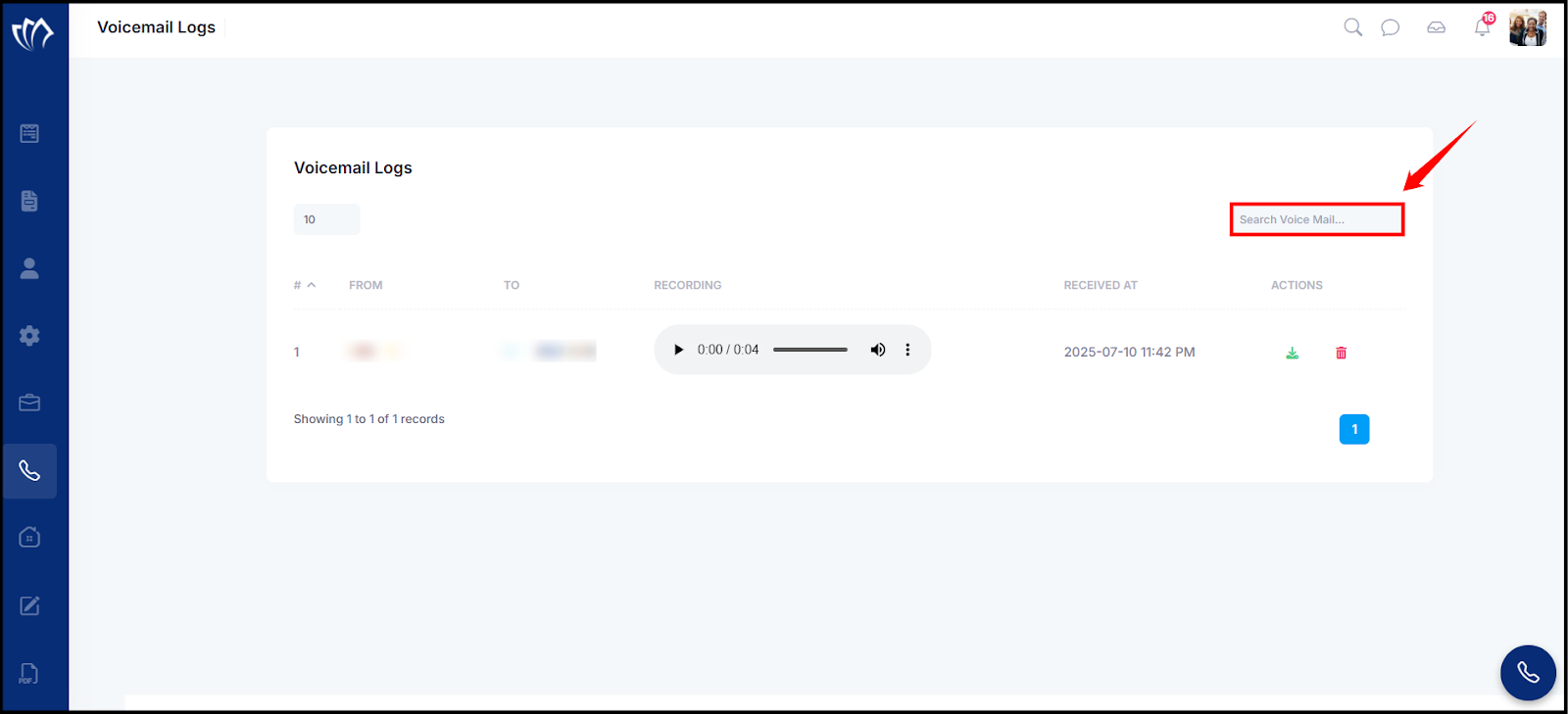
Helps you locate specific voicemail records from the list. You can search using phone numbers or any related details to quickly narrow down results.
Step 1: Click on the “Search Voice Mail”field at the top-right corner of the Voicemail Logs table.
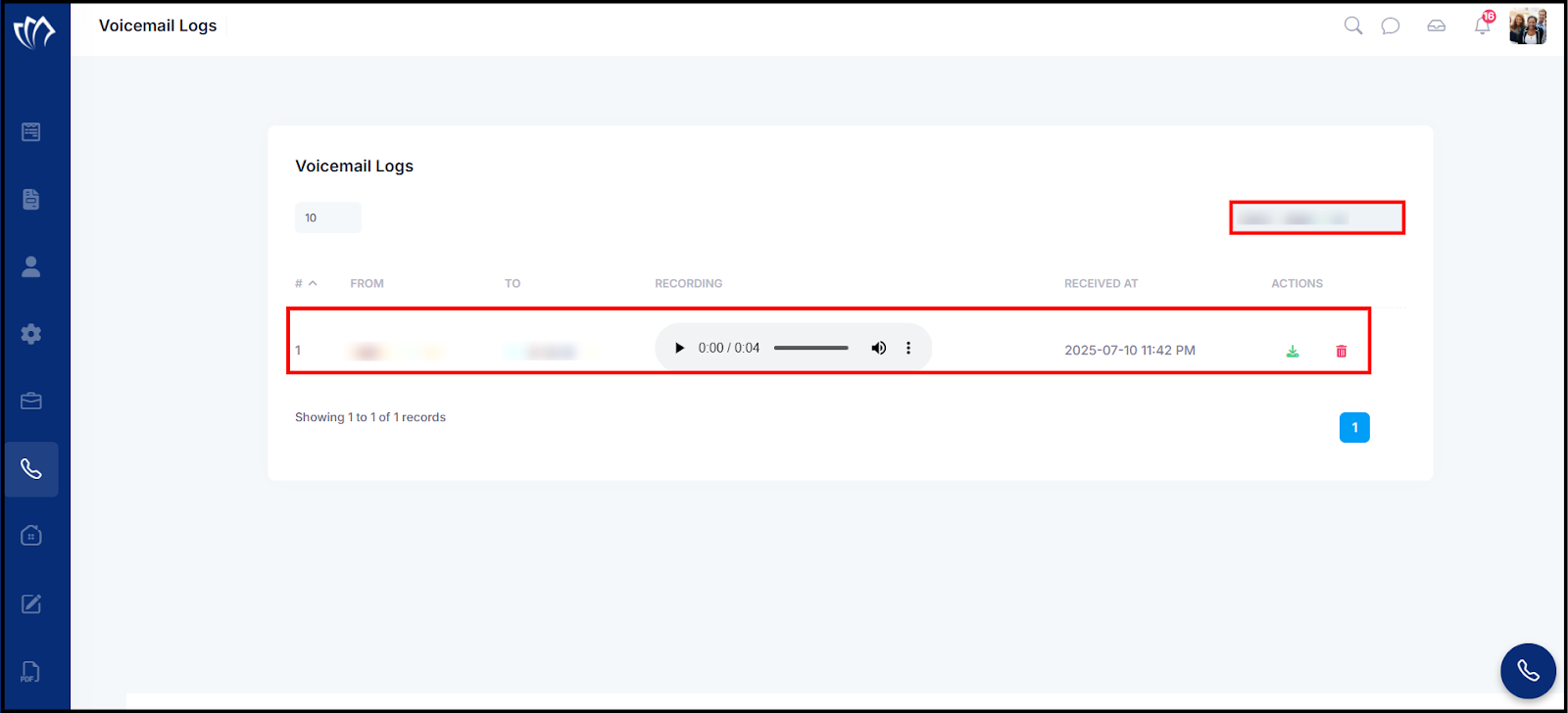
Step 2: Enter a keyword (e.g., phone number) into the search field. As you type, the table will automatically filter and display only the matching voicemail records.
Logs Per Page
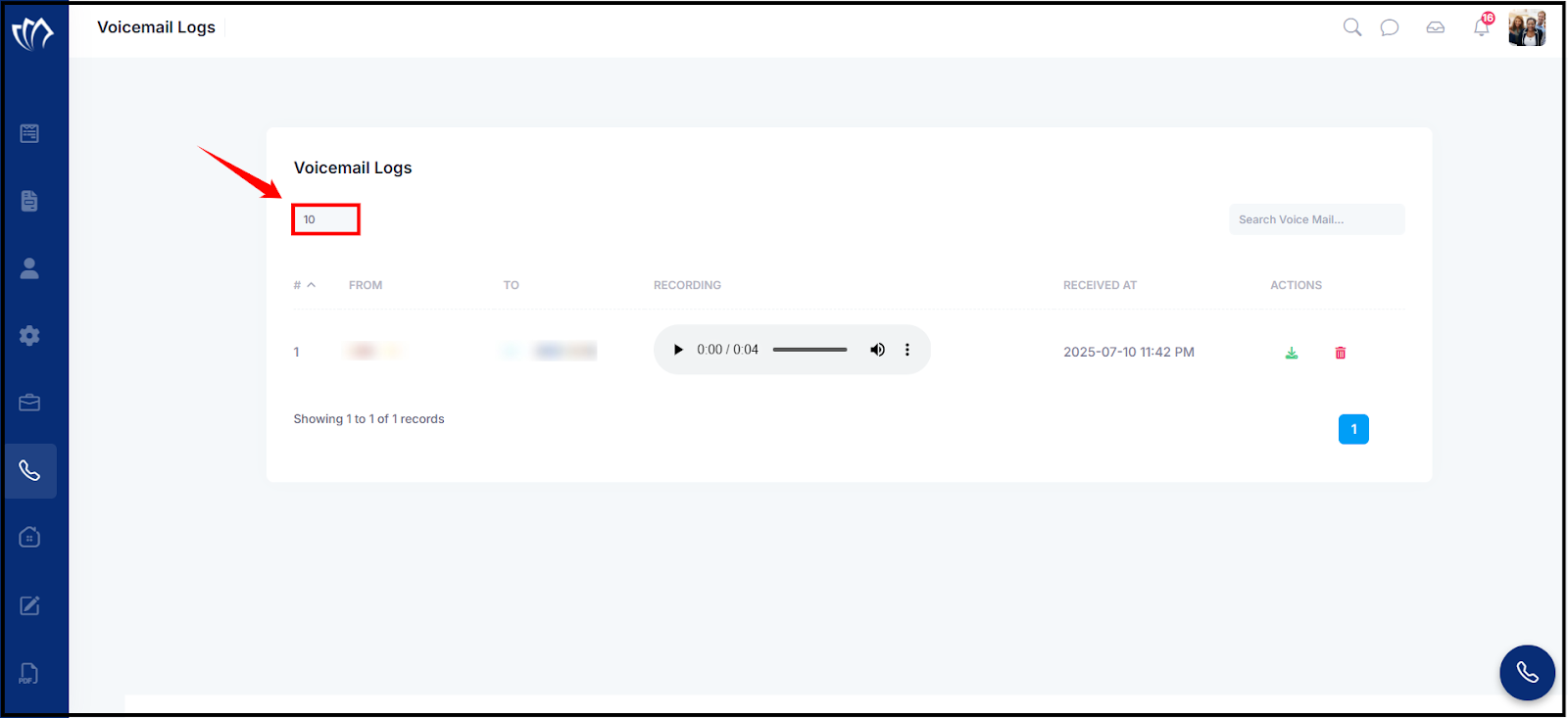
Adjust the number of voicemail records displayed on the screen. This makes it easier to view and manage multiple entries at once.
Step 1: Click on the dropdown that shows the number “10” at the top-left corner of the Voicemail Logs table.
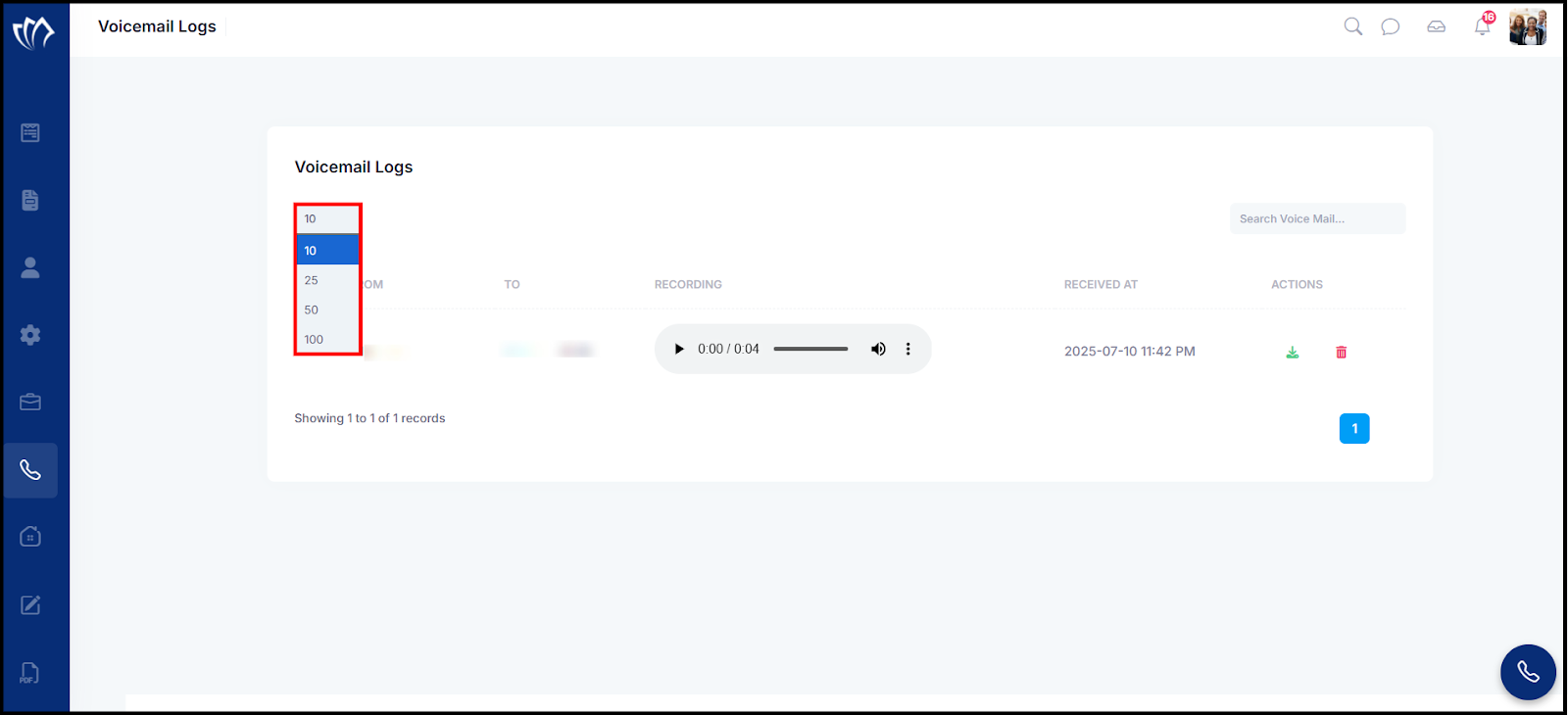
Step 2: Select the desired number of records to display per page (e.g., 10, 25, 50). The table will update automatically to reflect your selection.
Play Voicemail
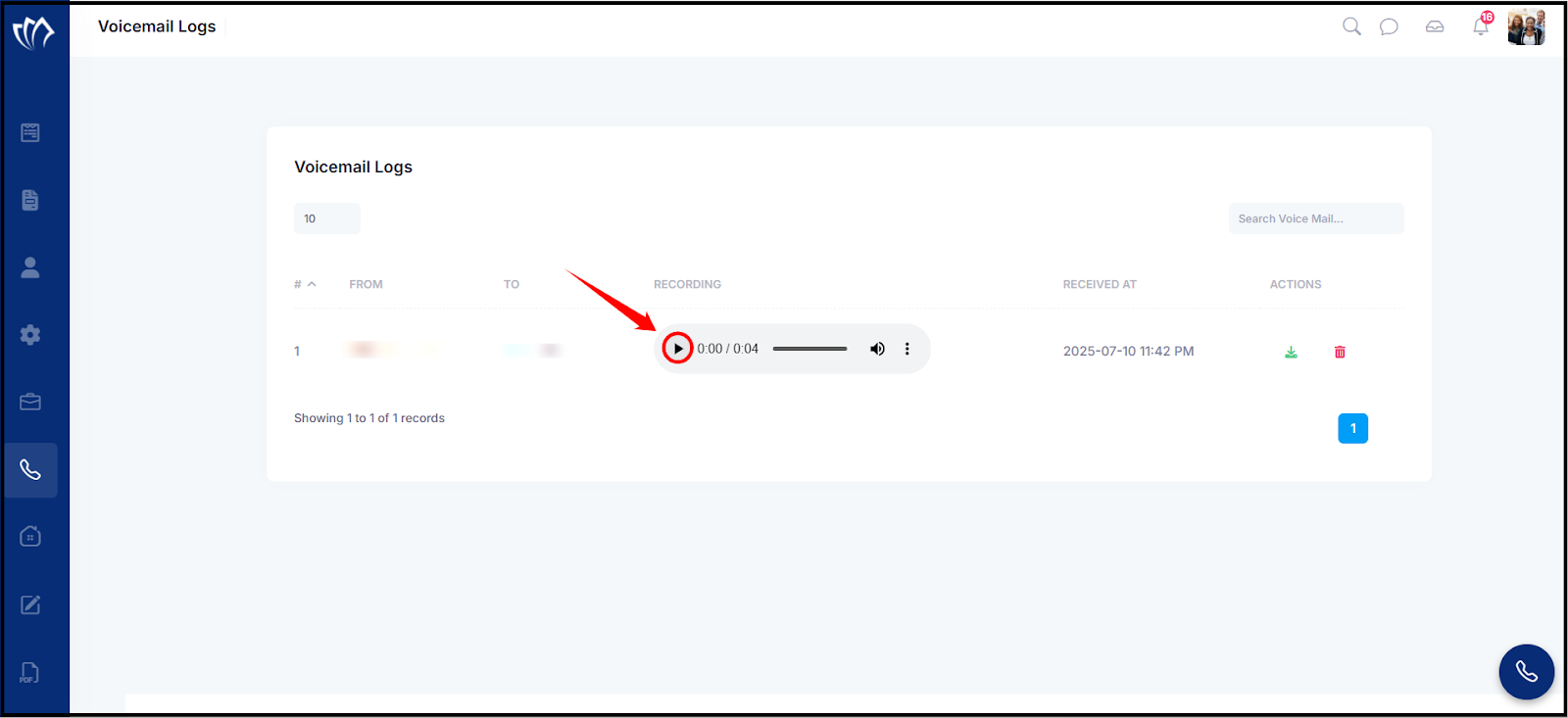
You can easily listen to voicemail messages directly from the Voicemail Logs table. This allows you to review messages without downloading them.
Click the play icon in the “Recording” column to listen to the voicemail message.
Download Voicemail
You can download voicemail recordings from the Voicemail Logs section. This is useful for keeping records or sharing important voice messages when needed.
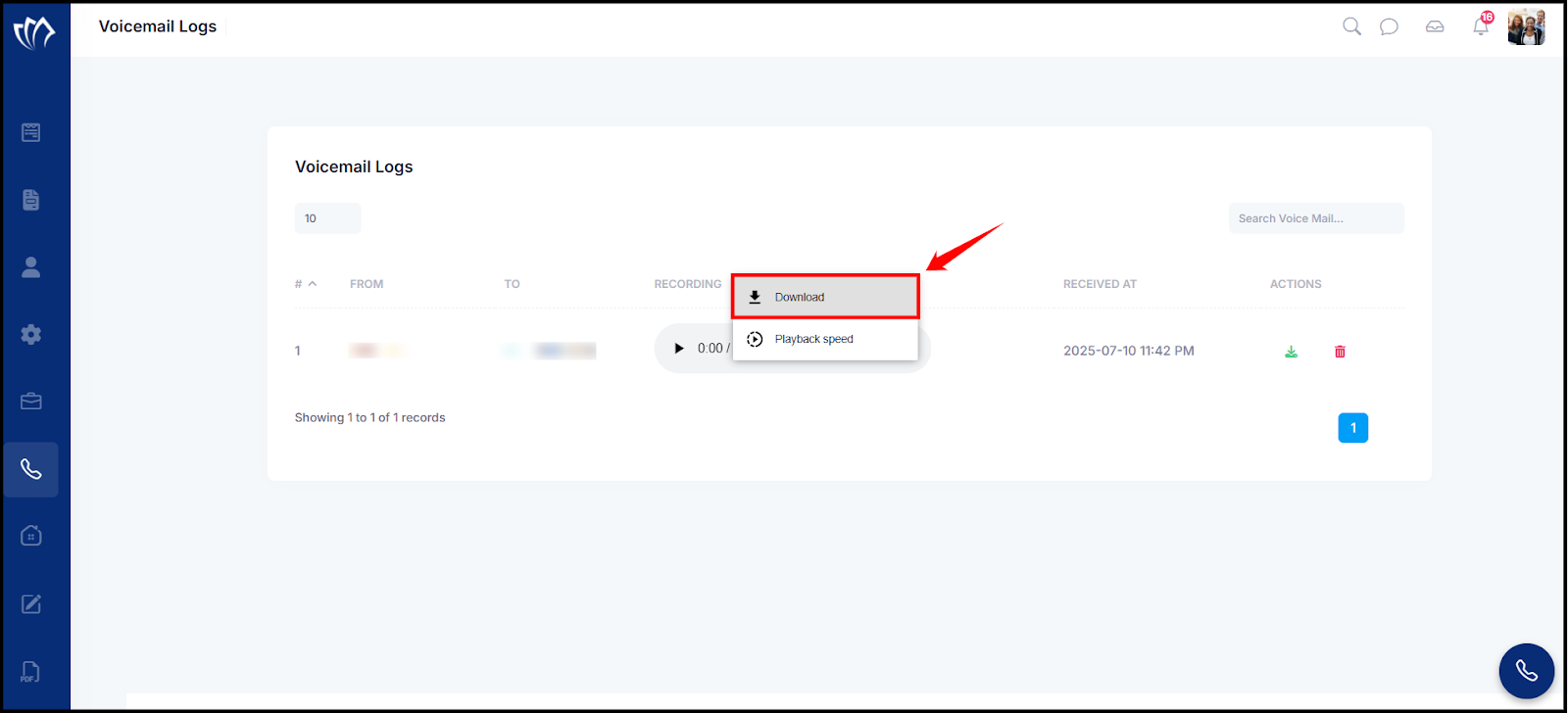
Step 1: Click the vertical ellipsis (⋮) next to the voicemail recording.
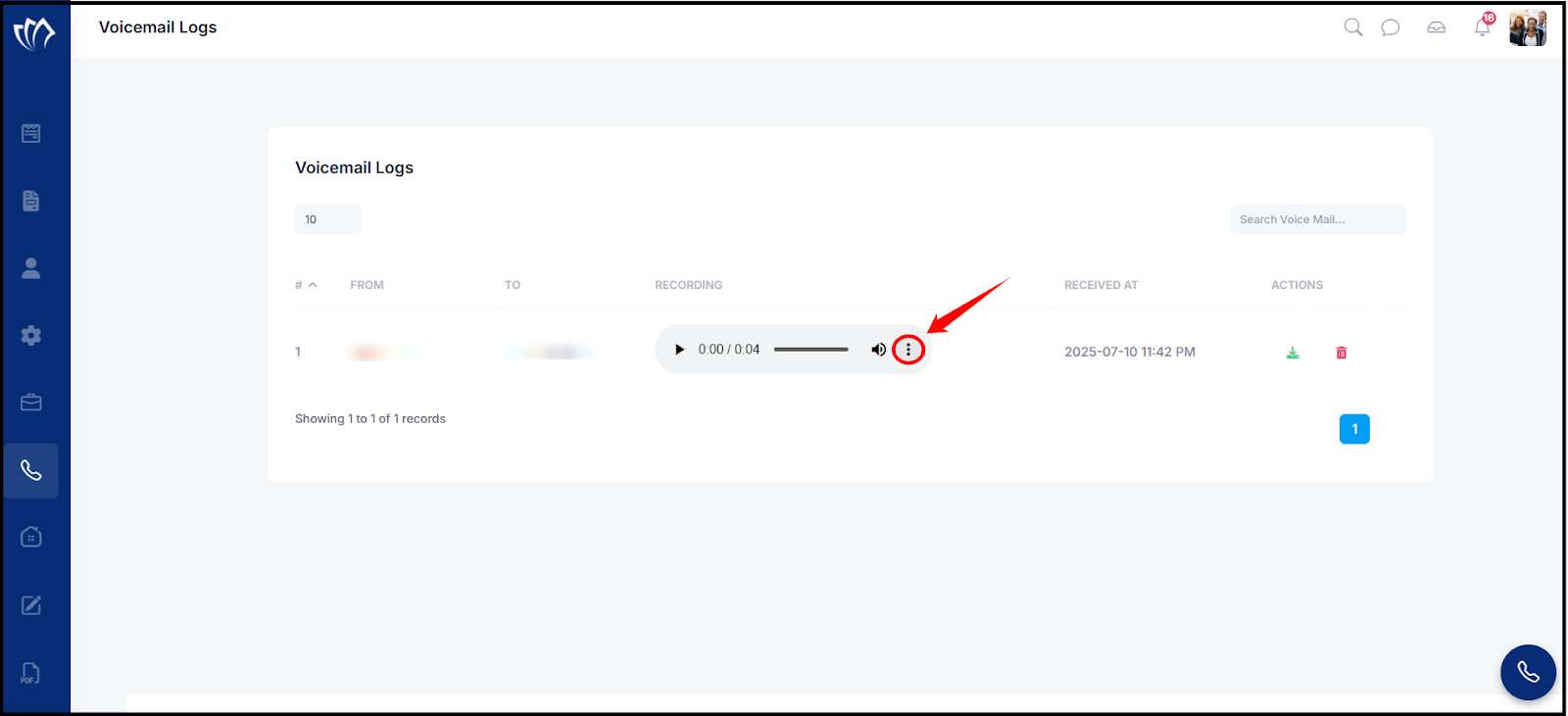
Step 2: A pop-up with actions will appear. Click Download to save the recording to your device.
Delete Voicemail
Deleting voicemail helps you manage and declutter your logs by removing unnecessary recordings. This helps maintain a clean and organized log by clearing out outdated or irrelevant messages.
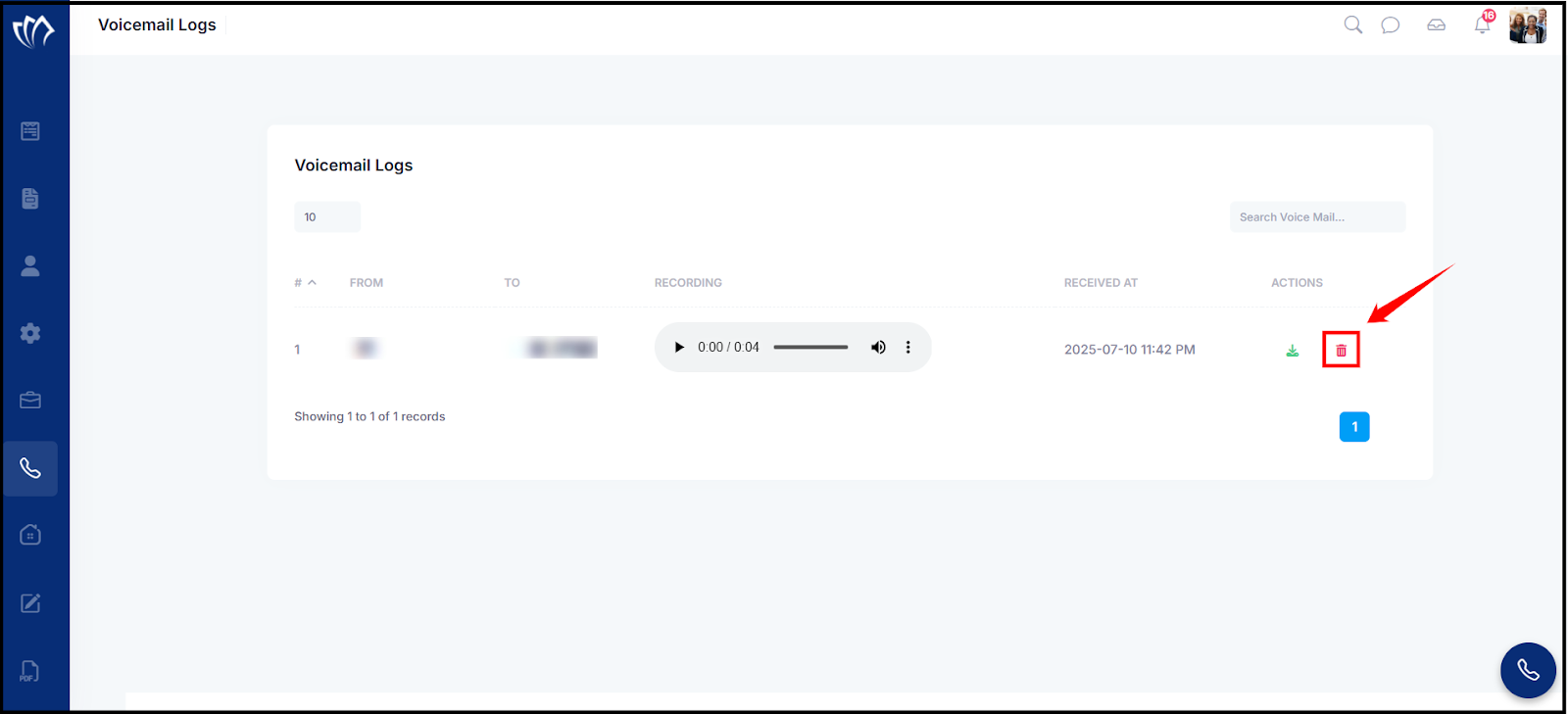
Step 1: Click the delete icon under the Actions column of the voicemail entry you want to remove.
Step 2: A confirmation modal window will appear. Click “Yes, delete it!” to permanently remove the voicemail.
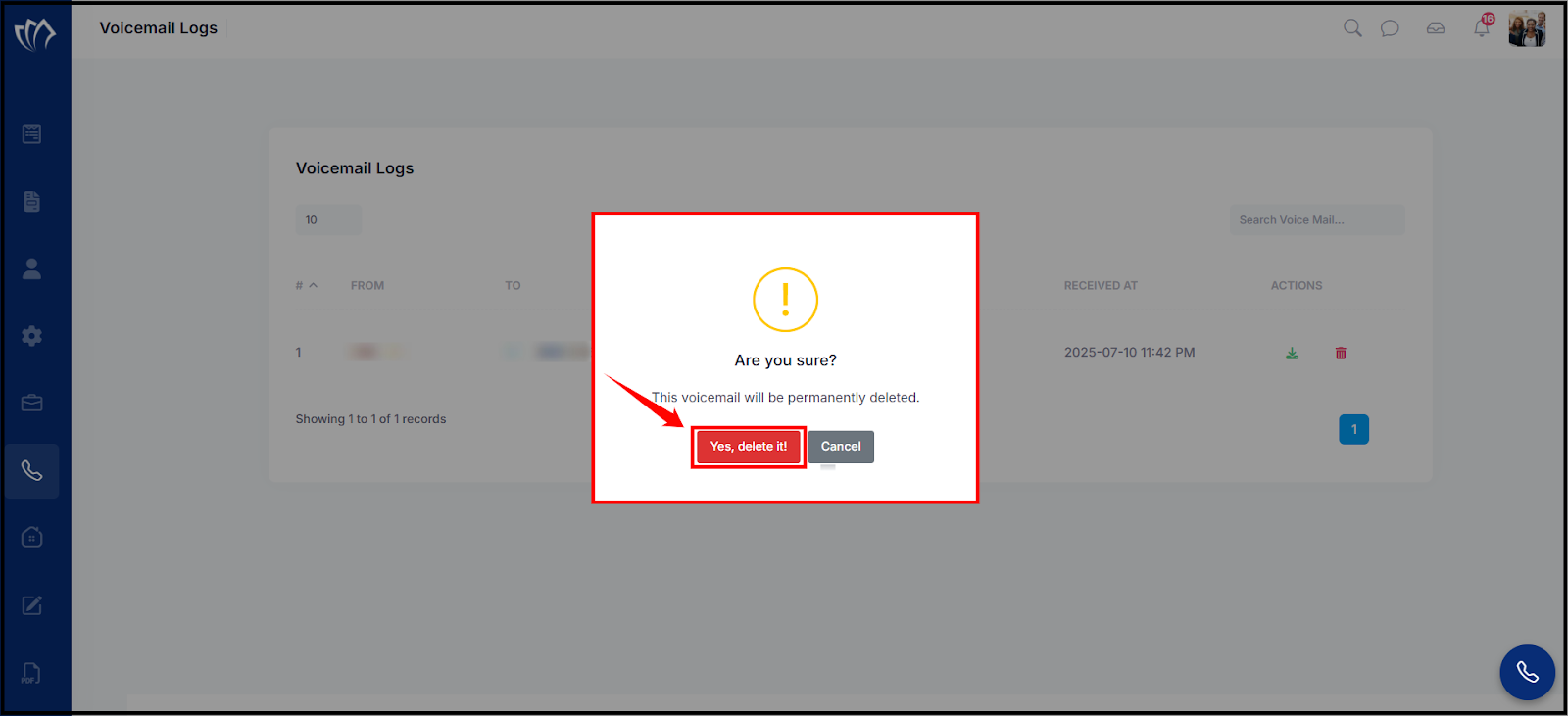
After deleting the voicemail, it will be removed from the Voicemail Logs screen and will no longer be available to listen to.
