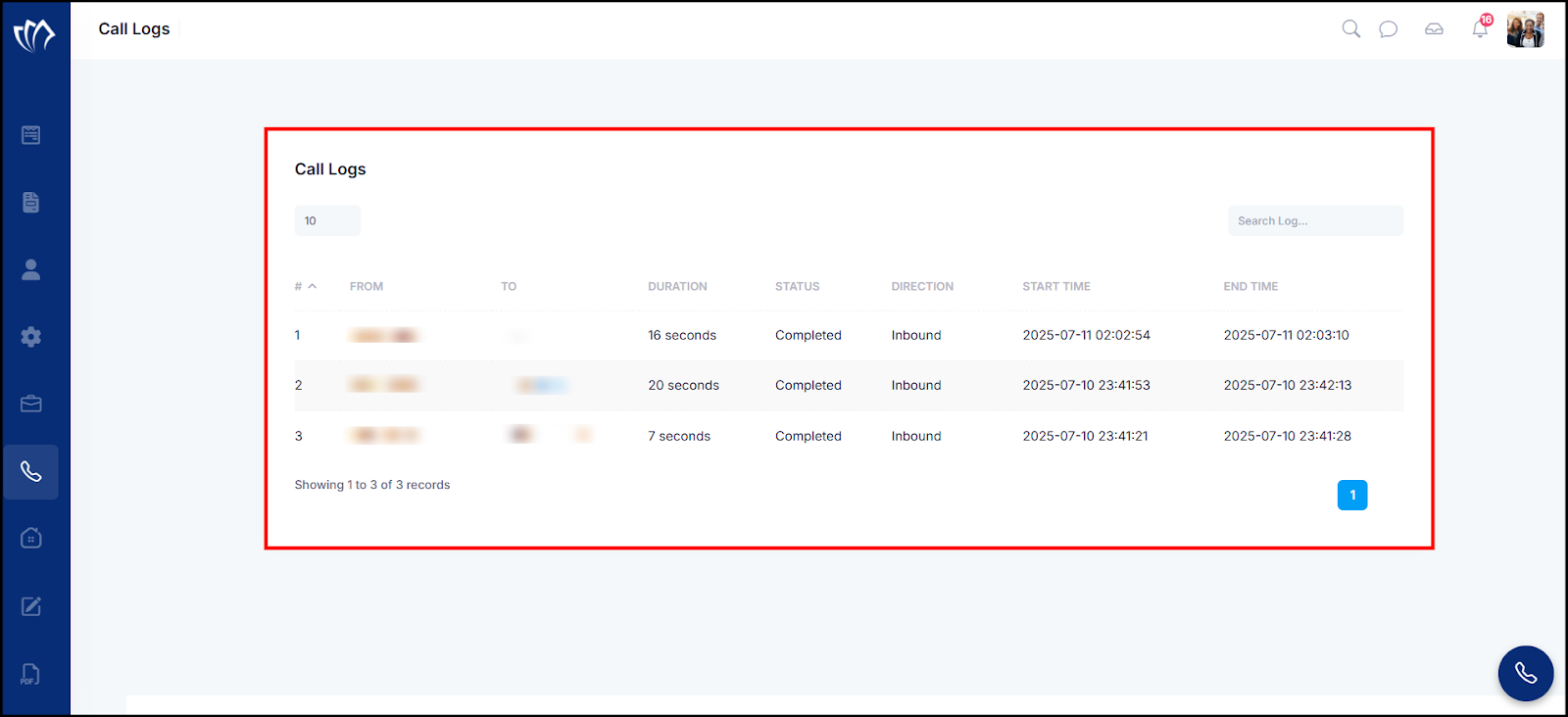
Call Logs provide a complete overview of recent call activity on your virtual phone. You can view caller and receiver details, call duration, status, direction, and timestamps. The helps you track communication history and easily filter or adjust the number of records for the calls.
Follow the step-by-step guide below on how to view the call logs on the TAAX Pro platform.
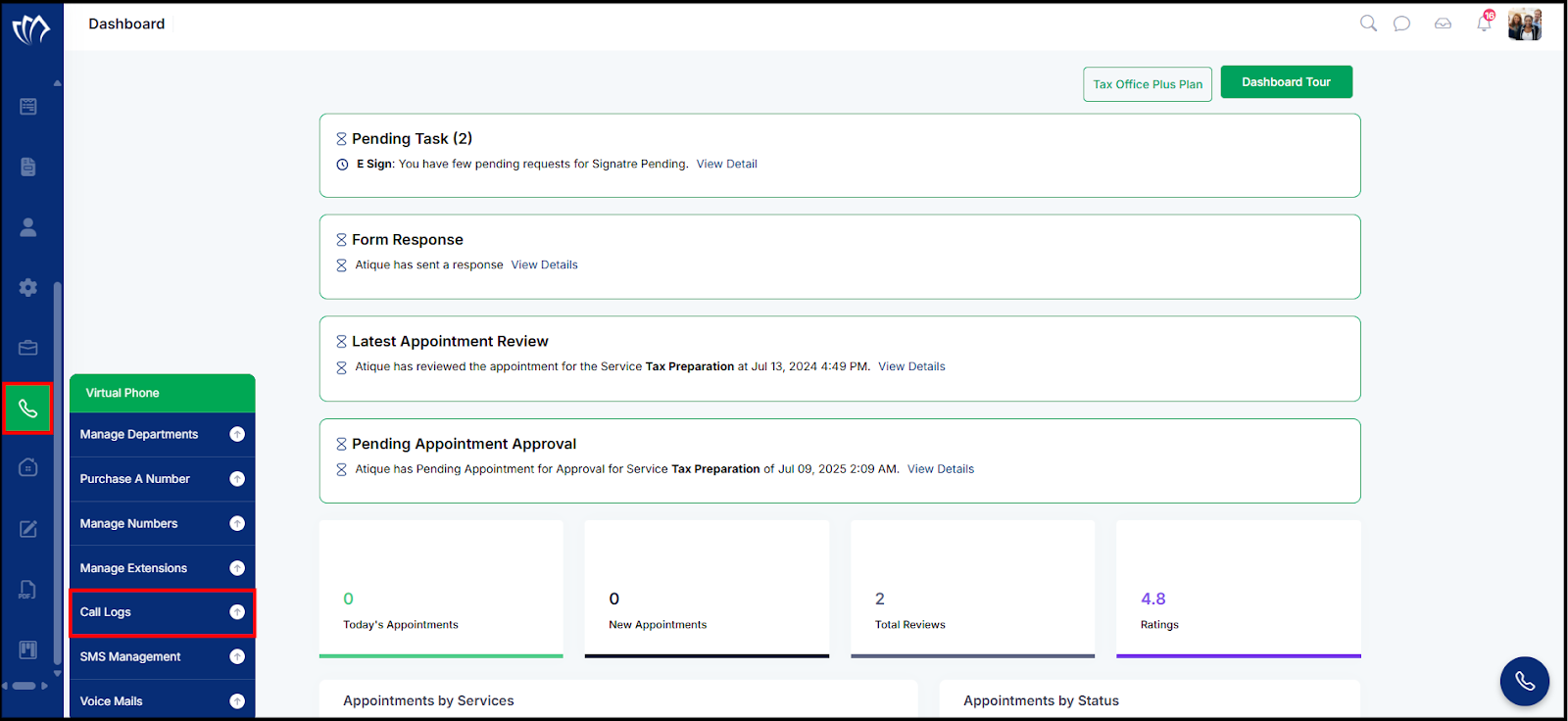
Step 1: Navigate to the left side panel, hover over the “Virtual Phone” section, then click on the “Call Logs” option.
Step 2: The Call Logs screen will appear with a list of all recent call records. Here, you can review details such as the caller and receiver numbers, call duration, status, direction, start time, and end time.
Search Logs
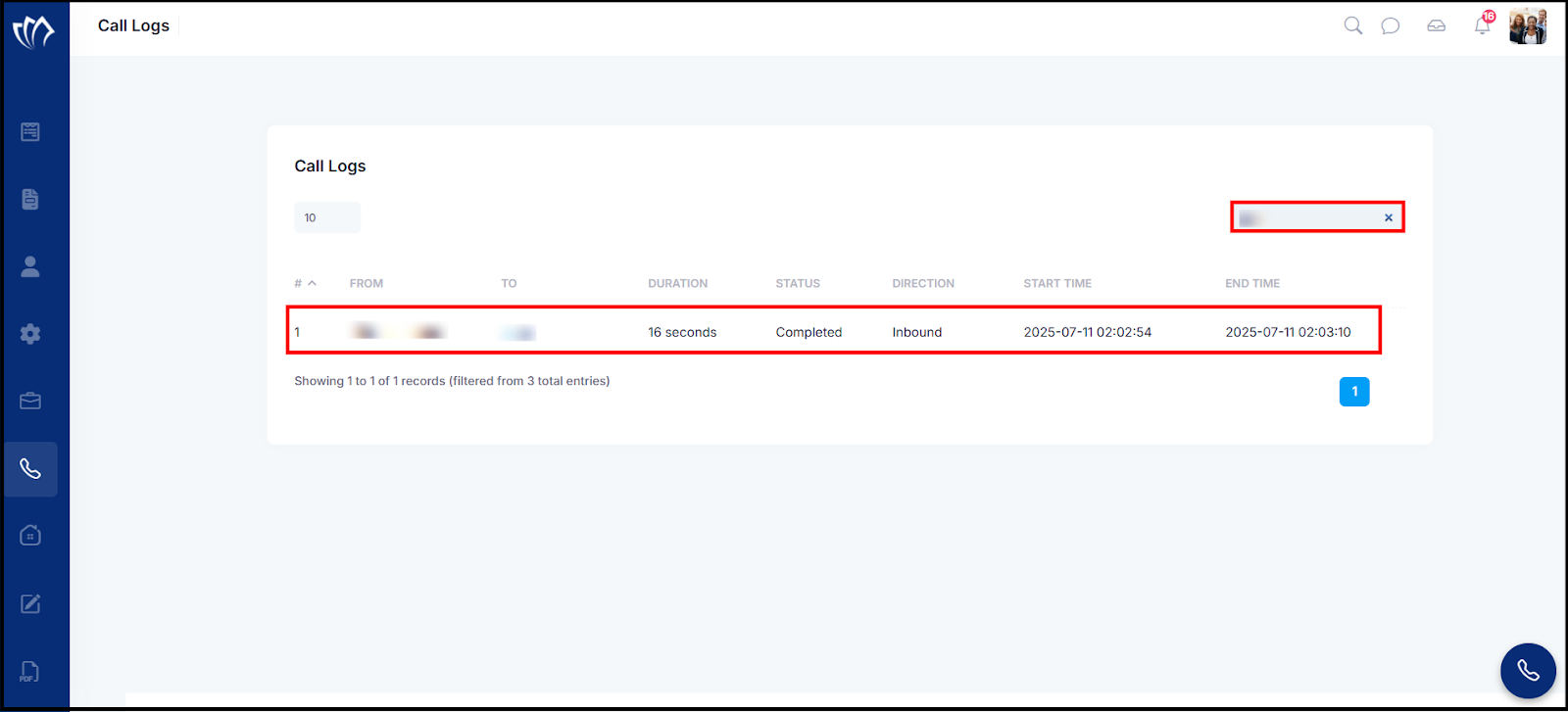
Search Log helps you locate specific call records from the call log table. You can search using keywords like phone numbers, names, or any relevant log detail to narrow down the results instantly.
Step 1: Click on the “Search Log” field at the top right corner of the Call Logs table.
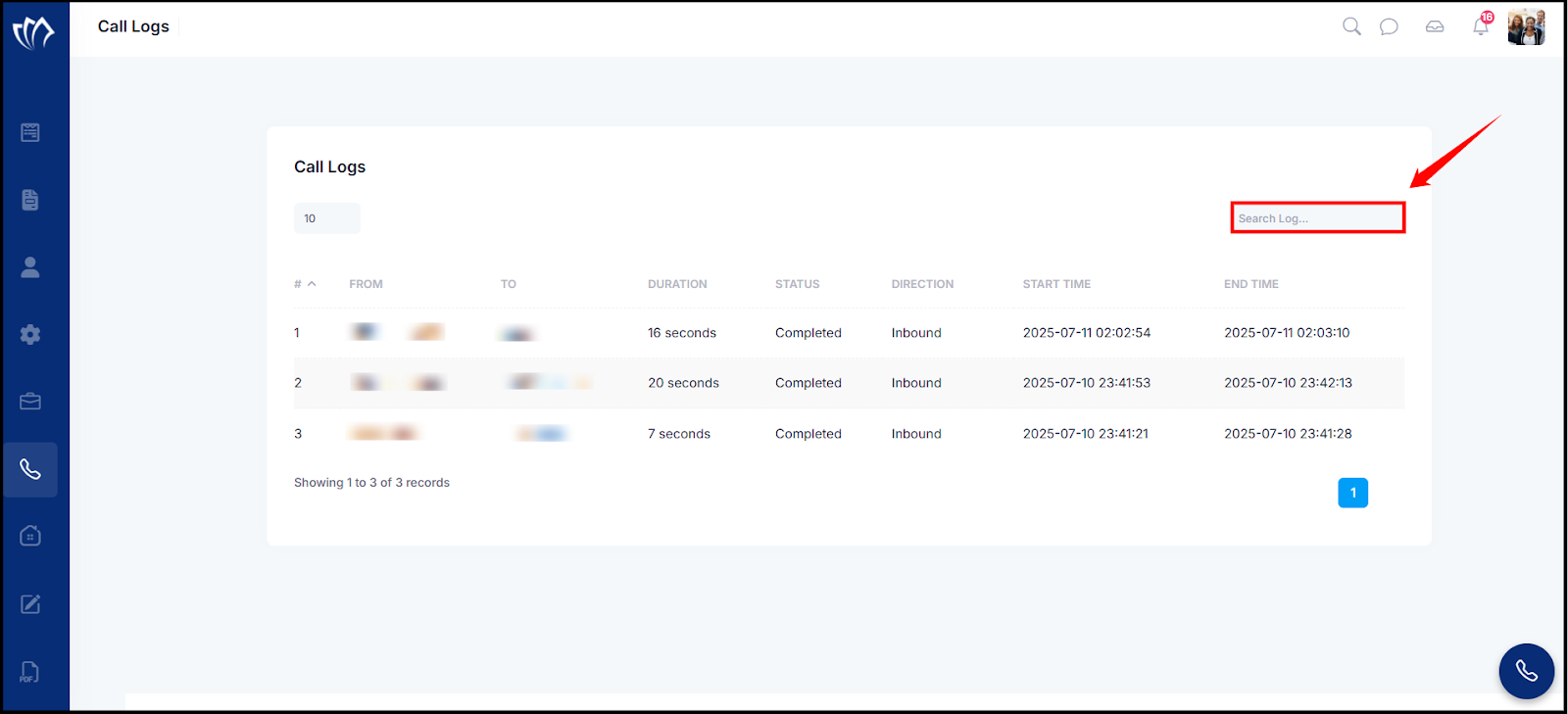
Step 2: Enter a keyword (e.g., phone number, name) into the search field. As you type, the table will automatically filter and display the matching call records.
Logs Per Page
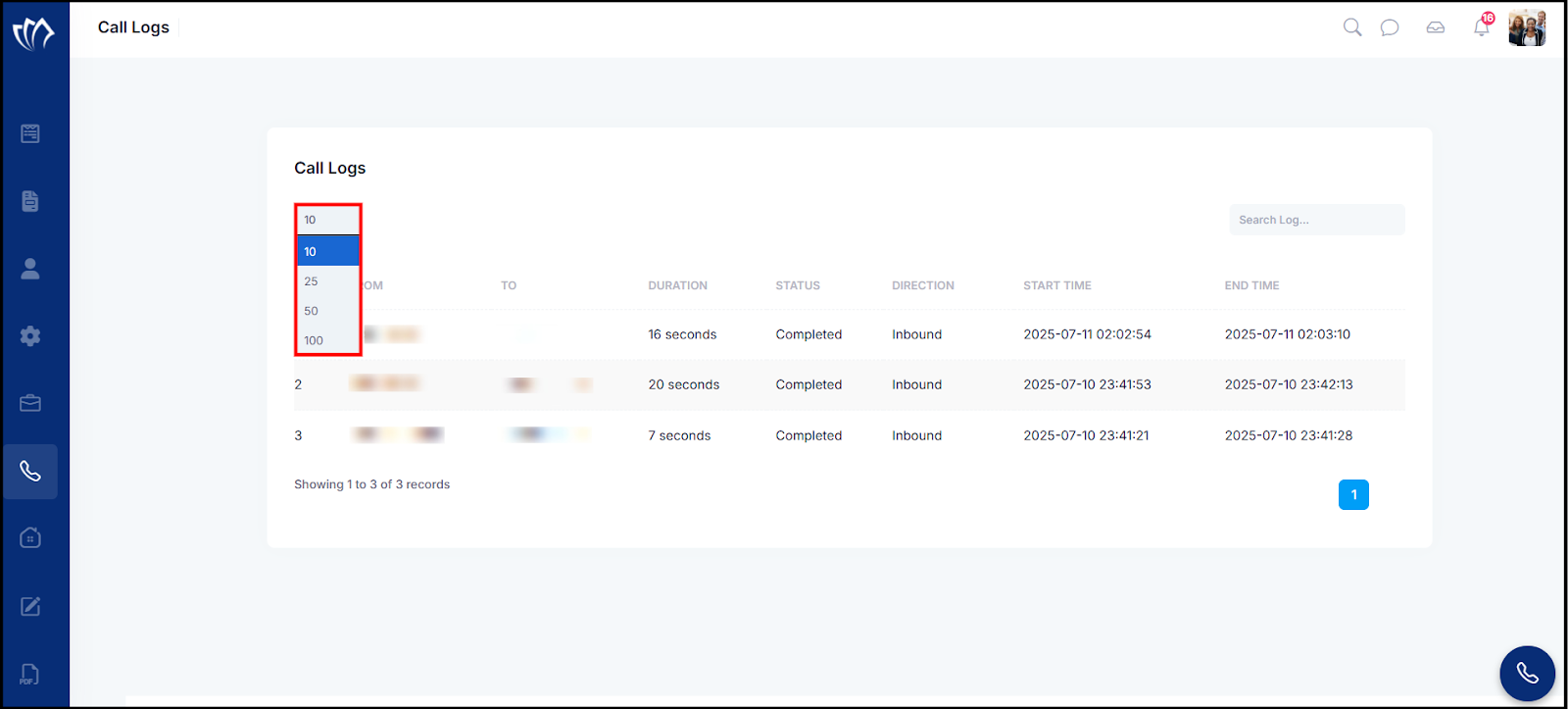
Logs Per Page lets you control how many call records are displayed at once in the table. This is useful for easier navigation, especially when dealing with a large volume of call logs.
Step 1: Click on the dropdown that shows the number “10” located at the top left of the call log table.
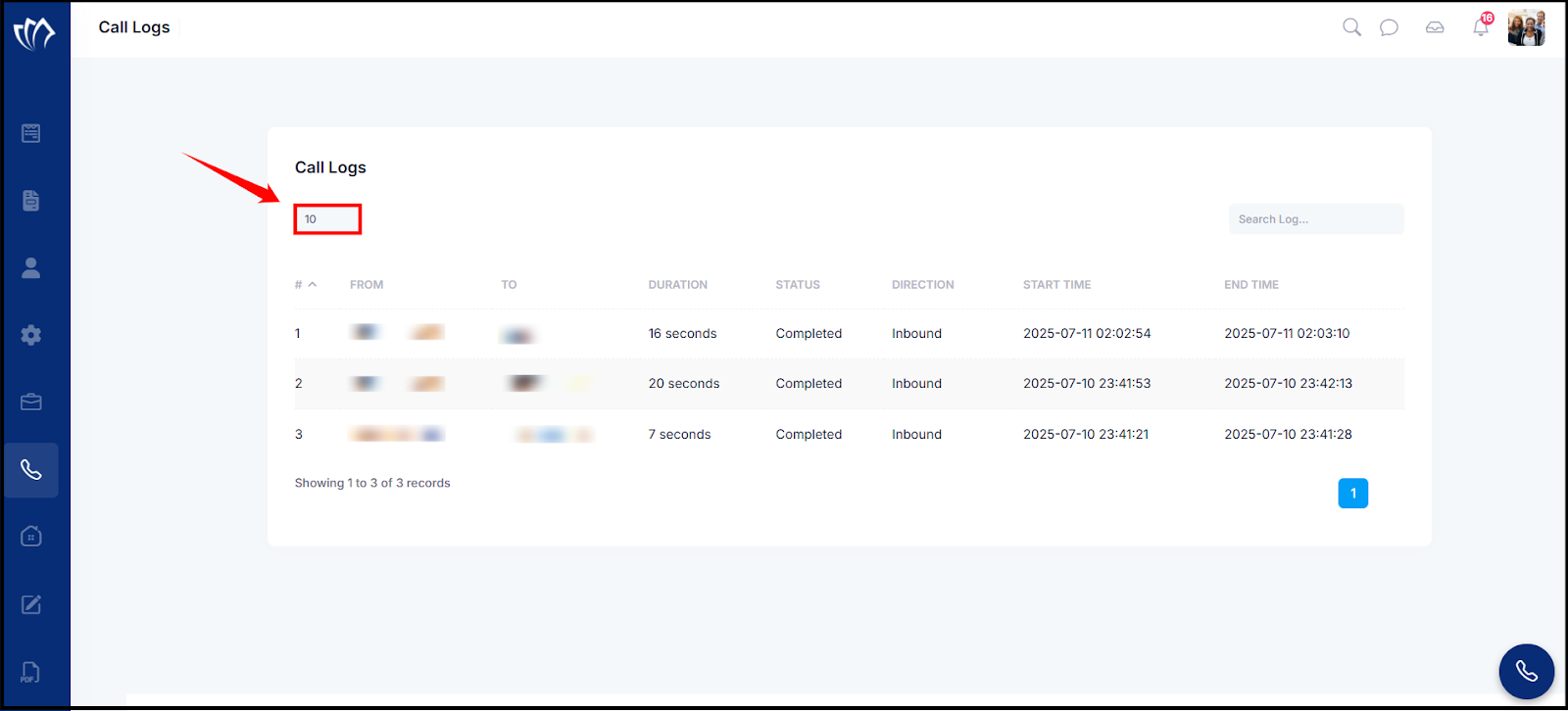
Step 2: Select the desired number of logs you want to display per page (e.g., 10, 25, 50). The table will update automatically to reflect your selection.