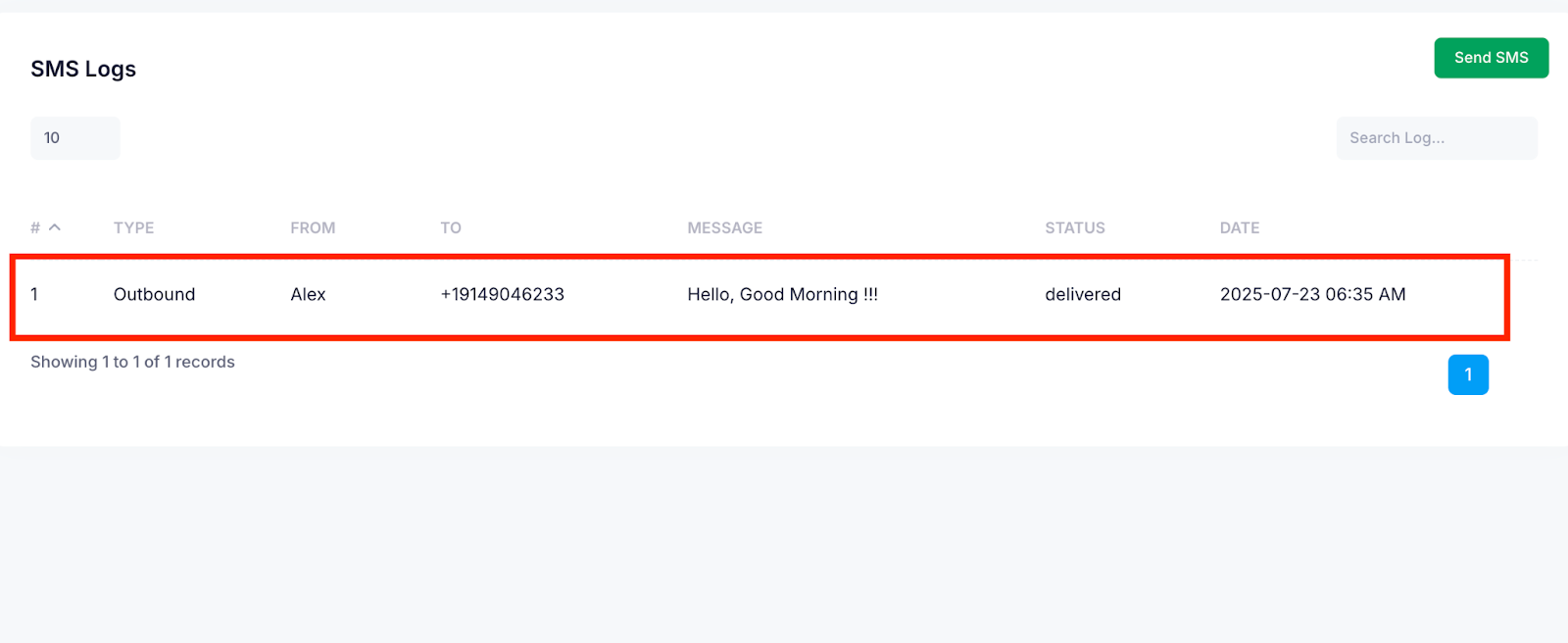
Send SMS to communicate directly with your customers through text messages, right from the platform. Whether you want to send appointment reminders, follow-ups, or personalized updates, this enables quick and efficient communication without relying on third-party messaging apps.
Selecting the recipient type, choosing the customer, and entering a message, you can instantly send SMS notifications that help improve engagement and keep customers informed.
Follow the step-by-step guide below to send the SMS on the TAAX Pro platform.
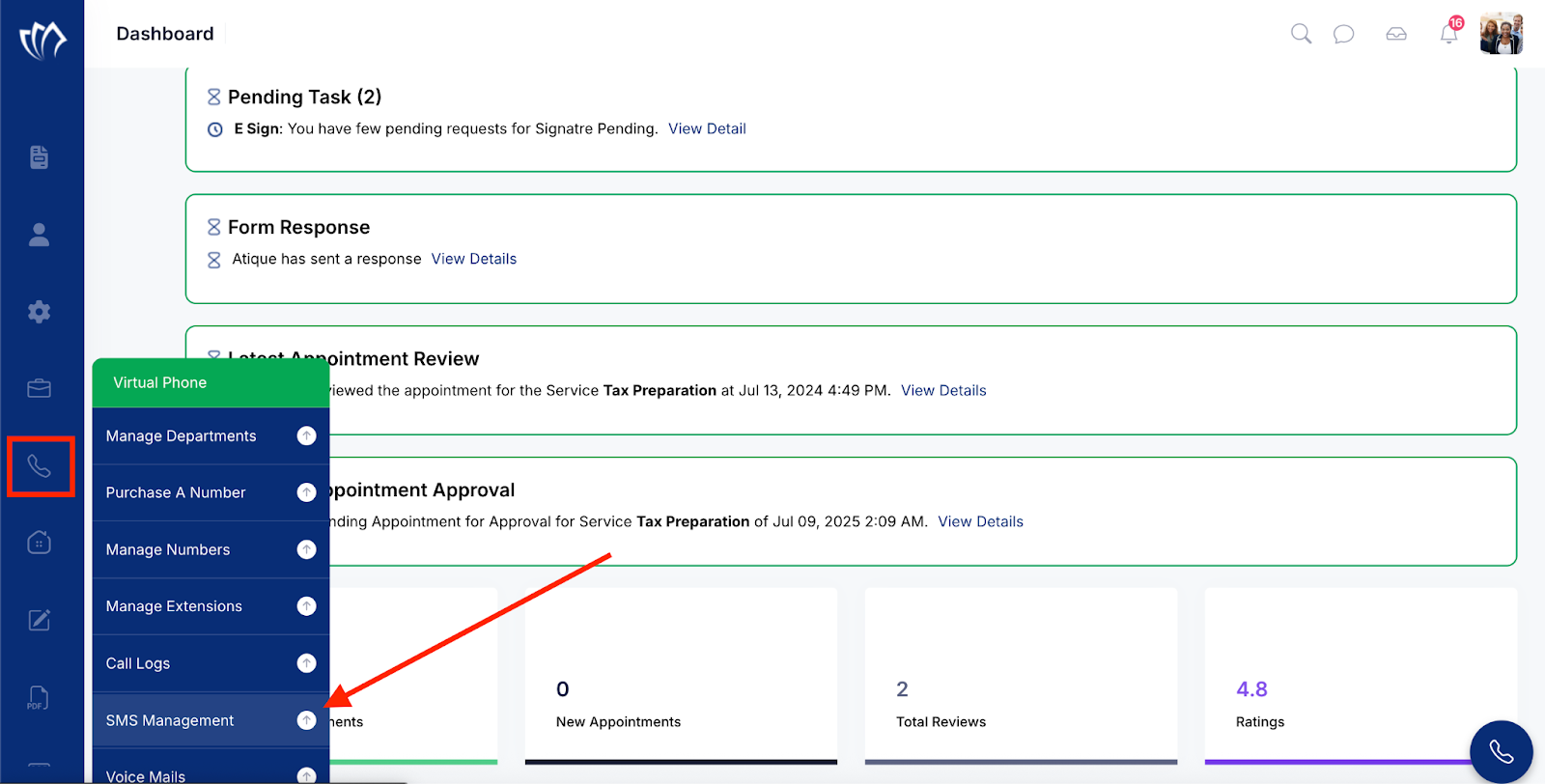
Step 1: Navigate to the left side panel, hover over the “Virtual Phone” section, then click on the “SMS Management” option.
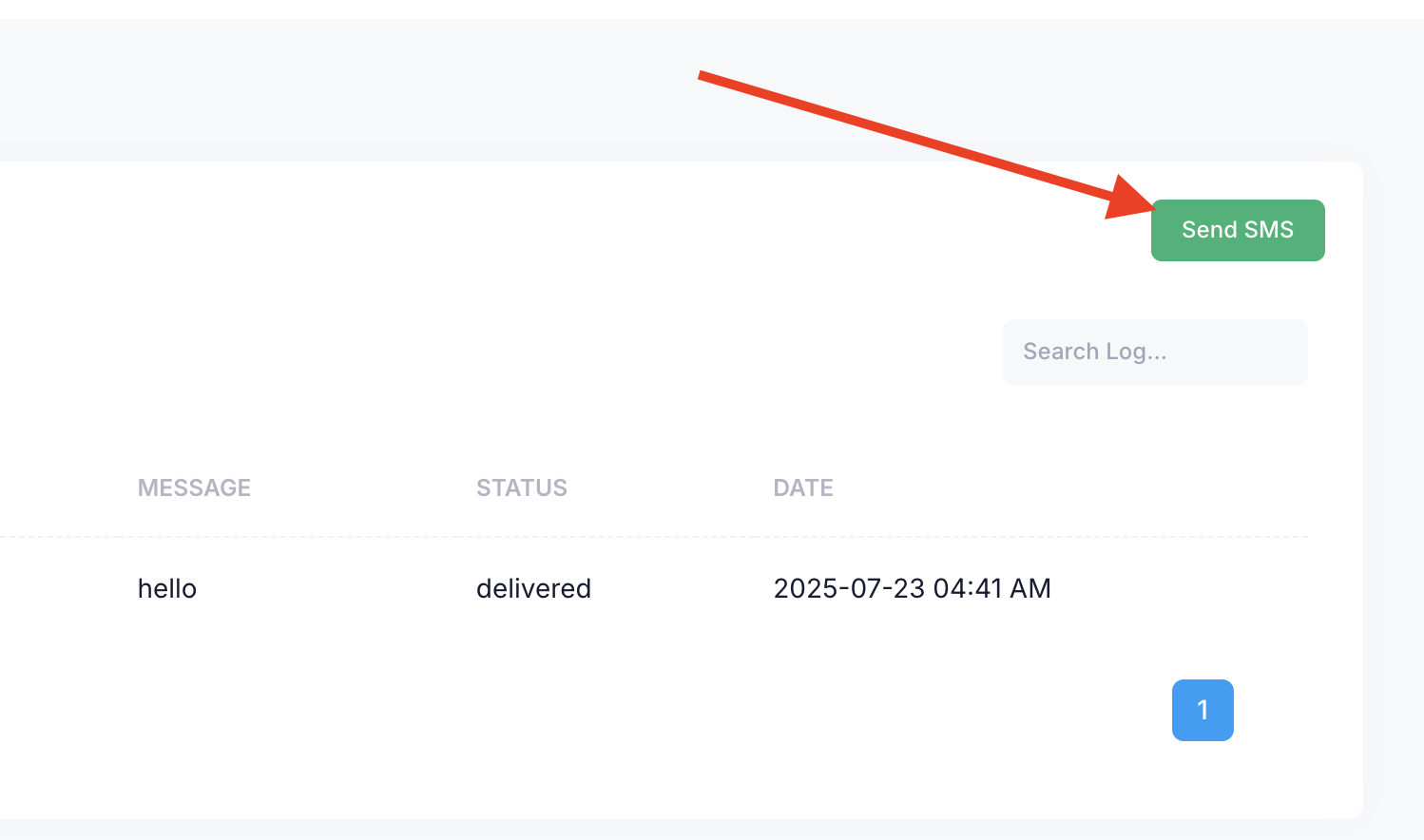
Step 2: The SMS Management screen will appear, showing a list of all SMS logs sent by the system. To send a new SMS, click the Send SMS button.
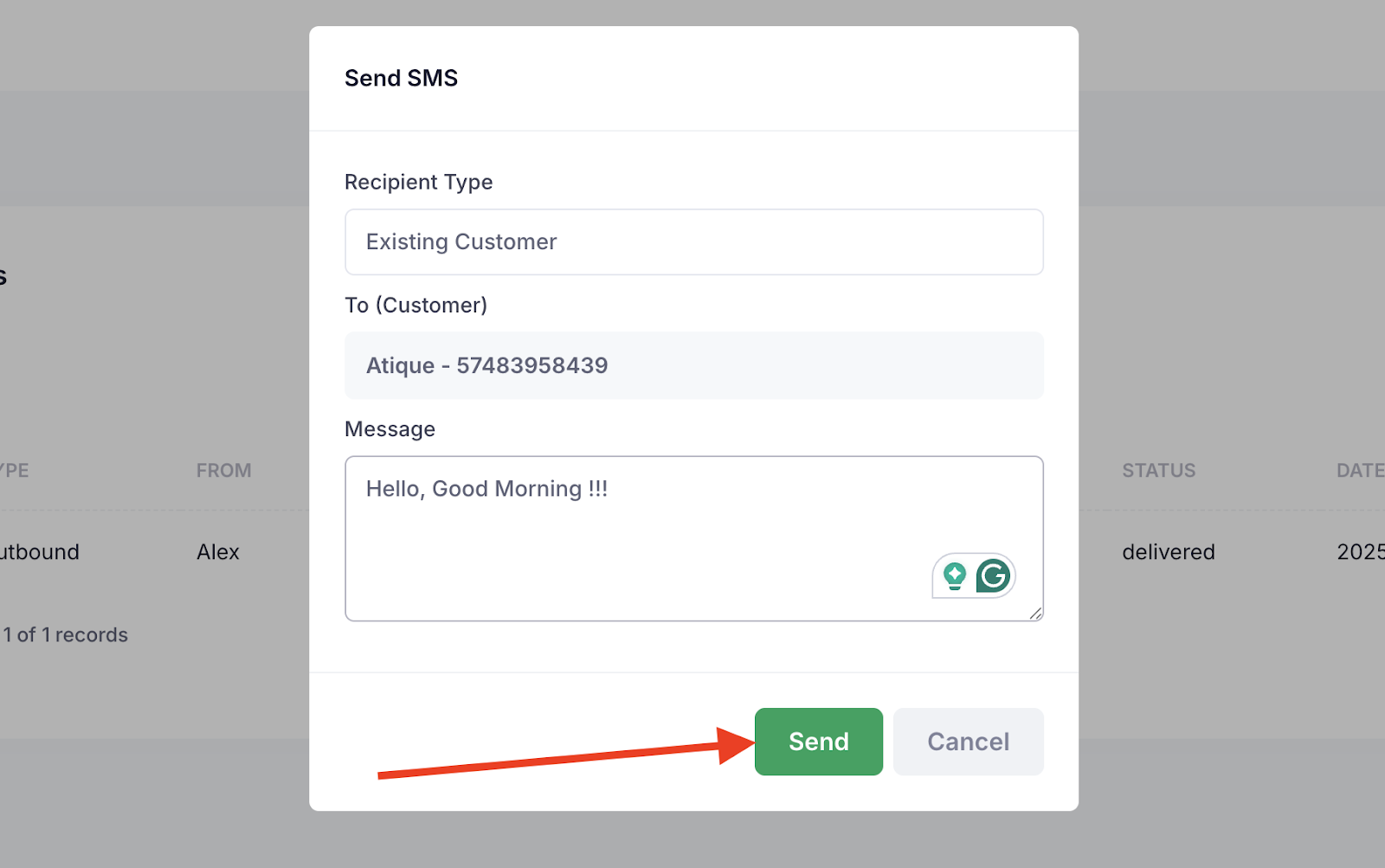
Step 3: A modal window will appear at the top of the screen, prompting you to enter the details of the SMS you want to send to the customer. Type the desired details into the form to proceed. The required details are described in the table below.
| Field Name | Description |
| Recipient Type | Select the type of recipient for the message. (e.g., Existing Customer) |
| To (Customer) | Choose the specific customer you want to send the SMS to. Displays name and ID. |
| Message | Enter the content of the SMS you wish to send to the selected customer. |
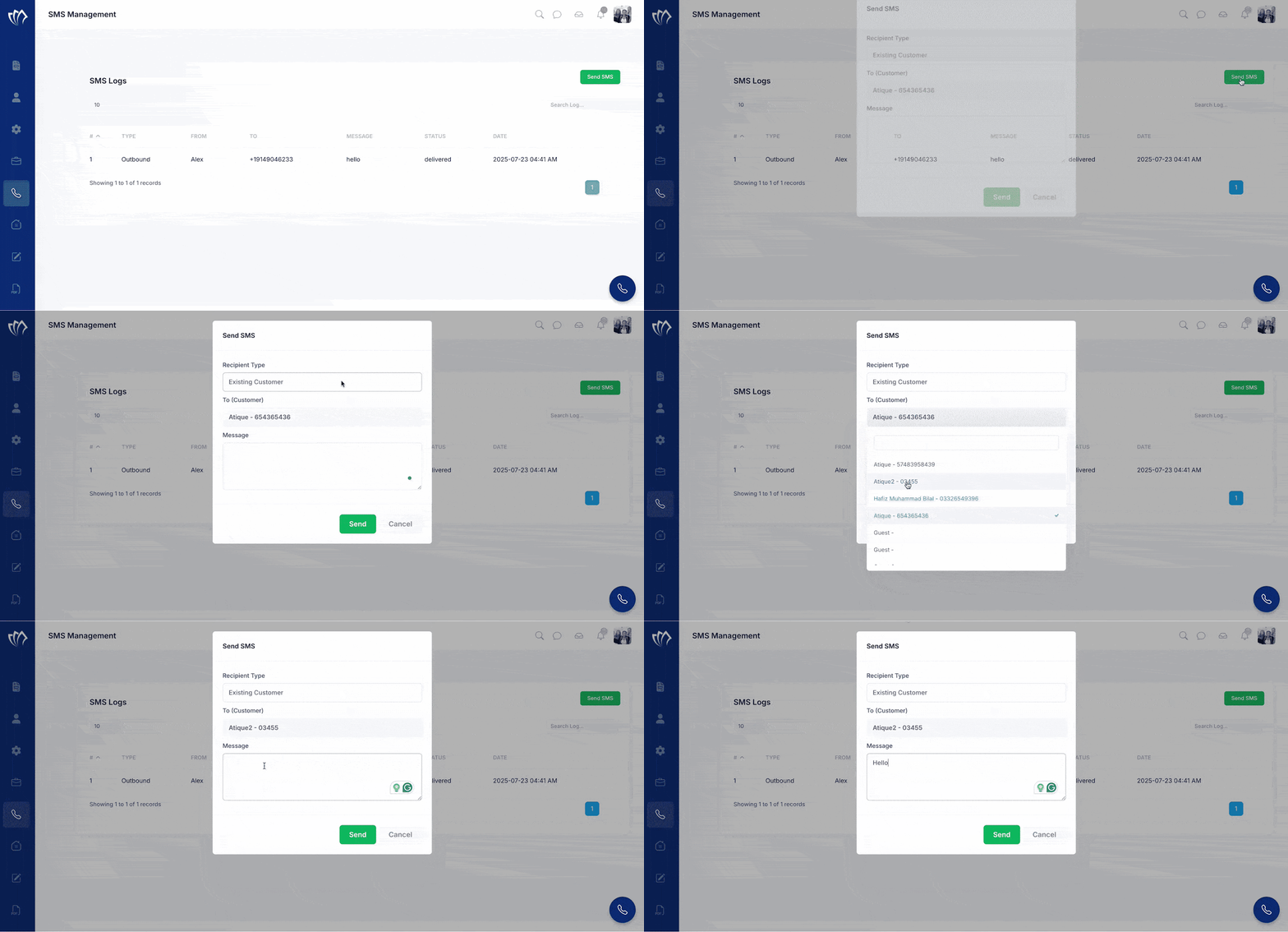
Step 4: Click the Send button to send the SMS to the selected customer.
Once you have successfully sent an SMS to the customer, it will be added to the SMS logs in the SMS Management screen.