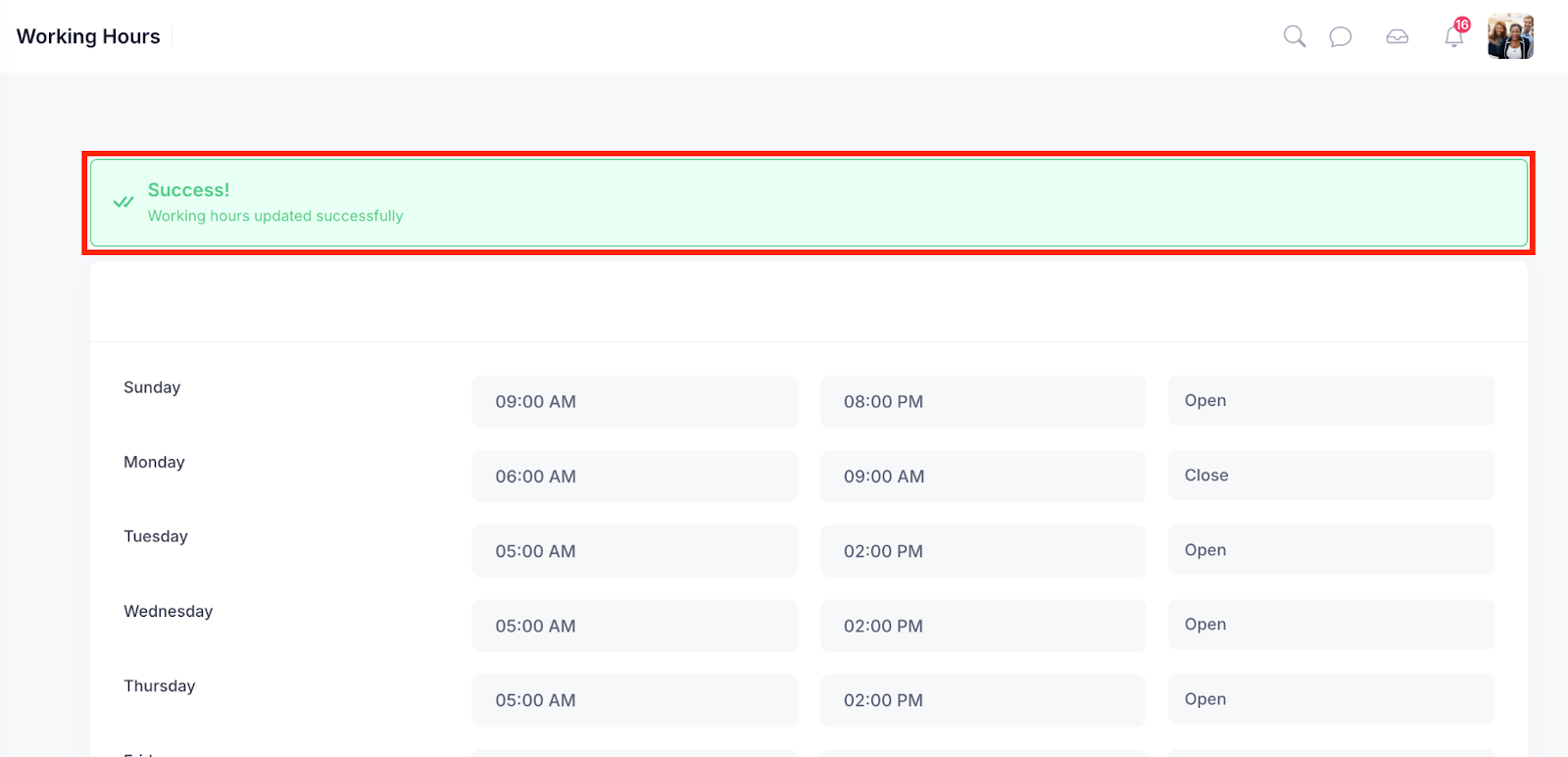
In our system, the Working Hours allow you to define the specific days and times your business is available to serve customers. Setting accurate working hours ensures that appointment bookings are only accepted during your preferred business hours, preventing scheduling conflicts or customer confusion.
Managing your weekly availability, including opening and closing times for each day, you maintain full control over when customers can book services. This helps smooth operations, manage staff scheduling, and deliver a professional, reliable experience to your customers.
Whether you’re closed on weekends or offer limited Sunday hours, this ensures your availability is communicated across the platform.
Follow the step-by-step guide below to manage hours on the TAAX Pro platform.
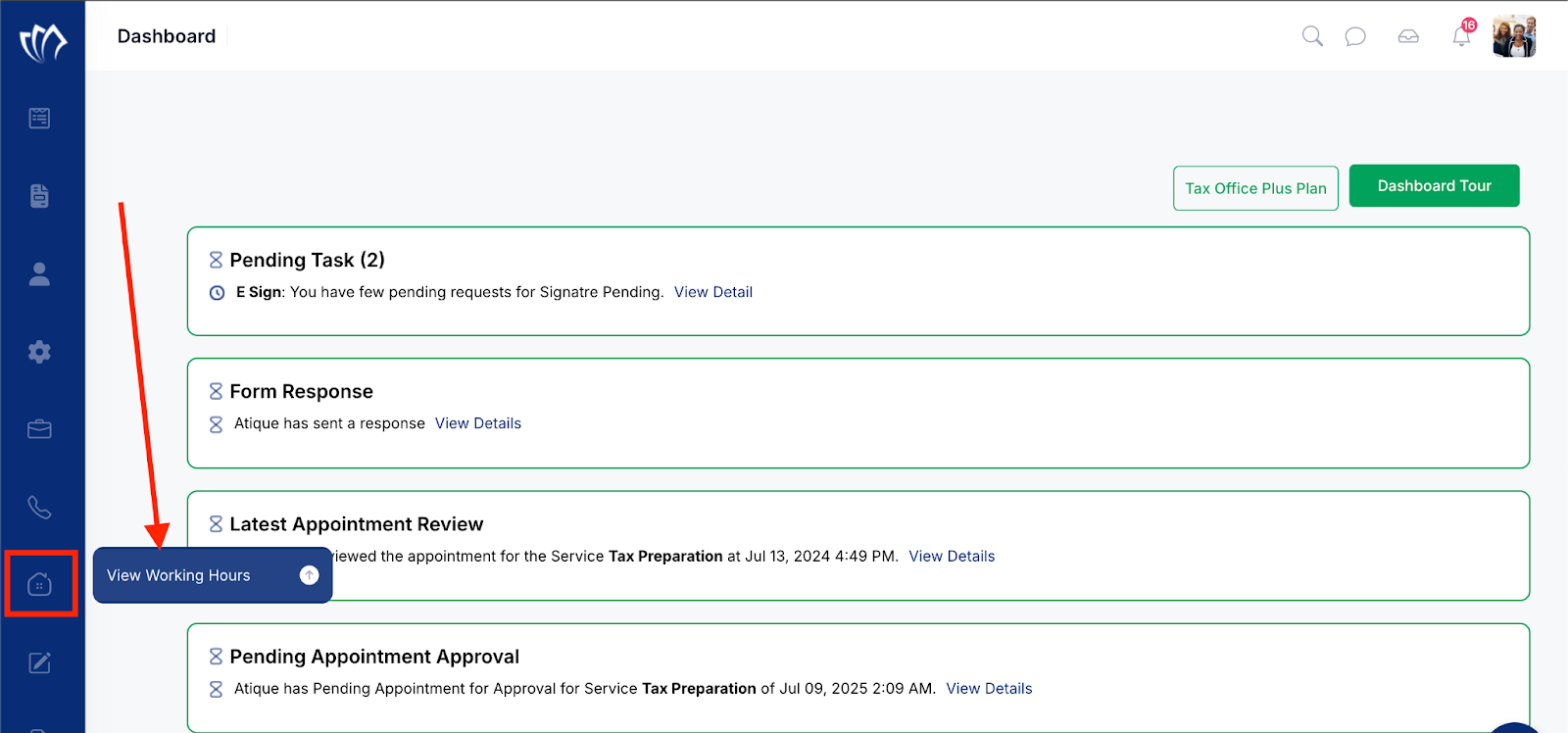
Step 1: Navigate to the left side panel, hover over the “Working Hours” section, then click on the “View Working Hours” option.
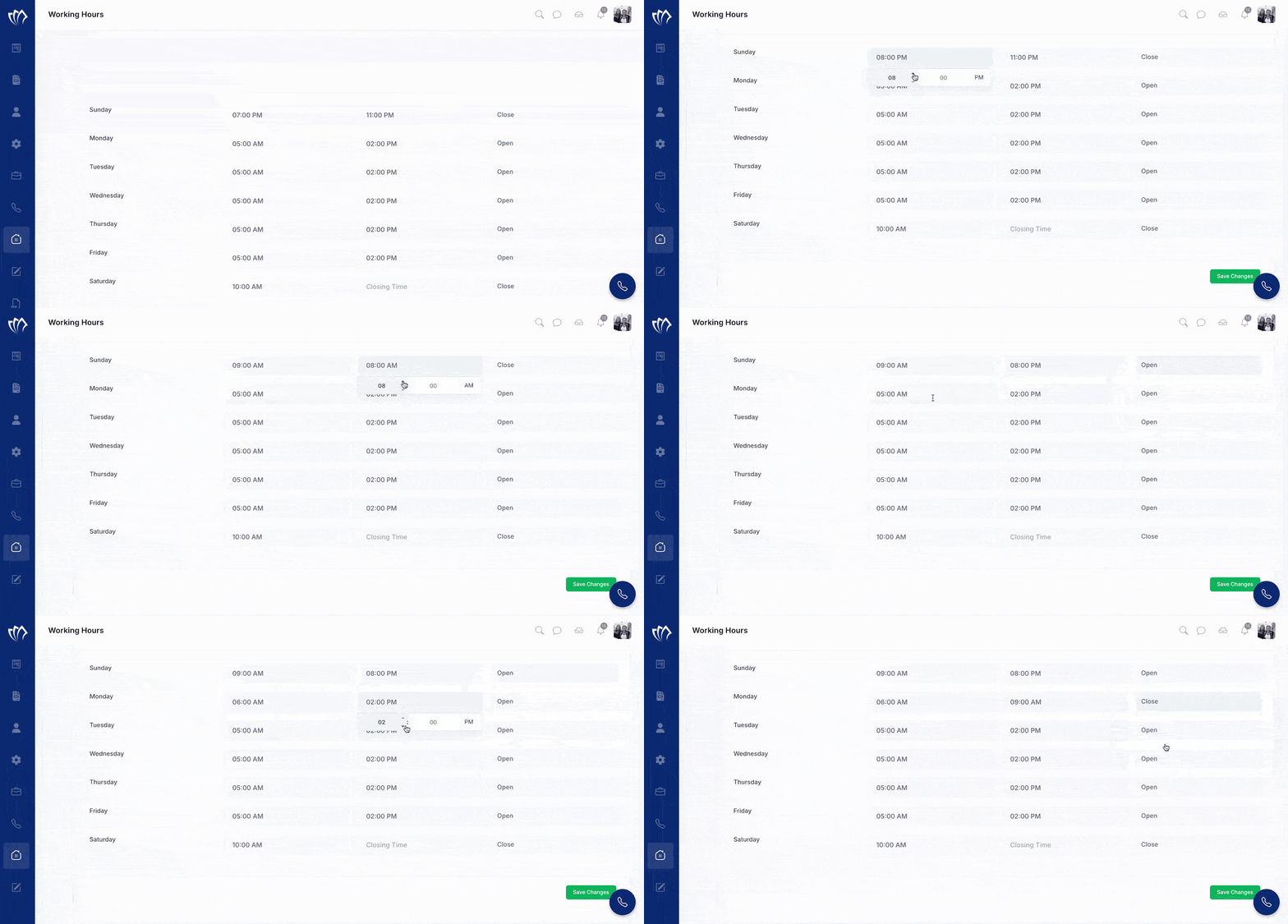
Step 2: The Working Hours screen will appear, displaying all days from Sunday to Saturday. Here, you can configure your start and end times for each day based on your business availability.
You can also set the status to “Open” if you’re available during the configured hours or “Close” if you’re not operating on that particular day. This setup helps ensure that customers can only book appointments during your actual working hours.
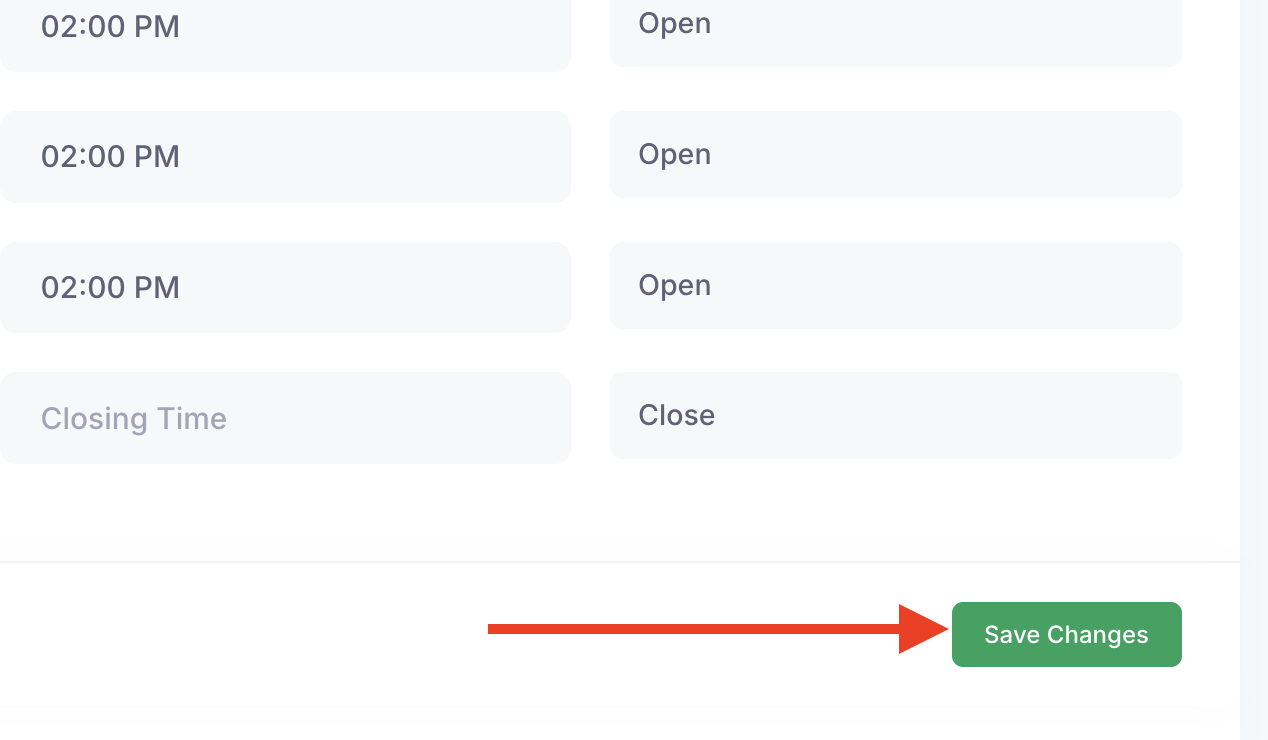
Step 3: Click the Save Changes button to apply and save your configured working hours.
Once you have successfully configured the working hours, a message will flash on the screen.